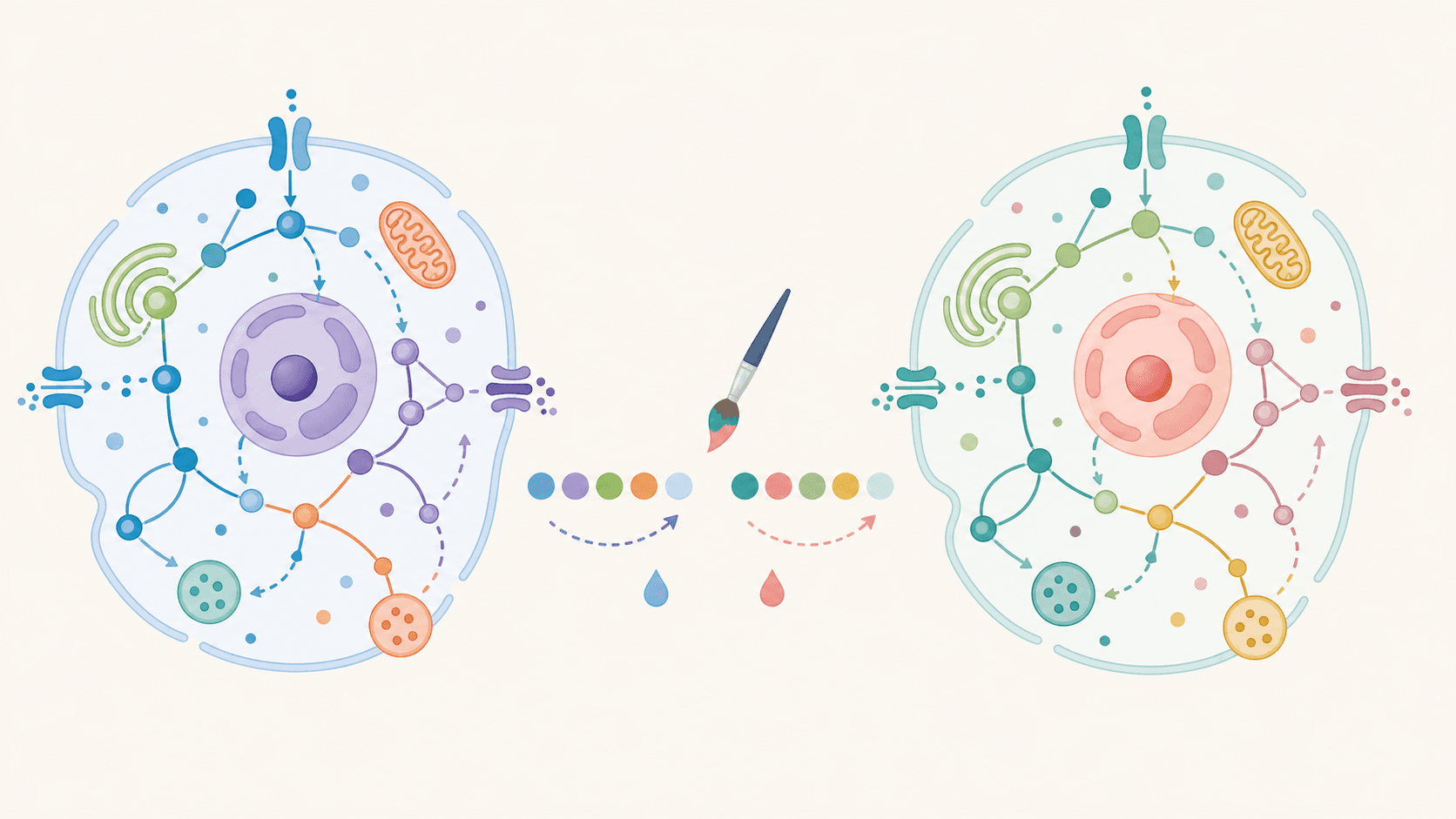
The diagram is right, but the colors aren't: the journal wants a muted palette, a reviewer flagged that the red/green coding won't read for colorblind readers, or one pathway should stand out in blue. You don't need to redraw the figure or fiddle with hex codes — just tell the AI which colors to use, and it recolors the existing figure while keeping the layout, arrows, and labels intact. This guide shows you how to recolor a scientific diagram and change figure colors with AI, including switching to a colorblind-safe scheme, all from short instructions in the editor.
By the end of this guide you'll be able to:
- Recolor a diagram online by describing the change in plain English — no color picker, no redrawing.
- Switch any figure to a colorblind-safe figure using the Okabe-Ito palette in one instruction.
- Match a journal color scheme or your lab's brand palette for publication-ready colors.
- Highlight an element (a pathway, a rate-limiting step, one cell) while leaving everything else unchanged.
- Avoid the common mistakes that make recolored figures drift, clash, or fail in grayscale.
Every change below is a short instruction in the SciDraw AI editor — your workspace for generating and refining figures. You describe intent; the AI repaints the existing figure.
Why recoloring matters for figures
Color carries meaning in scientific figures — it groups, highlights, and encodes. The wrong palette can break accessibility (red/green confusion affects roughly 8% of men and 0.5% of women), clash with a journal's house style, or bury your key result under a distracting hue. Recoloring is one of the most common figure edits in peer review and resubmission, and with an AI-native tool it's a single sentence, not a session in a design app.
There are three jobs recoloring usually does:
- Accessibility — make the figure readable for colorblind viewers, in grayscale print, and on a projector.
- Conformance — match a journal color scheme, a lab brand, or a slide-deck theme for a consistent look.
- Emphasis — draw the eye to the result that matters by recoloring one element and muting the rest.
The technique is the same for all three: name the target, name the color, and say what to keep.
The core technique: name the target and the color
Be specific about which element changes, which color it becomes, and what stays the same. Vague prompts recolor the wrong thing or quietly shift the whole figure.
- ❌ Vague: "change the colors"
- ✅ Targeted: "Recolor the apoptosis pathway in red and the survival pathway in blue; keep the layout, arrows, and labels exactly the same."
Open your figure in the editor and type the instruction. If the result isn't quite right, refine it — "make the blue softer" — instead of starting over.
Template: "Recolor [element] to [color or named palette]. Keep the layout, labels, and arrows unchanged."
Copy-paste recolor prompts
These cover the edits you'll reach for most. Paste one into the editor, then tweak the element name or color to fit your figure.
Switch to a colorblind-safe palette
The fastest accessibility win — ask for a named, vetted palette rather than guessing hex codes.
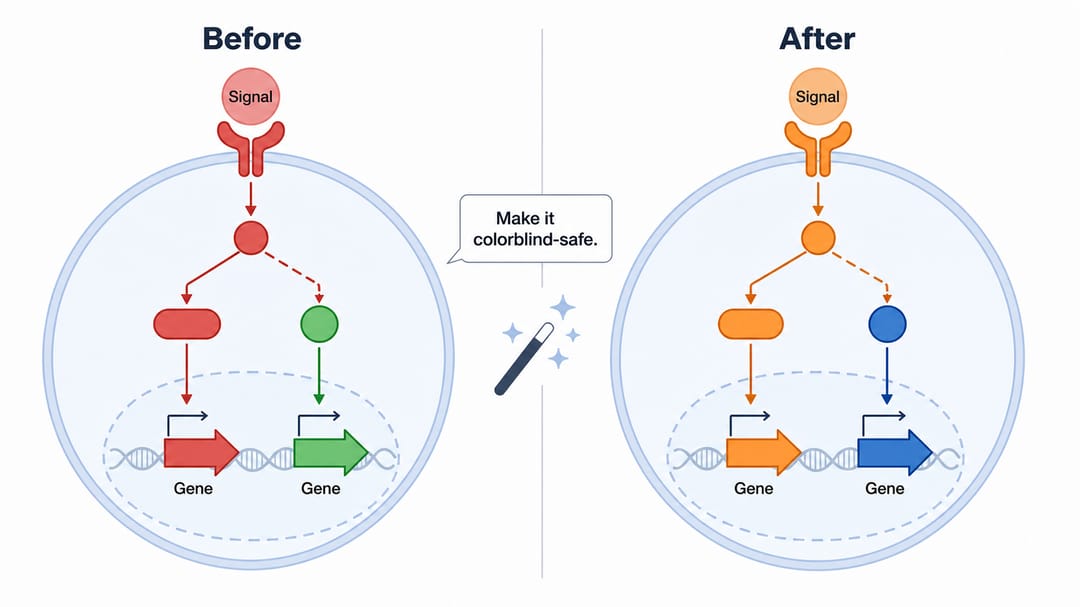
- "Recolor this figure using a colorblind-safe palette (Okabe-Ito), keeping the same structure and labels."
- "Replace the red/green coding with blue/orange so it's readable for colorblind viewers."
- "Apply the Okabe-Ito palette and assign distinct hues to each group; avoid red next to green."
- "Make this a colorblind-safe figure for deuteranopia and protanopia; use blue, orange, and gray."
Match a journal or brand palette
Recolor for publication-ready colors that fit the venue or your lab identity.
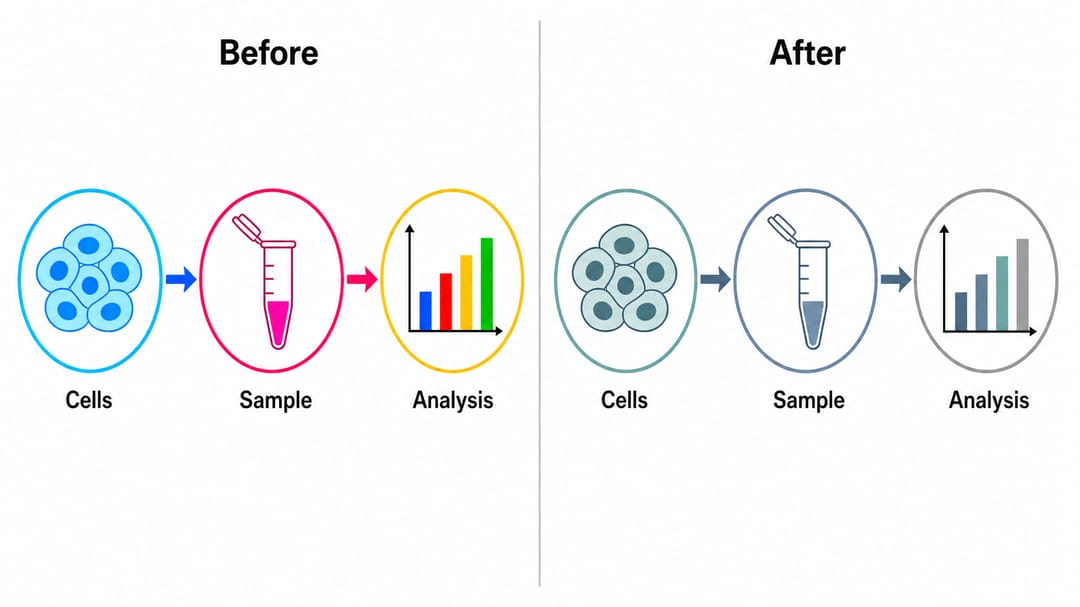
- "Recolor to a muted, publication-ready palette suitable for a Nature-style figure."
- "Use a clean blue-and-gray journal color scheme throughout, with a white background."
- "Match our lab brand: primary #1F77B4, accent #FF7F0E, neutral gray for everything else."
- "Desaturate the whole figure into soft, print-friendly tones; keep the highlight color vivid."
Recolor a specific element (highlight)
Highlight an element to direct attention, or restyle a single part without touching the rest.
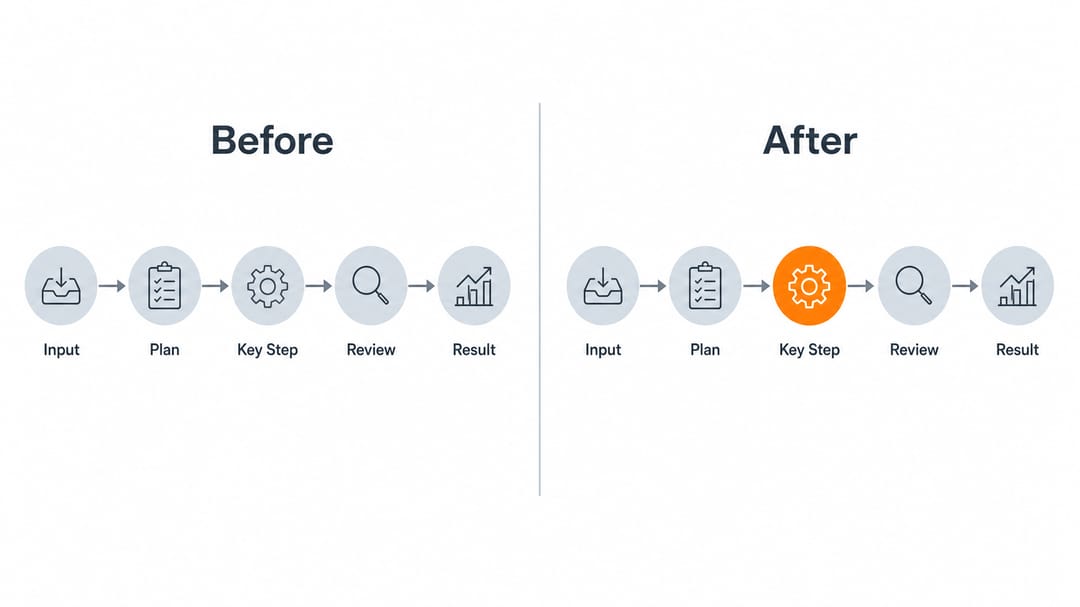
- "Make the cell membrane teal and leave everything else unchanged."
- "Highlight the rate-limiting step in orange; keep all other steps gray."
- "Recolor the 'mitochondrion' purple and dim the surrounding organelles to light gray."
- "Emphasize the treatment arm in a bold color and mute the control arm to neutral gray."
Adjust tone or contrast
Fine-tune readability without changing the color coding.
- "Make the background pure white and increase the contrast of the labels."
- "Use lighter pastel fills so the black labels stand out more."
- "Make the blue softer and less saturated; it's overpowering the rest of the figure."
- "Add a thin dark outline to each shape so the elements separate cleanly in print."
Encode groups by color
Keep color meaning consistent across panels and figures.
- "Color the three experimental groups blue, orange, and green consistently across all panels."
- "Use the same color for 'Group A' everywhere it appears in this figure."
- "Assign one hue per pathway and add a small color legend at the bottom right."
- "Map dose levels to a single-hue gradient from light to dark blue."
Tips for clean results
- Name the element in quotes ("recolor the 'mitochondrion'") so the AI targets the right part instead of repainting the whole figure.
- Say what stays — "keep the layout, labels, and arrows the same" — to prevent drift while the colors change.
- Ask for a named palette (Okabe-Ito, viridis-like, "muted journal") rather than listing a dozen hex codes; it's more reliable and easier to iterate on.
- Pair color with a second cue. For true accessibility and grayscale print, ask the AI to "also distinguish the groups with line styles, fill patterns, or labels" so meaning survives even when color is removed.
- Recolor in stages. Set the base palette first, then add the highlight, then fix contrast — small steps are easier to control than one giant instruction.
- Iterate, don't restart. If a color is too strong, say "make the blue softer"; if the wrong thing changed, say "undo that and only recolor the membrane."
- Test it in grayscale. Ask "show this in grayscale" (or check it yourself) to confirm the figure still reads when printed in black and white.
Common mistakes (and how to fix them)
- The whole figure changed, not just one part. Fix: name the exact element in quotes and add "leave everything else unchanged."
- Layout or labels shifted during recolor. Fix: always include "keep the layout, labels, and arrows the same"; if it still drifts, recolor one element at a time.
- "Colorblind-safe" but still red/green. Fix: name the palette ("Okabe-Ito") and explicitly say "do not place red next to green."
- Colors look fine on screen but vanish in grayscale. Fix: pair color with patterns or labels, and verify in grayscale before exporting.
- Palette clashes with the journal. Fix: ask for a "muted, publication-ready" or "Nature-style" scheme, or supply the journal's exact brand hex values.
- Highlight is lost because everything is colorful. Fix: mute the rest ("make all other steps gray") so the highlight has room to stand out.
Export and use your recolored figure
Once the colors are right, export the figure to editable SVG or PowerPoint (PPTX), or download a high-resolution image for your manuscript, slides, or poster. Because the file is vector, you (or a co-author) can still nudge a color downstream if a journal requests it.
To go deeper on color choices, see our guides on scientific color palettes for research papers and the colorblind-safe Okabe-Ito reference. If a recolor also needs a wording change, see how to edit text and labels in an AI figure.
Frequently asked questions
How do I recolor a scientific diagram with AI? Open the figure in the SciDraw AI editor and type an instruction like "recolor the apoptosis pathway in red, keep the layout and labels." The AI repaints the existing figure — no color picker, no redrawing, no hex codes required.
How do I make a colorblind-safe figure? Ask the AI to "recolor using a colorblind-safe palette (Okabe-Ito)" and add "do not place red next to green." For full accessibility, also pair color with a second cue — patterns, line styles, or labels — so the figure still reads in grayscale.
What is the Okabe-Ito palette? The Okabe-Ito palette is a set of eight colors designed to stay distinguishable for the most common types of color vision deficiency. It's a safe default for scientific figures — see our Okabe-Ito reference for the exact colors and when to use them.
Can I match a specific journal color scheme? Yes. Ask for a "muted, Nature-style palette," request a "blue-and-gray journal color scheme," or paste the journal's or your lab's exact brand hex values and the AI will apply them across the figure for publication-ready colors.
Can I recolor just one element and leave the rest alone? Yes — name the element in quotes and add "leave everything else unchanged," for example "make the cell membrane teal and keep everything else the same." To highlight it, also mute the surrounding elements to gray.
Start creating
You don't need a design app to change figure colors with AI. Open your figure in the SciDraw AI editor and ask for a colorblind-safe, journal-ready, or highlighted palette — the AI recolors it for you in seconds, layout and labels intact.