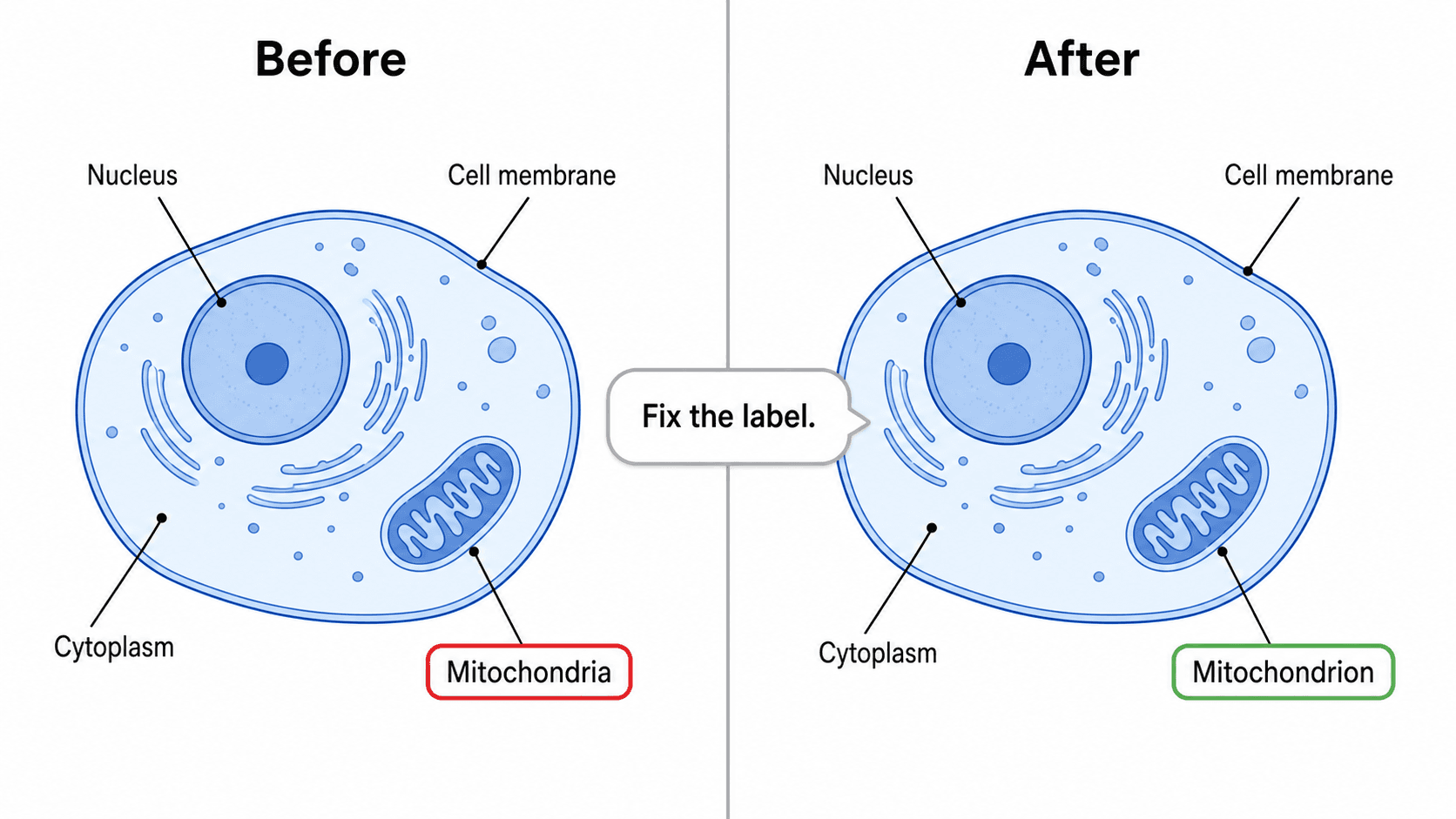
You generated a great scientific figure, but one label has a typo, another should read "Golgi apparatus" instead of "Golgi body", a units label is wrong, and the caption is in the wrong language. Do you have to start over? No. With an AI-native figure tool you simply tell the AI what to change, and it edits the existing image in place — keeping every other element exactly as it was. This guide shows you how to edit text in an AI figure and edit labels in a scientific figure without redrawing, without design software, and without touching a single anchor point.
By the end of this guide you'll be able to:
- Change text in an AI image and fix a typo in a figure with a single short instruction.
- Rename a label, add a label to a diagram, remove stray text, or change a value or unit — all by describing the change.
- Edit scientific figure text and translate captions while keeping the layout, colors, and arrows intact.
- Change text without redrawing the figure, so you never lose work you already like.
Every edit below is made by typing one sentence into the SciDraw AI editor — the AI figure editor where your image is the canvas and language is the tool.
Why text is the most common edit
Text is the single most common change researchers make to a generated figure: fixing a misspelled gene name, renaming a structure, adding a missing annotation, correcting a value, or switching languages. It is also where generic image generators struggle most, because they treat letters as shapes and produce garbled labels. The fix is not a manual text box and a font menu — it is a clear instruction to an AI that understands the figure as a labeled diagram. When you edit diagram labels online this way, you stay in the flow of your science instead of fighting with selection handles.
The core technique: describe the exact change
The whole skill is being specific about what changes and what stays the same. Instead of regenerating the figure (and risking everything shifting), you give one targeted edit:
- ❌ Vague: "make the labels better"
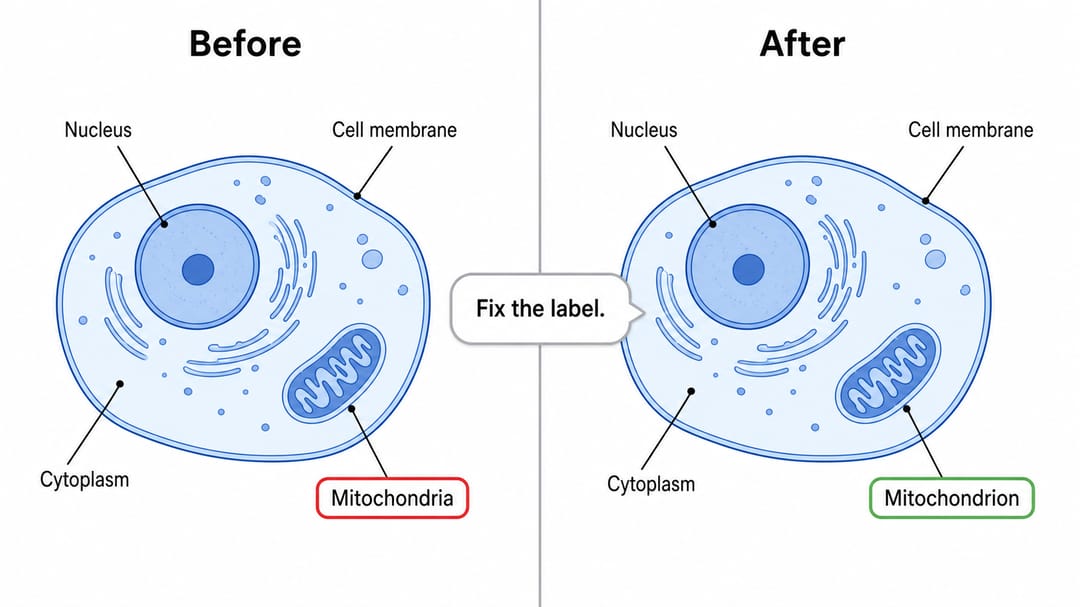
- ✅ Targeted: "Change the label 'Mitochondria' to 'Mitochondrion' and keep everything else exactly the same."
Template: "[Action] the [text/label] '[exact current text]' to '[exact new text]', and keep the layout, colors, and arrows the same."
Open your figure in the editor, type the instruction, and the AI edits the image in place. Quote the current text precisely so the AI targets the right element — this is the difference between a clean fix and an accidental redraw.
Common text edits — copy these prompts
Below are ready-to-use prompts grouped by the edit you need. Swap in your own wording and run them in the AI figure editor.
Fix a typo or rename a label
- "Correct the spelling of 'Endoplasmic Reticlum' to 'Endoplasmic Reticulum'."
- "Rename the label 'Golgi body' to 'Golgi apparatus'."
- "Fix the typo 'Recetor' to 'Receptor' and leave all other text unchanged."
- "Change 'PDL1' to 'PD-L1' so the gene name is formatted correctly."
- "Replace 'celular membrane' with 'cell membrane'."
Add a missing label or annotation
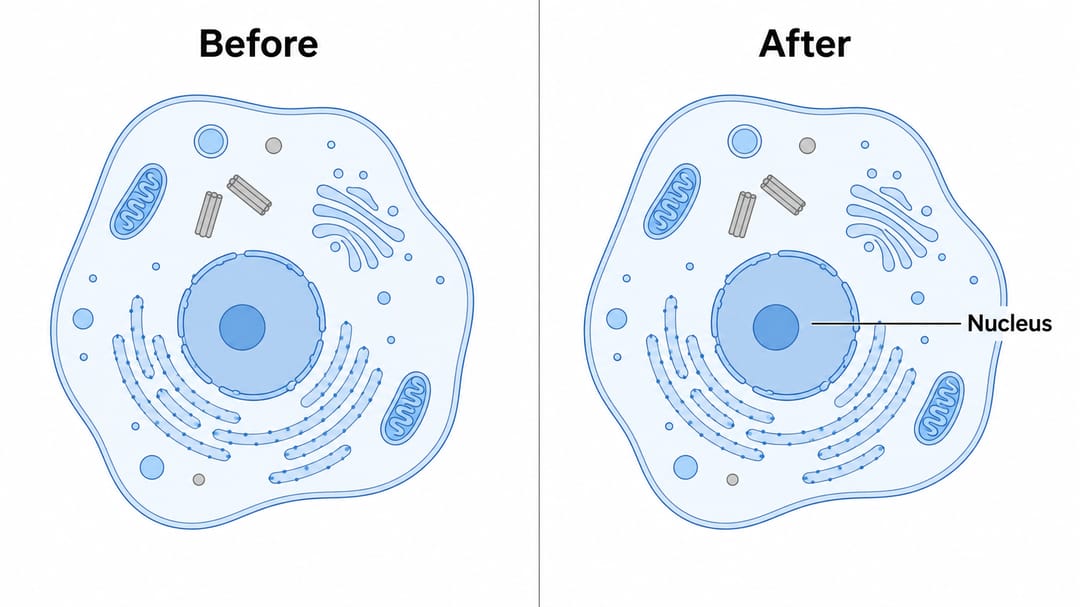
- "Add a label 'Nucleus' with a thin leader line pointing to the large central organelle."
- "Add a small caption under the diagram: 'Figure 1. Eukaryotic cell.'"
- "Add the label 'mRNA' next to the strand leaving the nucleus."
- "Add a panel letter 'A' in the top-left corner of the figure."
- "Add a scale bar labeled '10 µm' in the bottom-right corner."
Remove or clean up text
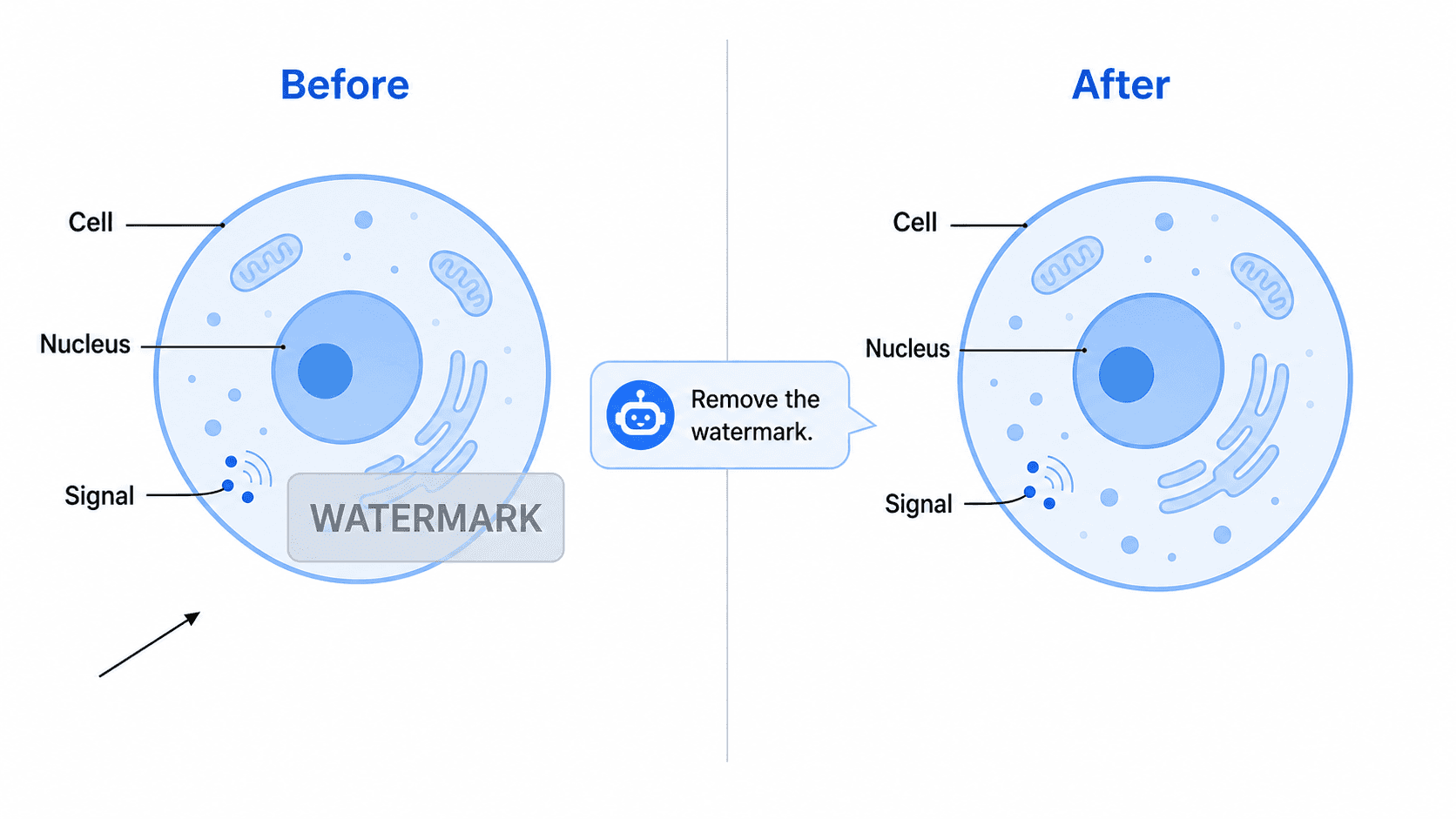
- "Remove the watermark text in the bottom-right corner."
- "Delete the title at the top so I can add my own in the manuscript."
- "Remove the legend box but keep the colored arrows."
- "Delete the duplicate 'ATP' label and keep only the one inside the mitochondrion."
Translate the labels
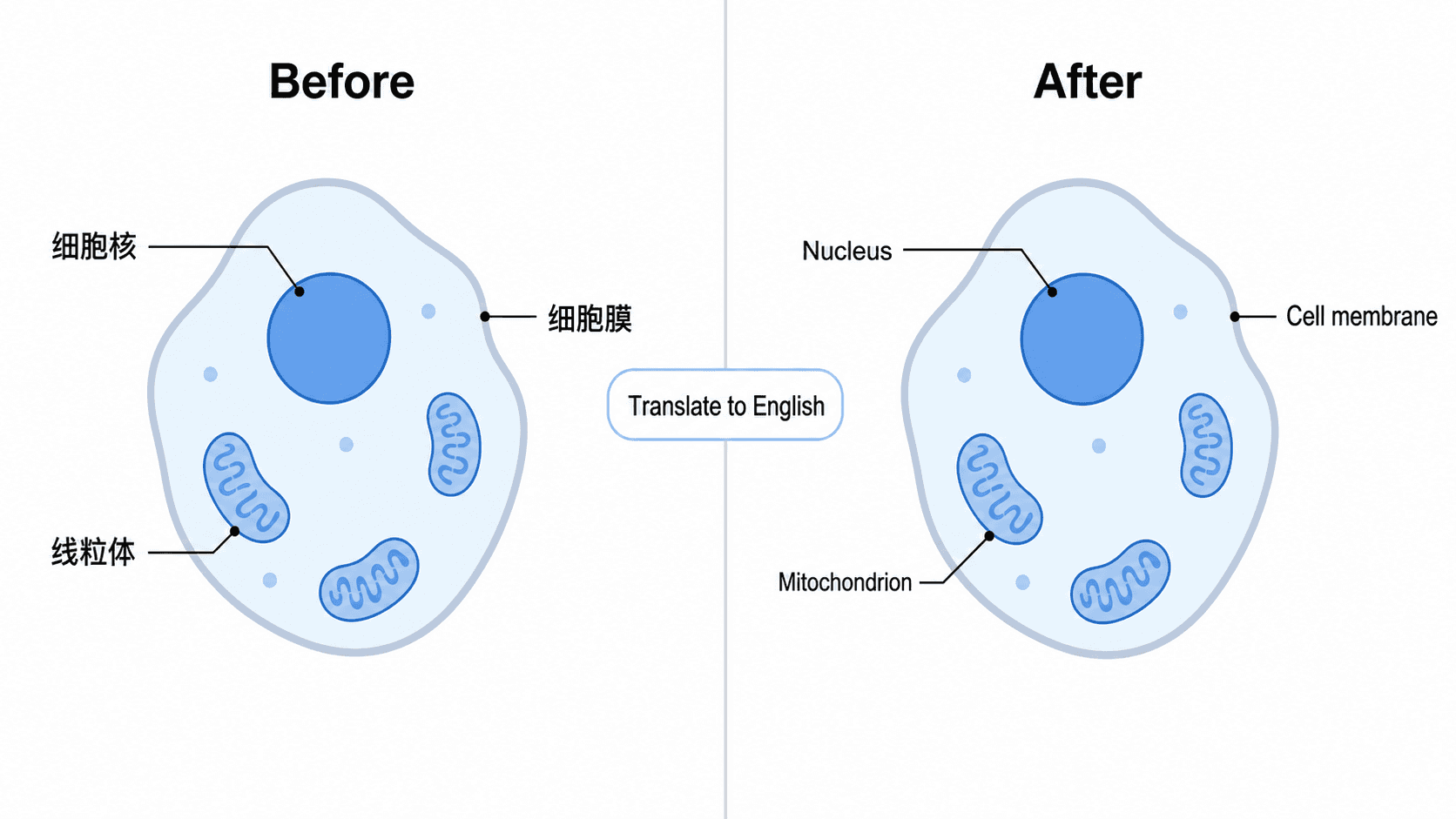
- "Translate all labels in this figure to English, keeping the layout the same."
- "把图中所有标注翻译成中文,保持排版不变。"
- "Translate the caption to Spanish but leave the gene names (TP53, KRAS) untranslated."
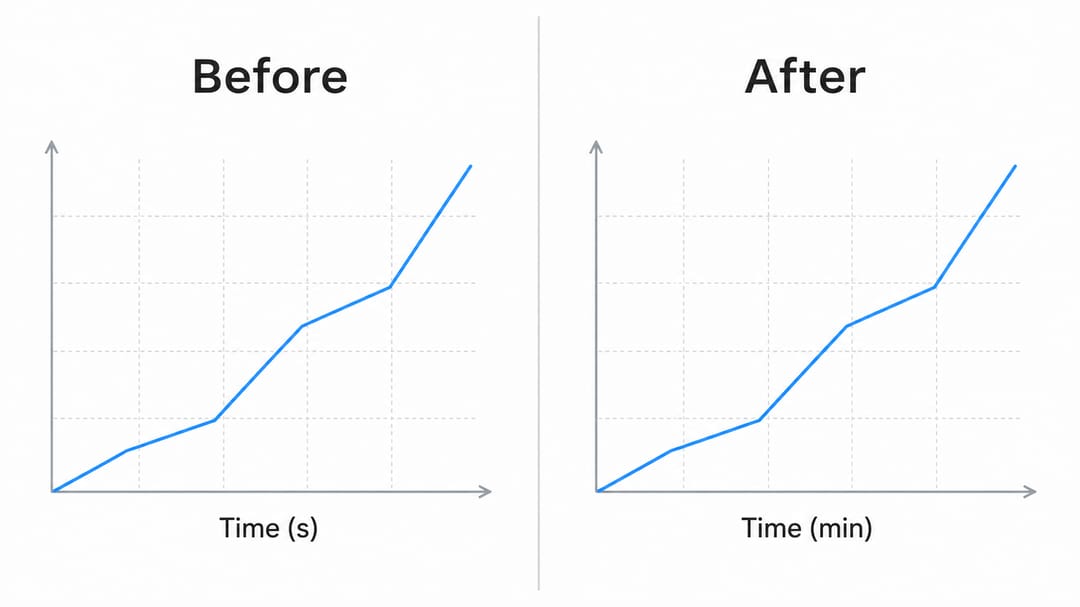
- "Switch the axis titles to German while keeping the units the same."
Restyle the text
- "Make all labels a clean sans-serif font and slightly larger."
- "Make the title bold and the labels dark gray for better contrast."
- "Increase the font size of the small labels so they're readable at print resolution."
- "Make all labels uppercase for a consistent style."
Change a value or unit
- "Change the temperature label from 55°C to 60°C in the annealing step."
- "Update the axis label from 'Time (s)' to 'Time (min)'."
- "Change the concentration label '5 mM' to '10 mM'."
- "Update 'n = 12' to 'n = 24' in the figure note."
Tips for clean results
- One change at a time works best for precision. Batch only closely related edits ("fix all three temperature labels in the PCR cycle").
- Quote the exact text in quotation marks so the AI edits the right element instead of guessing.
- Say what to preserve — "keep the colors, layout, and arrows the same" — to avoid unwanted drift when you change text without redrawing.
- Point, don't just name. "Add 'Nucleus' pointing to the central organelle" places the label where you mean it.
- Protect names you don't want translated. Tell the AI to leave gene names, units, or abbreviations untouched.
- Iterate. If the first edit isn't perfect, refine: "the new label overlaps the arrow — move it up slightly."
Common mistakes (and how to fix them)
- Vague instructions cause a full redraw. Fix: quote the exact current text and add "keep everything else the same."
- Editing too much at once. Fix: make one change, confirm it, then move to the next so you can see what each instruction did.
- The AI can't find the text you named. Fix: copy the wording exactly as it appears in the figure, including capitalization and punctuation.
- A renamed label now overlaps a neighbor. Fix: follow up with "move the 'Golgi apparatus' label up slightly so it doesn't overlap the arrow."
- Translation mangles gene names or units. Fix: explicitly exclude them ("translate the labels to French but keep TP53 and 'µm' unchanged").
- Garbled text from a generic image AI. Fix: SciDraw AI renders clean, readable labels — re-prompt with the exact wording and it will type it correctly.
Export and use your edited figure
Once the text reads exactly right, export the figure to editable SVG or PowerPoint (PPTX), or download a high-resolution image for your manuscript, slides, or poster. SVG and PPTX let collaborators tweak wording later, while the AI editor handles the fast fixes now.
Need to change colors at the same time? See how to recolor a scientific diagram (including colorblind-safe palettes). Preparing the same figure for an international audience? See how to translate figure labels into another language.
Frequently asked questions
How do I edit text in an AI-generated figure? Open the figure in the SciDraw AI editor and type a short instruction such as "change the label 'Golgi body' to 'Golgi apparatus'." The AI edits the existing image in place, so you change text without redrawing the whole figure.
How do I fix a typo in a figure without redrawing it? Quote the misspelled text and the correction — for example, "correct 'Reticlum' to 'Reticulum'" — and add "keep everything else the same." Only that label changes; the rest of the diagram stays untouched.
Can I add a label to a diagram after it's generated? Yes. Tell the AI exactly what to add and where, like "add a label 'Nucleus' with a leader line pointing to the central organelle." You can add panel letters, scale bars, captions, and annotations the same way.
How do I edit diagram labels online for free? You can start editing scientific figure text for free in the AI figure editor, then upgrade for more credits and editable SVG/PPTX export. Every edit is made by typing an instruction — no design software to install.
Can the AI rename a label or change a value without affecting the rest of the figure? Yes. Renaming a label, changing a value, or updating a unit are targeted edits. Quote the current text and the new text and the AI changes only that element, preserving the layout, colors, and arrows.
Start creating
Open any figure in the SciDraw AI editor and type your first edit — fix a typo, rename a label, add an annotation, or translate the captions. The AI does the redrawing so you don't have to, and your corrected figure is one sentence away.