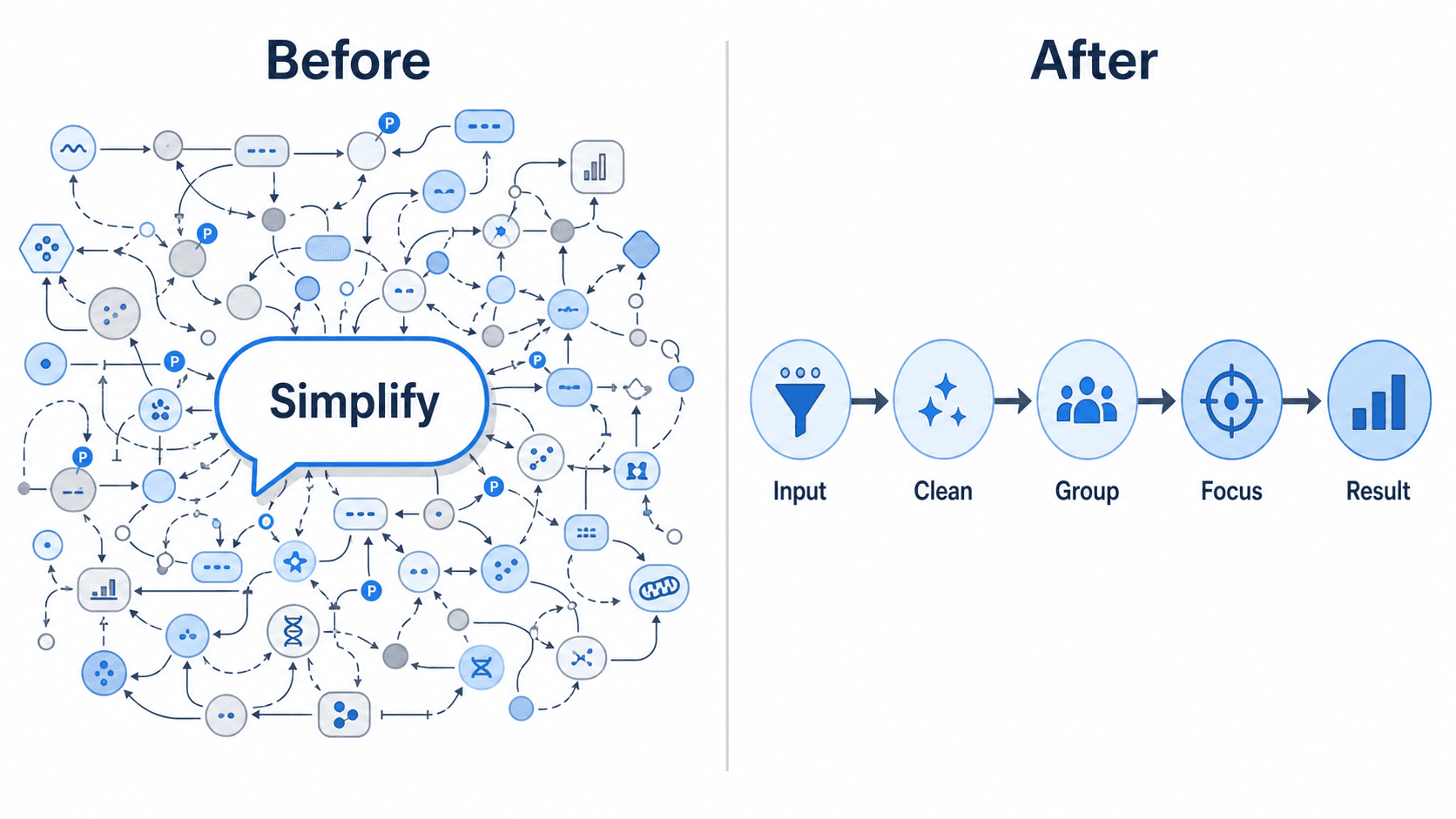
Your figure says everything — and that's exactly the problem. Too many arrows, too much text, every minor intermediate competing for attention, and the one result that matters buried in the noise. Reviewers skim past it; students in the back row can't read it. The usual fix is to rebuild a cleaner version by hand, deleting and realigning elements one at a time. With an AI-native editor you skip all of that: you tell the AI to simplify, and it pares the existing figure down while keeping the core message intact.
This guide shows you how to simplify a busy diagram with AI — how to declutter a figure, reduce detail in a diagram, and make a figure publication-ready using nothing but short, plain-English instructions. Every edit happens in the SciDraw AI editor, your simplification workspace.
By the end of this guide you'll be able to:
- Simplify a scientific figure down to its essential message with a single instruction.
- Declutter a figure by removing minor elements, reducing text, and cleaning the styling.
- Simplify a pathway to its main steps without losing the start and end points.
- Make a slide version of a figure while keeping the detailed version for your paper.
- Avoid over-simplifying — and fix it fast by adding back a key label.
Why simpler figures win
A good figure has one clear message and a visual hierarchy that leads the eye straight to it. Overloaded diagrams do the opposite: they hide the result, slow the reader down, and read as unprofessional in a manuscript or talk. A cleaner scientific figure is easier to interpret, easier to caption, and far more likely to survive peer review without a "please clarify the figure" comment.
Simplifying is one of the highest-impact edits you can make — and it's usually the cheapest. Fewer elements, less text, and calmer styling can turn a wall of arrows into a figure people actually read. With an AI-native tool, that whole transformation is a sentence away instead of an afternoon of manual rework.
The core technique: say what to keep and what to cut
The single most useful habit when you reduce detail in a diagram is to tell the AI both the priority (what must stay) and the level of detail (how far to go). Vague requests get vague results.
- ❌ Vague: "make it simpler"
- ✅ Targeted: "Simplify this pathway to the 5 main steps, remove the minor intermediates, and keep the start and end points labeled."
The second prompt works because it sets a target ("5 main steps"), names what to remove ("minor intermediates"), and protects the essentials ("keep the start and end points"). Open your figure in the editor and type the instruction — then refine in passes rather than chasing the perfect single prompt.
Copy-paste prompts to declutter a figure
Below are prompt groups you can paste directly into the editor and adapt to your figure. Mix and match — most clean-ups combine two or three of these.
Reduce the number of elements
- "Simplify to the main components only; remove the minor sub-steps."
- "Keep the three key pathways and merge the smaller branches into one."
- "Collapse the four feedback loops into a single labeled arrow."
- "Show only the rate-limiting steps; drop the secondary reactions."
Cut down the text in the figure
- "Shorten all labels to one or two words and move the detail into the caption."
- "Keep only the essential labels; remove the descriptive sentences inside the diagram."
- "Reduce text in this figure — delete the inline explanations and keep just the node names."
- "Replace the long enzyme names with their standard abbreviations."
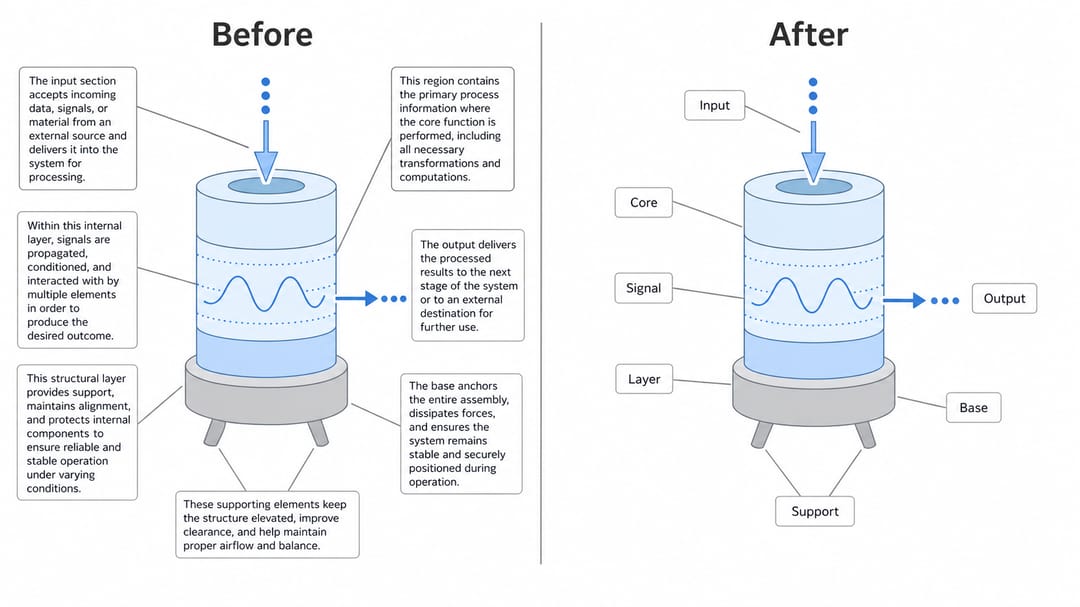
Clean the styling
- "Make it a clean, flat, publication-ready schematic with a white background."
- "Reduce visual noise: thinner arrows, fewer colors, and more white space."
- "Use a single accent color and grey for everything else."
- "Align the boxes to a grid and even out the spacing."
Make a summary or slide version
- "Make a simplified overview version of this figure suitable for a slide."
- "Condense this multi-panel figure into a single clear schematic."
- "Create a slide version with larger text and only the top-level steps."
- "Turn this into a one-glance summary a non-specialist could follow."
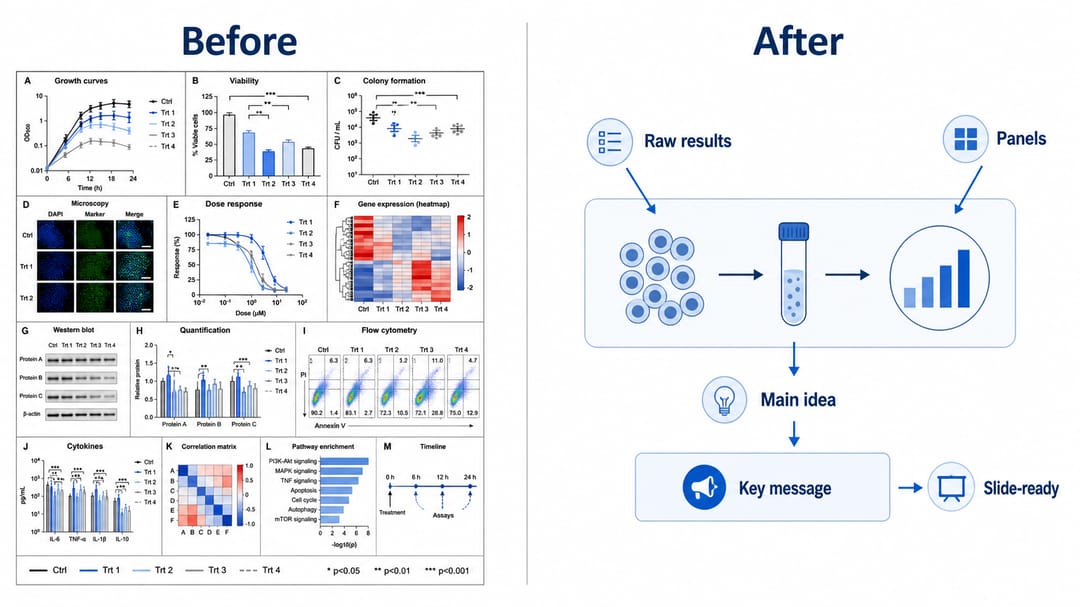
Improve the visual hierarchy
- "Emphasize the main result and de-emphasize the supporting details."
- "Group related elements and add more spacing between sections."
- "Make the primary pathway bold and fade the alternative routes."
- "Reorder the steps into a clear left-to-right flow."
Tips for clean results
- Set the target level. Tell the AI how far to go — "5 main steps", "one- or two-word labels", "a single accent color" — so it doesn't under- or over-simplify.
- Protect the essentials. Name what must survive: "keep the start, the end, and the key enzyme labeled." This is the easiest insurance against losing the message.
- Iterate in passes. Simplify, look at the result, then say "simplify a bit more" or "now reduce the text too." Small steps beat one giant instruction and let you stop at the right amount.
- Make a copy for slides. Ask for a simplified slide version while keeping the detailed figure for the paper — you get two deliverables from one source instead of maintaining two files by hand.
- Decide the medium first. A figure for print can carry more detail than a figure projected in a lecture hall; tell the AI which one you're making.
- Pair it with other edits. Combine simplification with recoloring and label edits for a fully polished final figure.
Common mistakes (and how to fix them)
- Over-simplifying. The figure loses a step or label you actually needed. Fix: add it back with one instruction — "add back the ATP label and the second phosphorylation step" — instead of starting over.
- Cutting the wrong elements. The AI removes something load-bearing. Fix: be explicit next time — "remove the minor intermediates but keep all the enzymes."
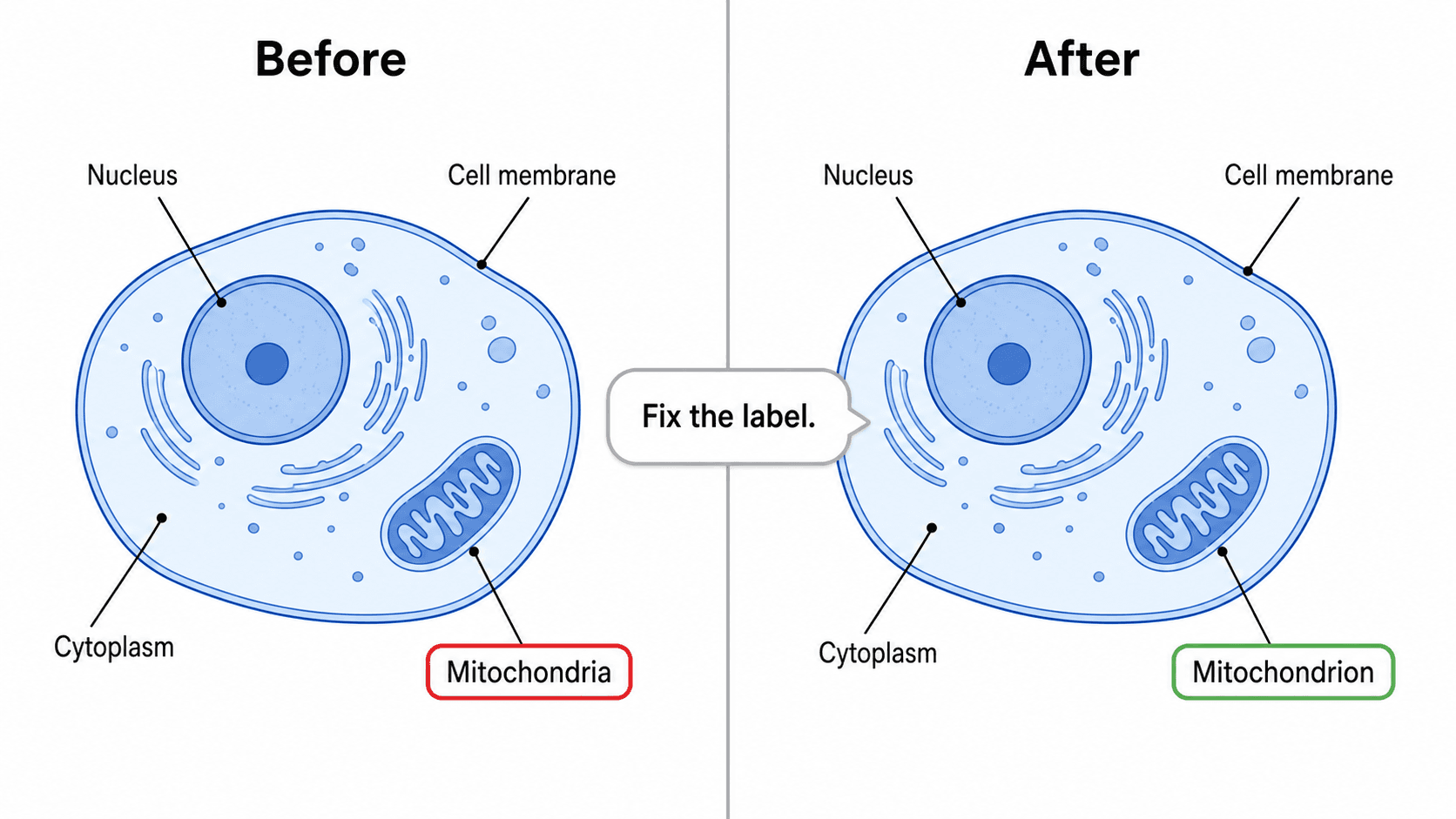
- Stripping too much text. Labels become unreadable abbreviations. Fix: "expand the abbreviations back to full names for the three main nodes."
- Inconsistent styling after edits. Mixed arrow weights or colors creep in. Fix: "unify all arrows to the same thin style and use one accent color."
- One-shot rewriting. Trying to fix everything in a single prompt. Fix: simplify in passes and review between each step.
Export and use your simplified figure
Once the figure reads cleanly, export it to editable SVG or PowerPoint (PPTX), or download a high-resolution image for your manuscript, slides, or poster. Because the source stays editable, you can keep both versions — the detailed figure for the paper and the slide version for your talk.
Want a colorblind-safe palette for the cleaned-up version? See how to recolor a scientific diagram. Need to fix or translate a label after simplifying? See how to edit text and labels in an AI figure.
Why this beats manual rework
Because the figure is AI-native, you describe the level of abstraction you want instead of deleting and rearranging elements one by one. Decluttering, reducing text, recoloring, and making a slide version are all the same one-sentence motion in the editor — and every version stays editable, so nothing you cut is gone for good.
Frequently asked questions
How do I simplify a busy diagram with AI? Open the figure in the SciDraw AI editor and tell the AI what to keep and what to cut — for example, "simplify this pathway to the 5 main steps and remove the minor intermediates." It pares the existing figure down while preserving the core message, and you refine it in passes.
How can I reduce the amount of text in a figure? Ask the AI to "shorten all labels to one or two words and move the detail into the caption," or "remove the descriptive sentences inside the diagram." For long technical names, request standard abbreviations to keep the figure readable.
Can I make a slide version of a detailed figure? Yes. Ask for "a simplified slide version with larger text and only the top-level steps." The AI keeps your detailed figure intact and produces a separate, presentation-friendly version from the same source.
What if the AI over-simplifies and removes something I needed? Add it back with a single instruction — "add back the X label and the second step" — rather than starting over. Iterating in passes makes it easy to land on exactly the right level of detail.
Will simplifying make my figure publication-ready? Reducing clutter, cutting in-figure text, and cleaning the styling are the core moves that make a figure publication-ready. Always review the science for your specific system and pair simplification with recoloring and label edits for a fully polished result.
Start creating
Open your busy figure in the SciDraw AI editor and ask it to simplify to the essentials. Declutter the layout, reduce the text, and spin off a clean slide version — all in plain English, all in one place. Your next publication-ready figure is one sentence away.