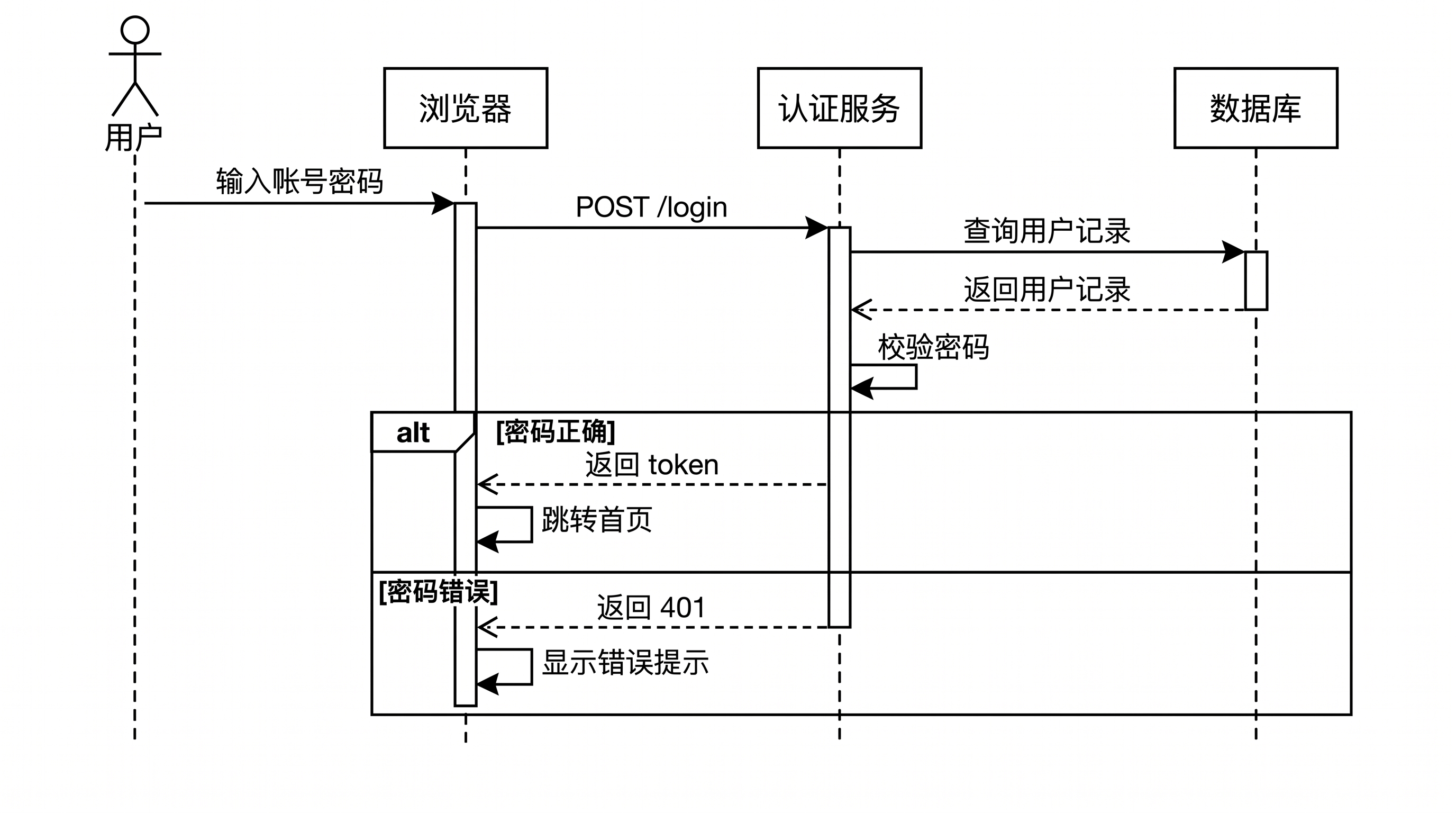
Sequence Diagram Generator
UML sequence diagrams from a written call flow
Write the steps of an interaction in order, such as a login, a checkout or an API call chain. SciDraw AI draws the participants, lifelines, activation bars, calls and dashed return messages, and wraps alternatives and loops in labeled fragments.
Sequence Diagram Examples
Click an example to load its description.
What does this sequence diagram generator do?
It draws a UML sequence diagram from a step-by-step description of an interaction. Participants are placed left to right in the order you mention them, every message becomes an arrow in the order you wrote it, returns are dashed, and conditions such as "if the password is wrong" become alt or opt fragments. Use it for software design documents, API documentation, thesis design chapters and course assignments.
Why sequence diagrams help
- They show the order of calls between components, which is hard to follow in prose or code.
- Drawing one exposes missing error paths, extra round trips and unclear responsibilities.
- Design documents and theses commonly use one sequence diagram per key use case.
How to draw a sequence diagram
Pick one scenario, such as "user logs in", not the whole system. List the participants that take part, from the user or client on the left to the deepest service or database on the right. Then write each message in order as "A calls B with x" and, where it matters, "B returns y to A". Mark alternatives with "if … otherwise …" and repetitions with "for each …". Keep each diagram to about ten to fifteen messages; split longer flows into several diagrams.
Elements of a sequence diagram
- Participant: an actor (stick figure) or an object or service (box) at the top.
- Lifeline: the dashed vertical line below each participant; time runs downward.
- Activation bar: a thin rectangle on the lifeline while that participant is handling a call.
- Message: a solid arrow with a filled head for a call; a dashed arrow for a return.
- Combined fragment: a labeled frame such as alt, opt or loop, with the condition in square brackets.
Frequently Asked Questions
What should I include in the description?
The participants, then every message in order with its sender and receiver, for example "Order Service calls Payment Service charge(amount)". Add return messages you want to show and the conditions for any alternative paths. The generator draws only what you list.
Can it draw alt, opt and loop fragments?
Yes. Describe the condition in words, such as "if the password is wrong, return 401" or "for each item, reserve stock", and the generator wraps those messages in an alt, opt or loop frame with the guard in square brackets.
Is it a system sequence diagram or a detailed design diagram?
Either. For a system sequence diagram, use the actor and "System" as the only two participants. For a design-level diagram, list the internal components or services. The level of detail follows your description.
Is the generated diagram always correct?
It follows the order of your description closely, but check the message order and arrow directions before you publish. If one step is wrong, regenerate or refine it in the editor.
Can I edit the diagram afterwards?
Yes. Download it as a high-resolution PNG, or open it in the editor to keep refining it. From the editor you can convert it to an SVG vector file (10–15 credits), a PowerPoint PPTX file (10 credits) or a Visio file (20 credits).
How many credits does it cost?
Each diagram uses 5 credits at 2K. A free account gets 10 credits at sign-up and 5 more every day; paid plans and credit packs add more. See the pricing page for current plans.
Explore More Tools
Draw your sequence diagram now
Write the call flow in plain language and get a clean UML sequence diagram.