Adobe Illustrator is the industry gold standard for vector graphics — but at $57.99/month (as part of Creative Cloud), it's a steep investment for researchers and graduate students who need clean, publication-ready figures without a design budget. Plenty of alternatives exist, and some are genuinely better suited to scientific work.
In this guide, you'll learn:
- What to look for in a scientific figure tool (vector output, journal specs, collaboration)
- Honest pros, cons, and best-fit scenarios for 7 leading alternatives
- A side-by-side comparison table to pick the right tool in 60 seconds
- How AI-powered tools like SciDraw AI change the equation for researchers with limited design time
What Makes a Tool "Good Enough" for Journal Figures?
Before comparing tools, it helps to know what journals actually require:
- Vector output (SVG, PDF, EPS, AI): Figures must not pixelate when printed at 300–600 dpi. Bitmap exports (PNG/JPEG) are only acceptable for photographic data panels.
- CMYK color support: Many print journals require CMYK color profiles. RGB-only tools can cause unexpected color shifts.
- Font embedding: Fonts must be embedded or outlined so the production team can't accidentally reflow your text.
- Editable layers: Reviewers often request "minor revisions" — having layered, labeled source files saves hours.
- Collaboration: Multi-author labs need version control or at minimum shareable project files.
Keep these criteria in mind as you evaluate each option below.
 The core technical criteria every journal-ready figure tool must satisfy.
The 7 Best Alternatives to Adobe Illustrator for Scientific Figures
1. Inkscape (Free, Open-Source)
Best for: Budget-conscious researchers who need full vector power and don't mind a learning curve.
Inkscape is the closest free equivalent to Illustrator. It produces SVG natively and exports to PDF, EPS, and PNG. For scientific figures it handles multi-panel layouts, vector diagrams, and flow charts very well.
Pros:
- Completely free, no subscription
- Full SVG editing — every node, path, and gradient accessible
- Extension ecosystem (e.g., UniConvertor for EPS, scientific plot import)
- CMYK color management via ICC profiles (not native but achievable)
- Runs on Windows, macOS, Linux
Cons:
- UI is dated and less intuitive than Illustrator or Affinity
- No native cloud storage or real-time collaboration
- CMYK workflow requires extra steps; not truly native
- Performance slows on complex files with many objects
Verdict: If you need a free, capable vector editor for figures you build from scratch, Inkscape is hard to beat. Expect a few hours of learning investment.
2. Affinity Designer 2 (One-Time Purchase, ~$69.99)
Best for: Researchers who want a polished Illustrator-like experience without a recurring subscription.
Affinity Designer 2 is a professional-grade vector and raster editor from Serif. It introduced native CMYK support and PDF/EPS export — making it genuinely print-ready for journal submission.
Pros:
- One-time purchase (no subscription)
- Native CMYK and ICC profile support
- Excellent PDF export with embedded fonts
- Fast, modern UI that mimics Illustrator's workflow
- Studio Link: switch between vector, raster, and layout modes in one app
Cons:
- No cloud collaboration (though version 2 added basic cloud sync)
- Smaller community and fewer scientific-specific tutorials than Illustrator
- iPad version powerful but lacks some desktop features
- Windows/macOS only (no Linux)
Verdict: The best "pay once" alternative for researchers who do serious manual figure work. The CMYK and PDF output quality matches Illustrator for most journal workflows.
3. Figma (Free tier / $15 per editor/month)
Best for: Collaborative lab groups who need shared access and real-time co-editing.
Figma is primarily a UI/product design tool, but many researchers use it for scientific figures because of its excellent collaboration features. A PI and multiple students can work on the same figure simultaneously.
Pros:
- Real-time collaboration — multiple editors, comments, version history
- Browser-based; no install required
- Component system great for reusing icons, arrows, and figure elements
- Free tier allows unlimited projects for students
- Large library of free community components (molecular biology icons, lab equipment, etc.)
Cons:
- SVG/PDF export can sometimes flatten nested groups unexpectedly
- No native CMYK; exports are RGB — color shift risk for print journals
- Raster image handling is less precise than Illustrator
- Offline mode limited
Verdict: Excellent for collaborative lab groups and graphical abstracts. Watch out for CMYK requirements if submitting to print journals.
4. Canva Pro (Free tier / $14.99/month)
Best for: Quick posters, conference slides, and graphical abstracts that don't require deep vector editing.
Canva is template-driven and extremely beginner-friendly. It's not a true vector editor — you can place SVGs but not fully edit paths — but for compositing figures from icons and images, it's fast.
Pros:
- Vast library of templates and scientific icons
- No design experience needed
- Web-based; accessible on any device
- Brand kits useful for consistent lab color palettes
Cons:
- Limited path-level vector editing
- Exported PDF quality can be inconsistent for high-resolution print
- Not designed for scientific data figures (no axis/chart editing)
- CMYK not supported
Verdict: Good for posters and graphical abstracts with a template approach. Not suitable for data-driven figures or journals requiring editable vector source files.
5. BioRender (Free tier / $35–99/month)
Best for: Life sciences researchers who need pre-made, scientifically accurate biological icons.
BioRender is the most popular domain-specific tool for biology and life sciences figures. Its icon library covers cell biology, biochemistry, immunology, neuroscience, and more — all drawn to scientific standards.
Pros:
- 50,000+ peer-reviewed scientific icons (cells, proteins, lab equipment, organisms)
- Drag-and-drop figure composition; no design skills needed
- Journal-quality PNG and PDF export
- BioRender Publication License covers journal submission rights
- Templates for common figure types (signaling pathways, experimental workflows)
Cons:
- Expensive for individual researchers ($35–99/month)
- Limited to life sciences icons — not useful for physics, chemistry structure diagrams, or engineering figures
- SVG export requires paid plan; free tier adds a watermark
- Less flexible than a true vector editor for custom layouts
Verdict: Worth every cent for biology/life science researchers who create pathway diagrams and experimental workflow figures. Poor value for other disciplines.
6. Vectr (Free)
Best for: Simple diagrams and researchers who just need occasional lightweight vector editing.
Vectr is a free, browser-based vector editor. It's not as powerful as Inkscape or Affinity but has a clean, minimal UI that takes minutes to learn.
Pros:
- Free, no install required
- Simple and fast for basic shapes, arrows, and text
- Real-time collaboration on a shared link
Cons:
- Limited toolset — no pen tool nuance, limited path editing
- SVG export only; no EPS/PDF with embedded fonts
- Not suitable for complex multi-panel figures
Verdict: Useful for a quick simple diagram but not for submission-quality scientific figures.
7. SciDraw AI (Free tier / credits-based)
Best for: Researchers who need publication-ready scientific figures from a text prompt — without any manual drawing.
SciDraw AI takes a fundamentally different approach: instead of editing paths and nodes yourself, you describe what you want and the AI generates the figure. This is transformative for researchers who lack design time or skills.
Using SciDraw AI's scientific figure maker, you can generate multi-panel diagrams, experimental workflow schematics, anatomical illustrations, and data visualizations from a plain-language prompt. The vectorize image tool can also convert raster images (photographs, screenshots of microscopy data) into clean vector graphics ready for journal submission. For graphical abstracts specifically, the graphical abstract maker is optimized to meet the aspect ratio and style requirements of major publishers.
Pros:
- No design skills required — text prompt to figure in seconds
- Generates vector-compatible outputs suitable for journal submission
- AI understands scientific context (cell biology, chemistry, physics, engineering)
- Dramatically faster than manual tools for concept visualization
- Free tier available; paid plans use a credit system
Cons:
- Less control over exact element placement compared to manual tools
- May require prompt iteration to achieve a specific composition
- Not ideal for editing existing figures — better for generating new ones
- Accuracy of scientific icons depends on prompt specificity
Verdict: The strongest option when your bottleneck is time or design skill, not control. Combine SciDraw AI for concept generation with Inkscape or Affinity for fine-tuning if needed.
 Each tool trades off price, control, collaboration and print-readiness differently.
Comparison Table
| Tool | Price | Vector Output | CMYK | Collaboration | Best Use Case |
|---|---|---|---|---|---|
| Adobe Illustrator | $57.99/mo | SVG, AI, EPS, PDF | Yes | Via CC Libraries | Professional full-control editing |
| Inkscape | Free | SVG, EPS, PDF | Via ICC | No | Free full-vector editing |
| Affinity Designer 2 | $69.99 (one-time) | SVG, EPS, PDF, AI | Yes | Limited | Print-ready manual figures |
| Figma | Free / $15/mo | SVG, PDF | No (RGB only) | Excellent | Collaborative lab workflows |
| Canva Pro | Free / $14.99/mo | PDF, PNG | No | Good | Quick posters & abstracts |
| BioRender | $35–99/mo | PDF, PNG | No | Limited | Life sciences pathway diagrams |
| Vectr | Free | SVG | No | Basic | Simple quick diagrams |
| SciDraw AI | Free / credits | Vector-ready | N/A | N/A | AI-generated figures from prompts |
How to Choose the Right Tool
Here's a simple decision framework:
You need complete manual control + print CMYK → Affinity Designer 2 (paid once) or Inkscape (free).
Your lab collaborates on figures in real time → Figma, but verify CMYK requirements with your target journal first.
You work in biology/life sciences and need accurate icons → BioRender if budget allows.
You need to create a figure quickly from scratch with no design background → SciDraw AI. Use the scientific figure maker for general figures or the graphical abstract maker for submission-ready visual summaries.
You have an existing raster image to clean up → SciDraw AI's vectorize image tool can trace and output a vector version.
You're on a strict zero budget → Inkscape for manual work, SciDraw AI free tier for AI-generated figures.
Workflow Tip: Combining Tools
The best scientific figure workflows often combine tools:
- Generate the initial concept with SciDraw AI (fastest route from idea to visual)
- Export the vector output and open in Inkscape or Affinity Designer 2
- Fine-tune typography, line weights, and exact element positions
- Export the final file as PDF with embedded fonts for journal submission
This hybrid approach captures the speed advantage of AI generation while keeping full manual control for the final polish journals expect.
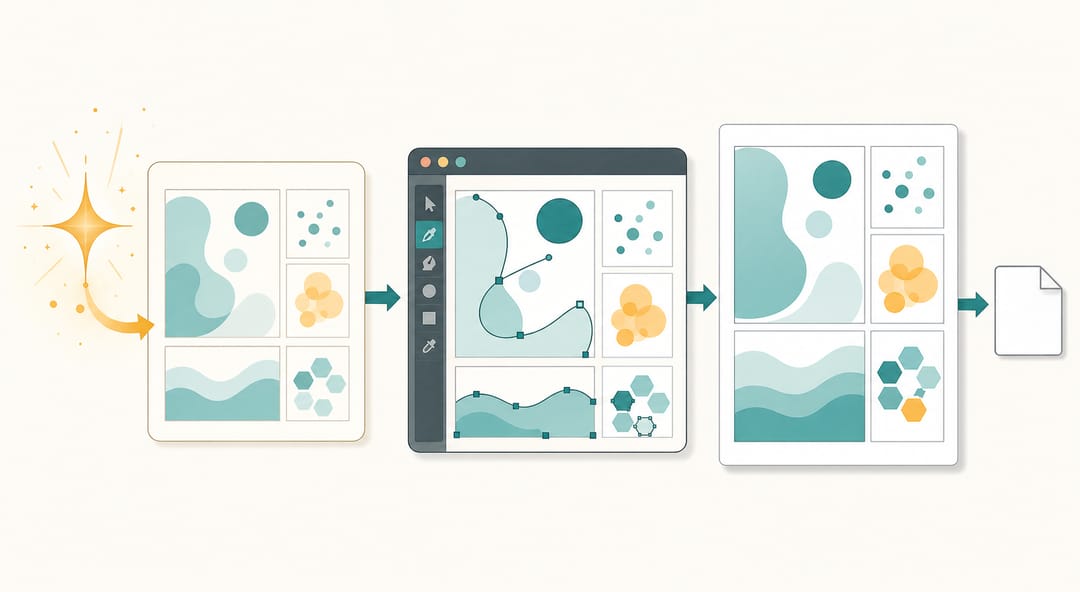 Generate the concept with SciDraw AI, then polish in a vector editor for final submission.
FAQ
Q: Can I use a free tool for journal figure submission?
A: Yes. Inkscape produces EPS and PDF exports that meet most journal requirements. SciDraw AI's free tier also generates publication-quality outputs. Check your target journal's author guidelines for specific file format and resolution requirements.
Q: Do journals accept SVG files directly?
A: Rarely. Most journals require PDF, EPS, or TIFF/PNG at 300–600 dpi. SVG is a great working format — export to PDF or EPS for final submission.
Q: Is BioRender free?
A: BioRender has a free tier, but figures exported without a paid publication license will display a watermark. For journal submission, you need the Academic or Institutional plan.
Q: What's the best free alternative to Adobe Illustrator for scientific figures?
A: Inkscape is the most capable free vector editor overall. For researchers who don't want a manual drawing workflow, SciDraw AI's free tier is a strong option for generating figures from prompts.
Q: Can Figma export CMYK for print journals?
A: No — Figma works in RGB only. If your journal requires CMYK (check the author guidelines), use Affinity Designer 2 or Inkscape with ICC profile management instead.
Q: How does SciDraw AI compare to BioRender?
A: BioRender excels at life sciences icon libraries and is the go-to for pathway diagrams in biology. SciDraw AI is broader — covering physics, chemistry, engineering, and medicine — and generates entirely new figures from text rather than assembling from a fixed icon set. They serve different needs and many researchers use both.