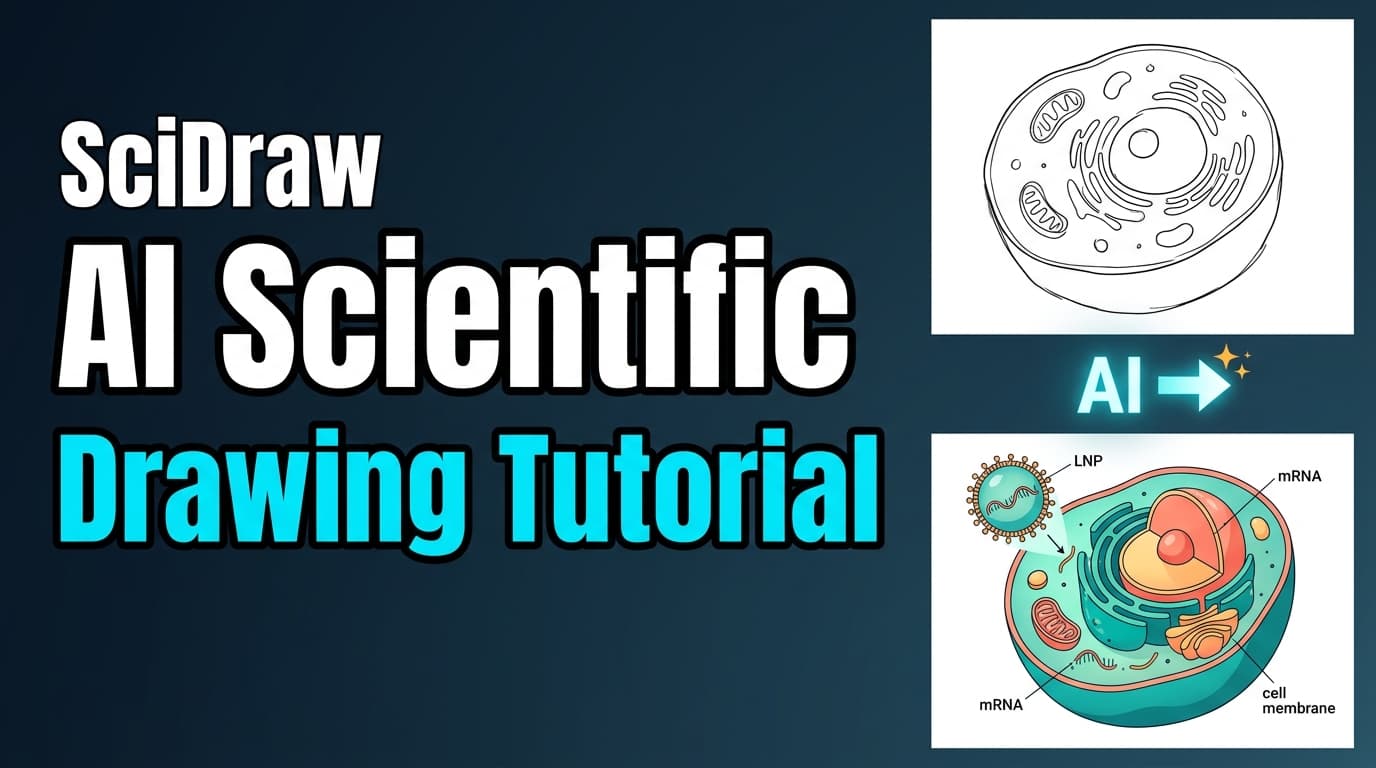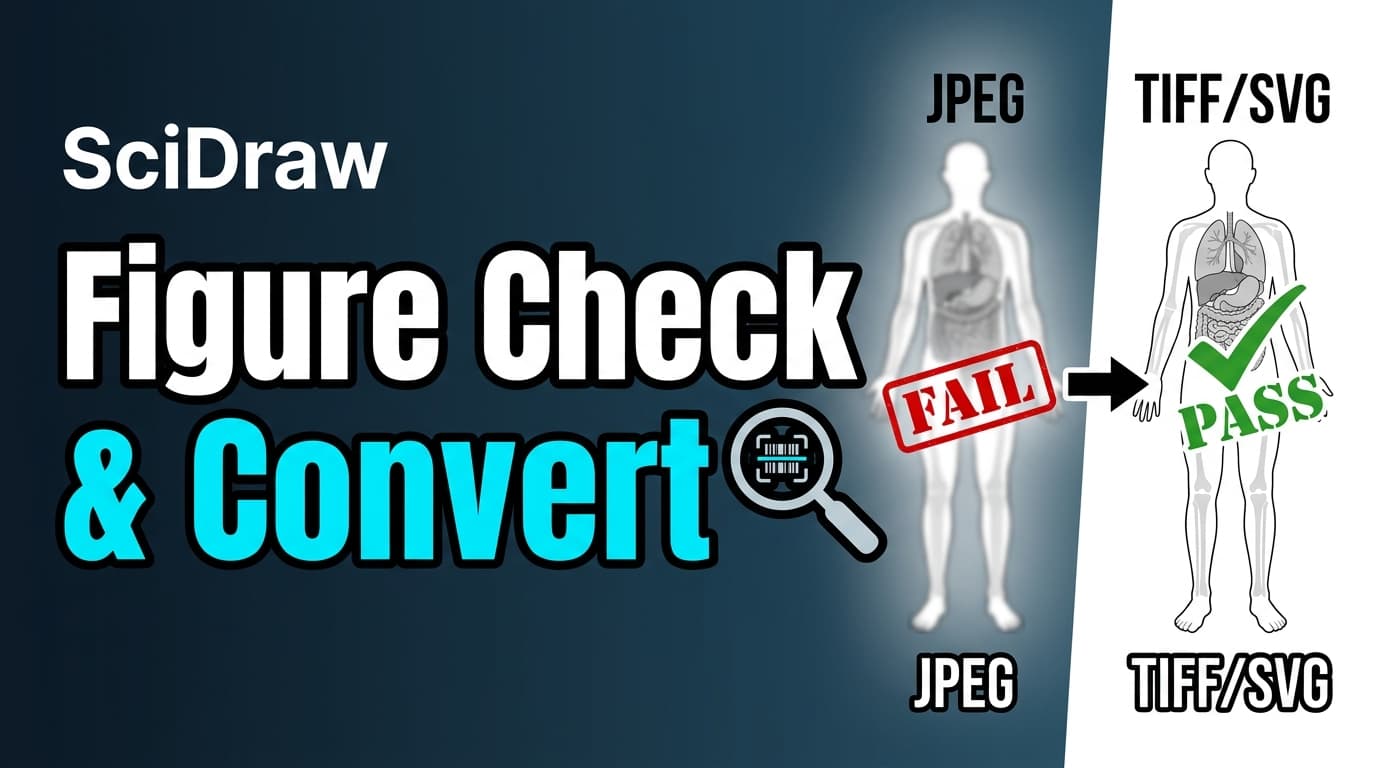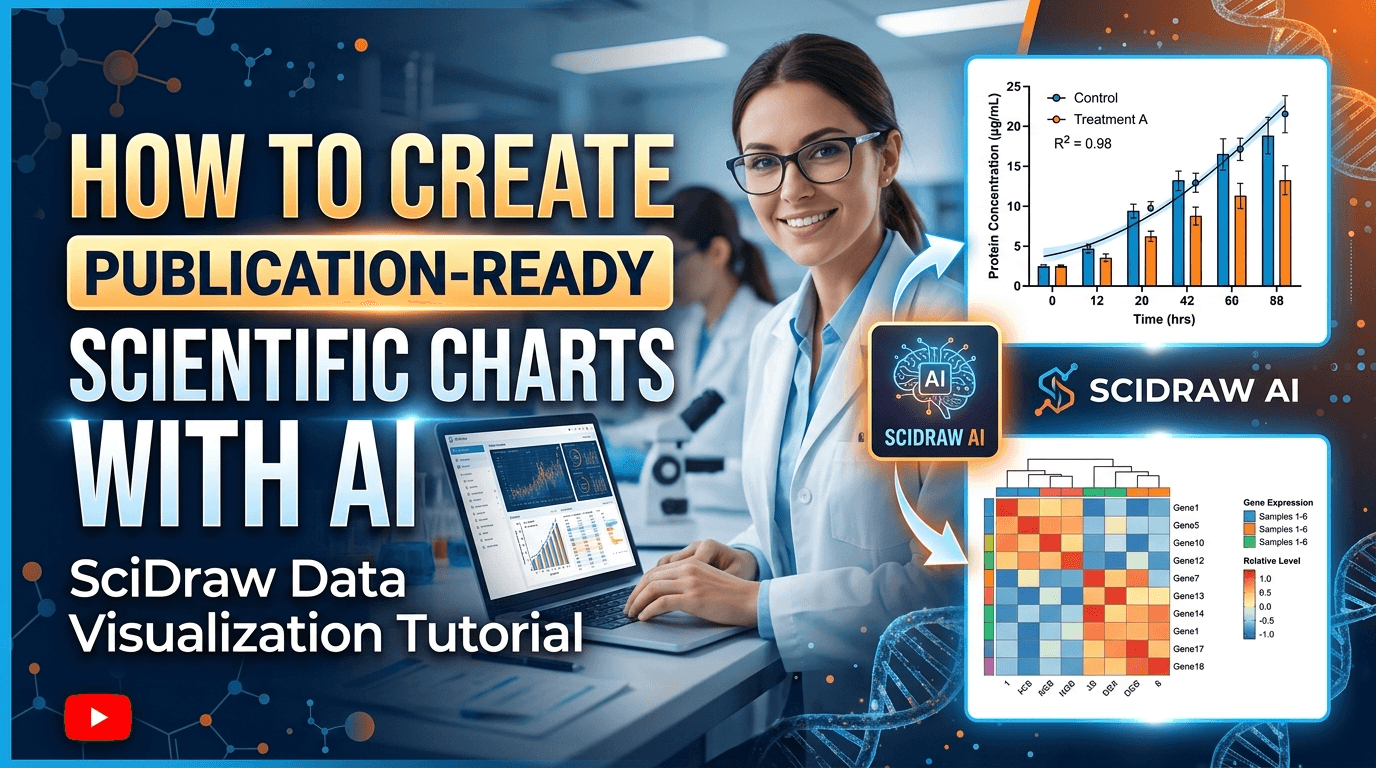
Turning raw experimental data into publication-ready figures is one of the most time-consuming steps in scientific research. SciDraw AI's Scientific Visualization tool streamlines this entire process -- from uploading your data file to exporting journal-standard charts -- all powered by AI that writes and executes Python code for you in real time.
In this 2-minute video tutorial, we walk through the complete workflow so you can start creating professional figures from your own data right away.
What You Will Learn in This Video
This tutorial covers the full Scientific Visualization workflow in SciDraw AI, including data upload, chart configuration, AI-driven code generation, multi-format export, and iterative editing. By the end, you will know how to go from a raw CSV file to a polished, journal-ready figure in under two minutes.
Upload Your Data
Getting started is straightforward. Navigate to the Sci-Vis section from the SciDraw AI navbar, then drag and drop your data file into the upload area. SciDraw AI supports CSV, TSV, and Excel formats. In this tutorial, we upload a CSV file containing gene expression data.
Once uploaded, the system automatically parses and previews your data. It also analyzes the structure of your dataset and recommends suitable chart types based on the columns and data distribution it detects. This smart analysis saves you time by suggesting the most appropriate visualizations for your specific data.
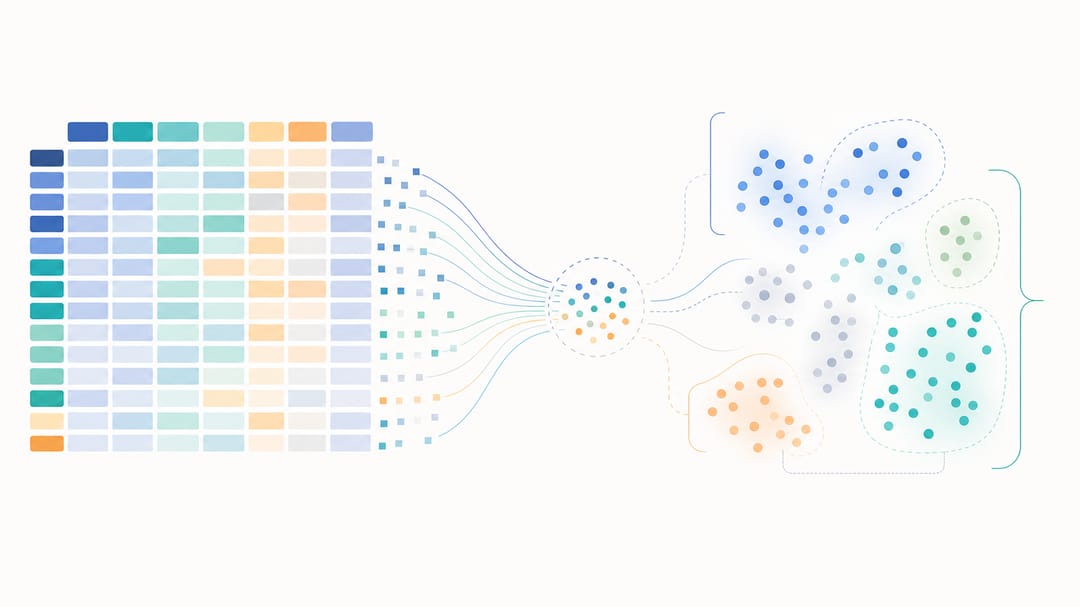 SciDraw AI automatically parses your uploaded data and analyzes its structure to recommend the most suitable chart types.
Configure Chart Options
After the data is analyzed, you can fine-tune your visualization settings. In the video, we select a Box Plot combined with a Violin Plot to show gene expression distributions. SciDraw AI offers a range of configuration options:
- Chart types: Box plots, violin plots, heatmaps, bar charts, scatter plots, and more.
- Journal styles: Presets matching the formatting guidelines of Nature, Science, Cell, and other major journals.
- Color palettes: Including the Okabe-Ito colorblind-friendly palette demonstrated in the video.
- Layout options: Choose arrangements such as 1x2 side-by-side panels for multi-chart figures.
These options let you produce figures that comply with specific journal requirements right from the start, without manual style adjustments later.
AI-Powered Chart Generation
Once you confirm your settings, SciDraw AI's AI takes over. It writes Python visualization code tailored to your data and selected options, then executes it automatically. You can watch the entire thought process in real time as the AI streams its reasoning and code generation step by step.
The output is a journal-standard figure rendered at 300 DPI, ready for submission. There is no need to install Python, configure environments, or debug code yourself -- SciDraw AI handles everything behind the scenes.
 SciDraw AI writes and executes Python code to turn your data into a journal-standard figure at 300 DPI.
Export and Customize
When your chart is ready, you can export it in four professional formats:
- PNG -- ideal for presentations and web use
- PDF -- vector format for manuscripts
- EPS -- compatible with journal submission systems
- TIFF -- 300 DPI, meeting the standard requirement of most scientific publishers
All exports are generated at publication quality. You can also view and copy the generated Python code directly, which is useful if you want to reproduce or further customize the figure in your own environment.
Multi-Round Editing
Scientific figures rarely come out perfect on the first try. SciDraw AI supports multi-round conversational editing, so you can refine your chart iteratively. In the video, we demonstrate two common refinements:
- Adding significance annotations and making titles bold to meet journal formatting standards.
- Switching chart types entirely -- converting the box/violin plot into a heatmap with hierarchical clustering, all within the same conversation.
Every conversation is automatically saved, so you can return to any previous version or continue editing at any time. This iterative approach mirrors how researchers actually work with their data, making adjustments until the figure communicates the story clearly.
 Multi-round conversational editing lets you refine annotations or switch chart types entirely, with every version saved automatically.
Get Started
SciDraw AI's Scientific Visualization tool is designed to eliminate the friction between your data and publication-quality figures. Whether you are preparing charts for a Nature paper or a conference poster, the AI-powered workflow handles the technical complexity so you can focus on the science.
Ready to try it yourself? Open SciDraw AI's Scientific Visualization tool and turn your data into professional figures today.
Related Guides
- AI Drawing Video Tutorial — create illustrations in minutes
- Getting Started: 3 AI Drawing Modes — learn all drawing modes
- AI Data Visualization — transform CSV/Excel into charts
- Scientific Figure Maker Tool — create figures online