SciDraw AI's AI Drawing feature lets researchers and scientists create publication-ready scientific illustrations without any design skills. With three distinct drawing modes and a conversational interface, you can go from idea to finished figure in minutes. This video tutorial walks you through every step of the process.
What You'll Learn in This Video
In just two minutes, this tutorial covers the complete AI Drawing workflow inside SciDraw AI. You will see how to enter the AI Drawing workspace, select templates and styles, generate images from text prompts, refine results through multi-round editing, transform hand-drawn sketches into polished figures, and restyle existing images using the Replicate mode. By the end, you will understand how each mode fits into a real scientific illustration workflow.
Three Drawing Modes Explained
Prompt Mode (Text to Image)
Prompt Mode is the most common starting point for creating scientific illustrations. In the video, you will see how to enter the AI Drawing workspace, which features a clean three-column layout: conversations on the left, the chat interface in the center, and a preview panel on the right.
The demonstration begins by selecting the "TOC Abstract" template paired with the "Flat Illustration" style. With these settings in place, a text prompt describing a nanoparticle drug delivery system is entered. SciDraw AI's AI then generates a professional scientific illustration based on the description, complete with clear visual elements suitable for a journal table of contents graphic.
This mode is ideal when you have a concept in mind but no visual reference to start from. The combination of templates and styles ensures that your output matches the conventions of scientific publishing.
Sketch Mode (Sketch to Image)
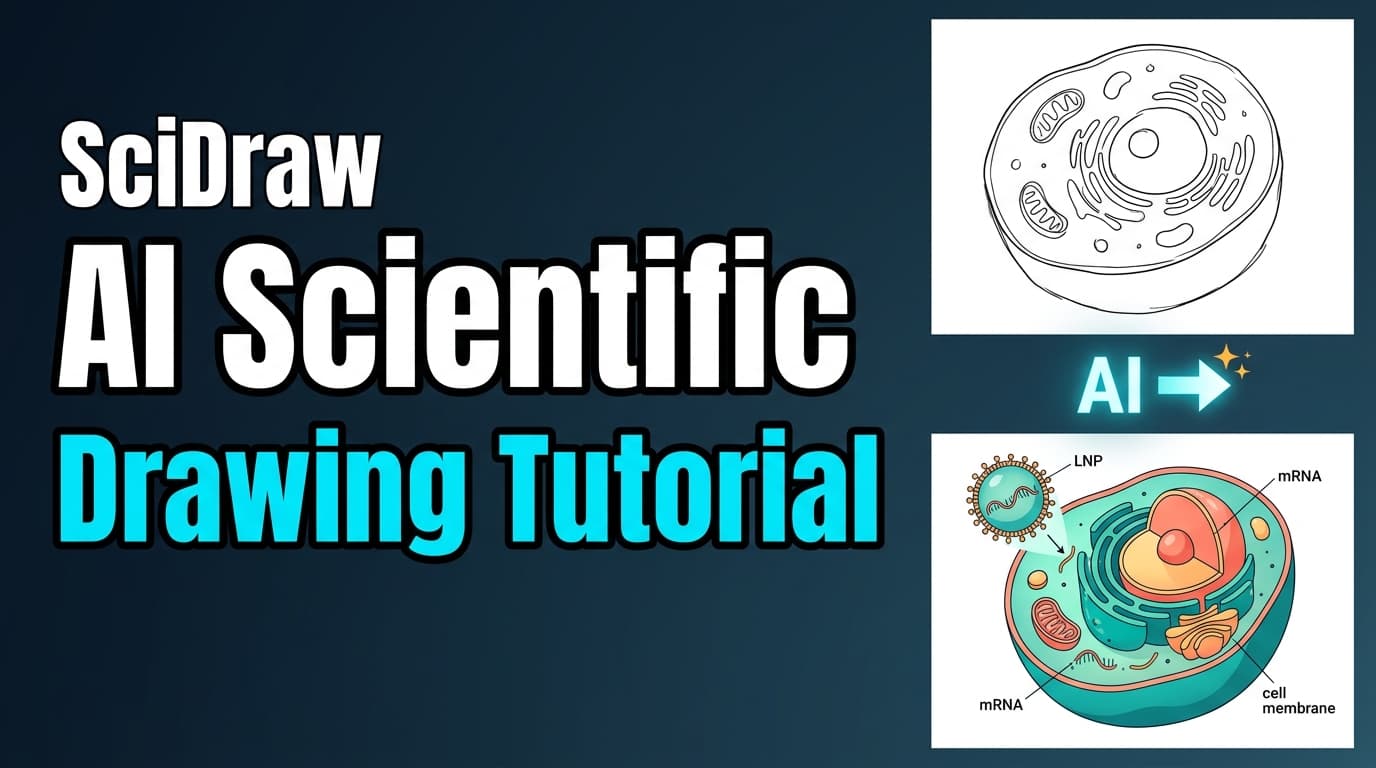
Sketch Mode bridges the gap between rough ideas and polished figures. In the video, a hand-drawn sketch is uploaded directly into the workspace. SciDraw AI's AI interprets the structural elements of the sketch and transforms it into a clean, professional scientific figure.
This mode is particularly valuable for researchers who prefer to draft their figures on paper or a tablet first. Rather than spending hours recreating the drawing in vector software, you can upload the sketch and let the AI handle the visual refinement while preserving your intended layout and composition.
Replicate Mode (Image Editing)
Replicate Mode allows you to take an existing image and transform its visual style. In the tutorial, an existing scientific illustration is uploaded and then converted into a dark neon style with glowing accents and a deep background.
This mode is useful when you already have a figure that communicates the right information but needs a different aesthetic treatment. Whether you need to match a journal's style guidelines, create a striking cover art version, or simply explore alternative visual presentations, Replicate Mode gives you that flexibility without starting from scratch.
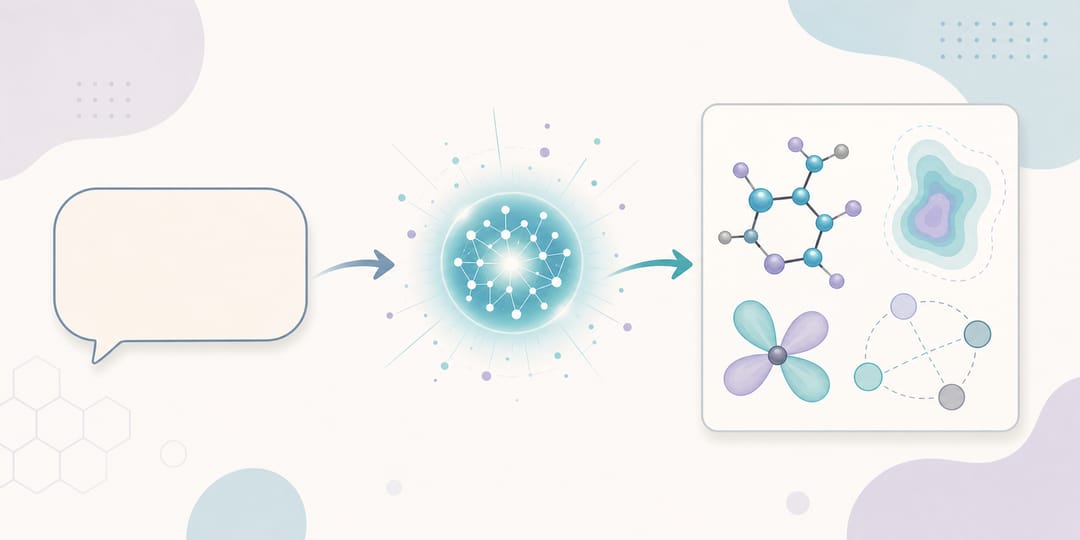 How SciDraw AI turns a text prompt into a polished, publication-ready scientific figure.
Multi-Round Editing
One of SciDraw AI's most powerful capabilities is multi-round editing within a single conversation. After the initial generation in Prompt Mode, the video shows how a follow-up instruction is given to change the background to dark navy blue with glowing effects. The AI applies these modifications while maintaining the core elements of the original illustration.
This conversational approach means you can iteratively refine your figures, adjusting colors, layouts, labels, and styles step by step. Each conversation is automatically saved, so you can return to any project and continue editing at any time.
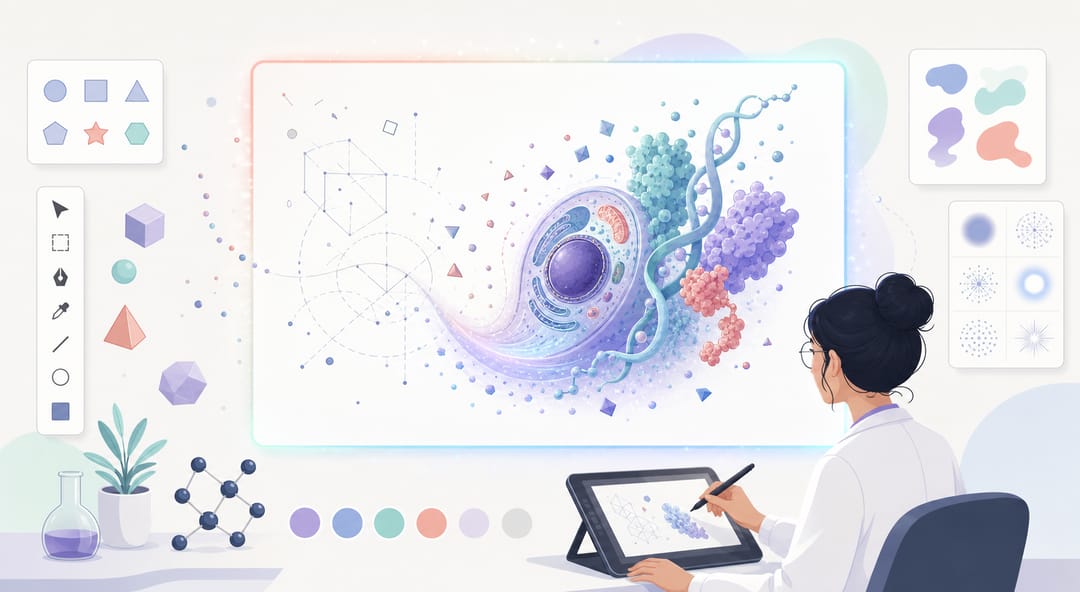 Refining a figure step by step on the SciDraw AI canvas while generation is in progress.
Get Started
Ready to create your own scientific illustrations with AI? Visit sci-draw.com to try SciDraw AI's AI Drawing feature. Sign up for a free account to receive starter credits and begin generating professional figures for your research papers, presentations, and grant applications today.
Related Guides
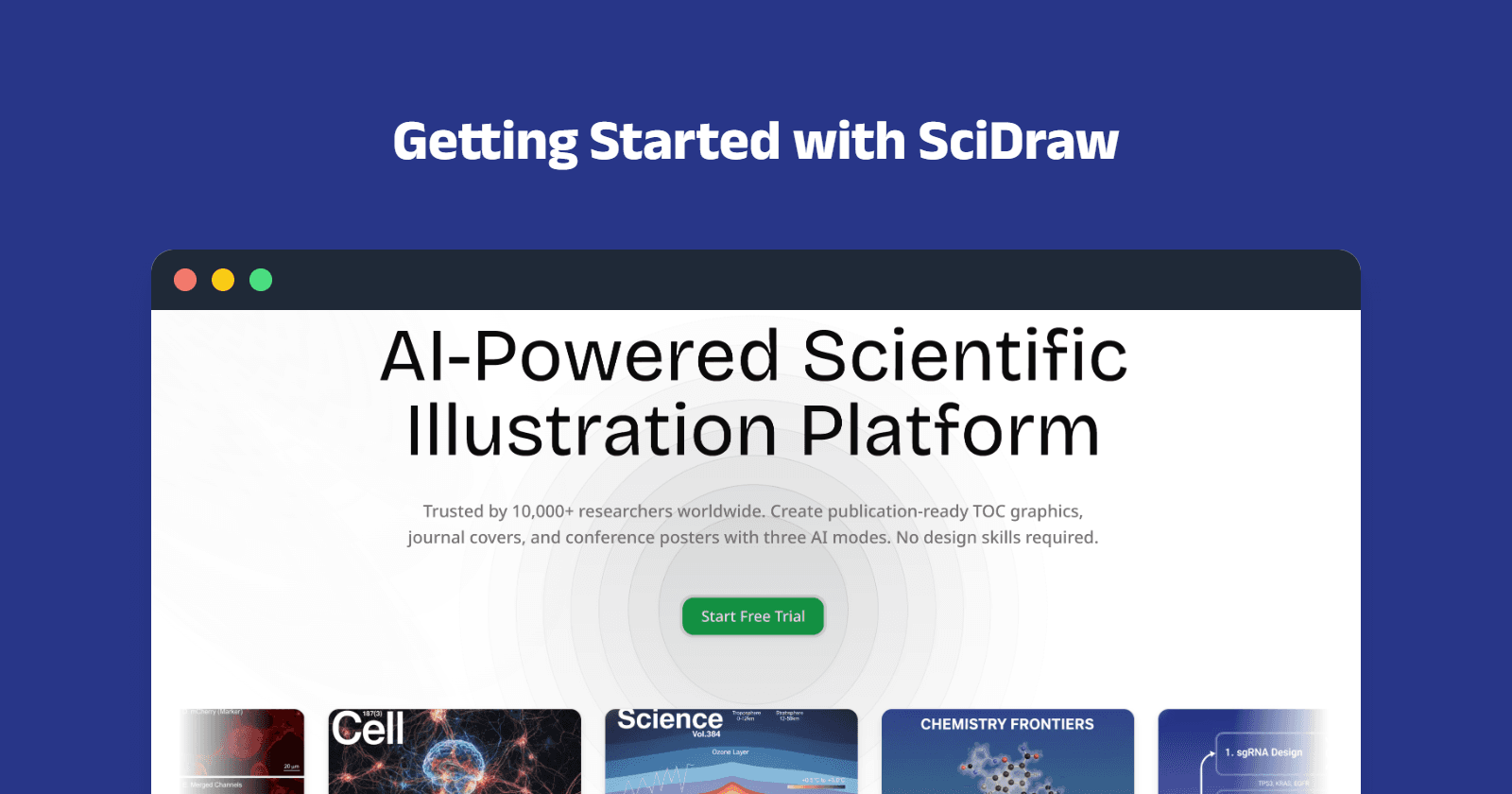
- Getting Started: 3 AI Drawing Modes — learn all drawing modes
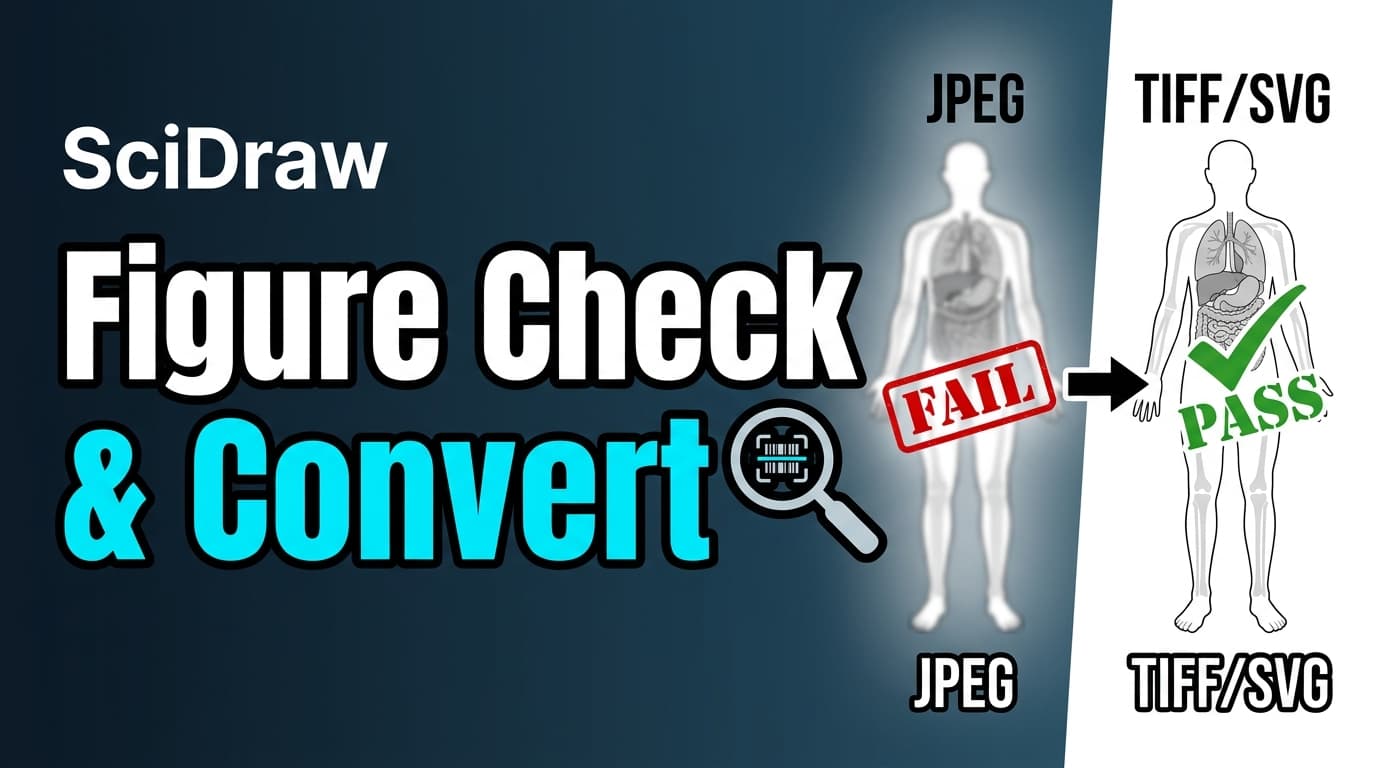
- Figure Checker & Converter Tutorial — check and convert figures
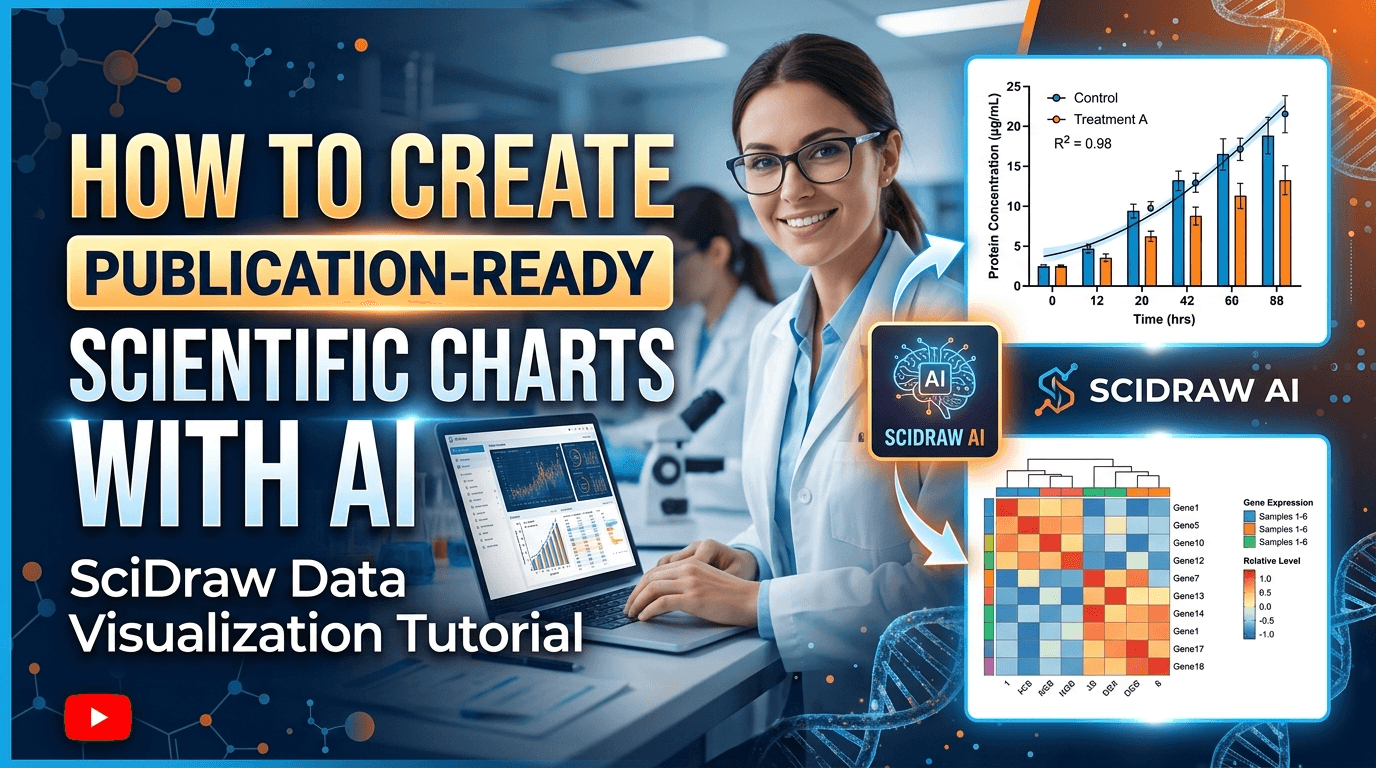
- Scientific Visualization Tutorial — CSV to publication-ready charts
- 8 AI Prompt Rules for Scientific Figures — master AI prompts