LogoLogoSciDraw AI
  • Start Creating
  • Tools
  • Pricing
  • Education Discount
LogoLogoSciDraw AI

AI-powered scientific figure platform for researchers, students, educators, and science communicators. Create publication- and classroom-ready figures, graphical abstracts, TOC graphics, posters, and teaching illustrations in minutes. No design skills required.

EmailYouTubeXGitHubLinkedInInstagramStripe ClimateStripe Climate Contribution

Ask AI about SciDraw AI

Tools
  • AI Drawing
  • Scientific Data Visualization
  • Graphical Abstract Maker
  • Scientific Figure Maker
  • Image Converter
  • Vectorize Image
  • All Tools
Popular tools
  • AI Scientific Illustration
  • Medical Illustration Generator
  • Research Roadmap Maker
  • Workflow Diagram Generator
  • Scientific Poster Maker
  • Anatomy Diagram Generator
  • Biological Pathway Diagram Generator
  • Mechanism Figure Generator
  • Scientific Diagram Maker
Use Cases
  • For PhD Students
  • For Educators
  • For Journal Submission
  • BioRender Alternative
Resources
  • Help docs
  • Blog
  • Research templates
  • Scientific Chart Guide
  • Gallery
  • Published references
  • How to cite
  • Media Kit
  • Developers
  • SciVolume: AI book writer
Company
  • About
  • Pricing
  • Affiliate
  • Institutional invoicing
  • Privacy Policy
  • Terms of Service
© 2026 SciDraw AI All Rights Reserved.

MCP server

Use SciDraw AI in your AI assistant

Add one URL to ChatGPT, Claude, Claude Code, Codex or Cursor, sign in with your SciDraw AI account, and ask for scientific figures, data charts and editable PPTX or SVG files without leaving the chat.

Sign up freeSee what you can make

Server URL

https://sci-draw.com/api/mcp

Or paste this into Claude Code, Codex or ChatGPT

Connect the SciDraw AI MCP server at https://sci-draw.com/api/mcp (streamable HTTP, OAuth sign-in in the browser), then list its tools.

Four steps, about two minutes

  1. 1

    Use your SciDraw AI account

    Sign in, or sign up for free. The assistant works with the account and credits you already have.

  2. 2

    Add the server

    Paste the server URL into your assistant's connector settings, or run one command in Claude Code or Codex.

  3. 3

    Approve access

    Your browser opens the SciDraw AI sign-in page, then a consent screen. Check what the assistant may do and click Allow.

  4. 4

    Ask for a figure

    Describe the figure in the chat. It comes back as a preview with download links.

Connect your AI assistant

No API key needed. You sign in with your SciDraw AI account in the browser.

ChatGPT on the web or in the desktop app. Custom connectors need Developer mode.

  1. 1

    Open Settings → Apps & Connectors → Advanced settings and turn on Developer mode.

  2. 2

    Back in Apps & Connectors, click Create, name it SciDraw AI and paste this server URL:

    https://sci-draw.com/api/mcp
  3. 3

    Sign in to SciDraw AI in the window that opens, then click Allow.

  4. 4

    In a new chat, turn on SciDraw AI from the tools menu and ask for a figure.

Claude on claude.ai or in the desktop app.

  1. 1

    Open Settings → Connectors and click Add custom connector.

  2. 2

    Name it SciDraw AI, paste this URL and click Add:

    https://sci-draw.com/api/mcp
  3. 3

    Click Connect, sign in to SciDraw AI, then click Allow.

  4. 4

    In a new chat, check that SciDraw AI is enabled in the tools menu.

Claude Code in your terminal.

  1. 1

    Add the server:

    claude mcp add --transport http scidraw-ai https://sci-draw.com/api/mcp
  2. 2

    Start Claude Code, run /mcp, choose scidraw-ai and sign in in your browser.

  3. 3

    Ask for a figure in any session.

Codex CLI in your terminal.

  1. 1

    Add the server:

    codex mcp add scidraw-ai --url https://sci-draw.com/api/mcp
  2. 2

    Sign in. This opens your browser:

    codex mcp login scidraw-ai
  3. 3

    Start Codex and ask for a figure.

Cursor reads MCP servers from a JSON file.

  1. 1

    Add this to ~/.cursor/mcp.json, next to any servers already there:

    {
      "mcpServers": {
        "scidraw-ai": {
          "url": "https://sci-draw.com/api/mcp"
        }
      }
    }
  2. 2

    Open Cursor Settings and find scidraw-ai in the MCP section. When it asks you to log in, sign in to SciDraw AI in your browser.

  3. 3

    Ask the agent for a figure.

Let your agent do the setup

Agents that can change their own settings, such as Claude Code or Codex, can connect themselves. Paste this into the chat:

Connect the SciDraw AI MCP server at https://sci-draw.com/api/mcp (streamable HTTP, OAuth sign-in in the browser), then list its tools.

Menu names in ChatGPT and Claude change from time to time, and some plans or workspace settings restrict custom connectors. If you can't find these options, ask your workspace admin.

Clients that can't sign in through a browser can send an API key as Authorization: Bearer sd_…. Create one in Settings → API Keys.

Same account, same credits

The assistant is another way into your SciDraw AI account, not a separate product.

  • One account

    Sign in with the email, Google or GitHub login you already use. There is no separate MCP plan.

  • Same credits, same prices

    Every call spends credits from your balance at the prices below, the same as on the website.

  • Failed jobs are refunded

    If a job fails, its credits go back to your balance automatically.

  • Disconnect any time

    Remove the SciDraw AI connector in your assistant's settings when you no longer want to use it.

Credits per call

OperationCredits
Generate a figure, 2K5 per image
Generate a figure, 4K20 per image
Edit a figure, 2K10 per image
Edit a figure, 4K20 per image
Data chart from CSV or rows10 per file
Convert to SVG, text only10 per file
Convert to SVG, all elements15 per file
Convert to editable PPTX10 per file
PNG, PDF or TIFF at 300 / 600 / 1000 DPI5 / 10 / 15 per file

Checking your balance or a job's status is free.

See plans and credit packages

You approve every assistant

Being signed in is not enough on its own. Each assistant has to ask for access, and you see what it will be able to do before you click Allow.

Connect an AI assistant

Claude wants to use SciDraw AI for you

If you allow this, the assistant can:

  • Create, edit and convert figures and charts in your SciDraw AI account
  • Spend your SciDraw AI credits on those requests, at the same prices as on the website
  • See your credit balance and the jobs it started

After you choose, you will return to: claude.ai

Signed in as you@university.edu

DenyAllow
The consent screen you will see (example)

What you can create in chat

Three requests researchers make most often. Each answer arrives as a preview with download links and a link to open SciDraw AI.

Scientific illustration

You

Use SciDraw AI to draw a three-panel figure on nanomaterial solar cells: fabrication, characterization, device performance. Flat style, white background.

Assistant

generate_figure · 5 credits

Here is your figure (2K, 16:9). You can download the PNG or open it in SciDraw AI.
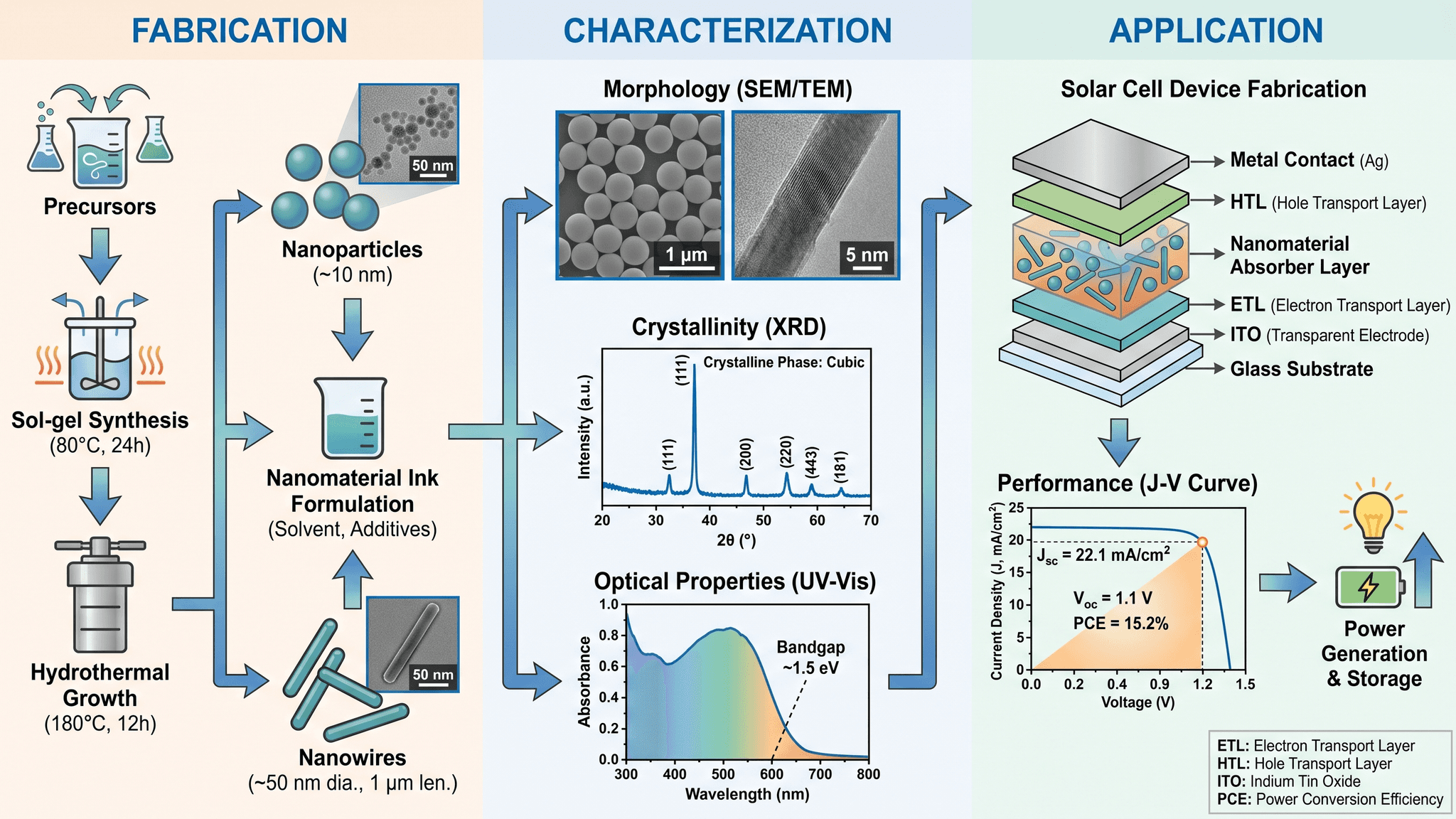
Three-panel scientific illustration of nanomaterial fabrication, characterization and solar cell performance, made with SciDraw AI

Chart from your data

You

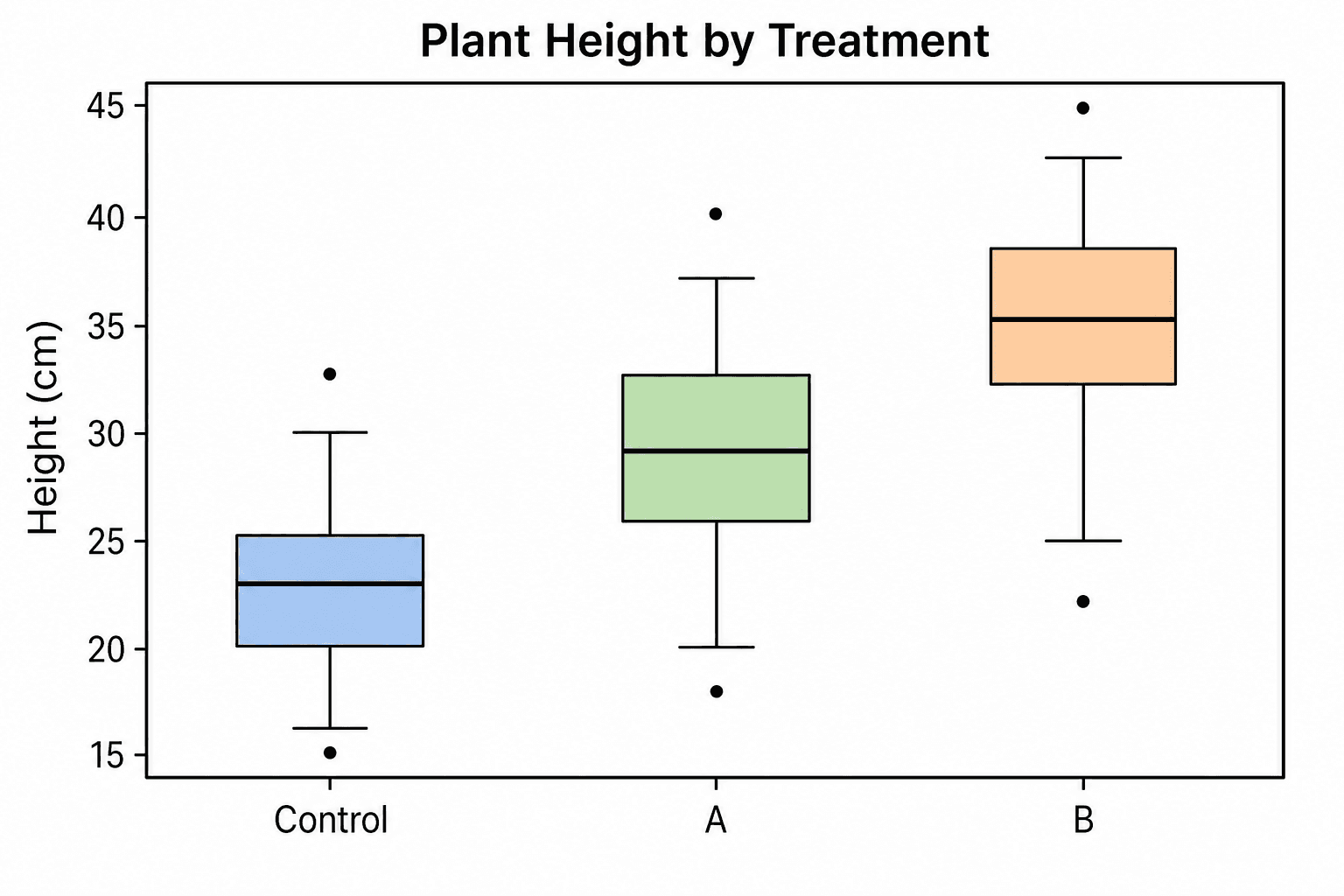
Here is my CSV of plant height by treatment (Control, A, B). Make a box plot in journal style.

Assistant

generate_chart · 10 credits

Your box plot is ready: three groups, with outliers marked. Download links are below.

Box plot of plant height by treatment group, made with SciDraw AI from CSV data

Editable PPTX or SVG

You

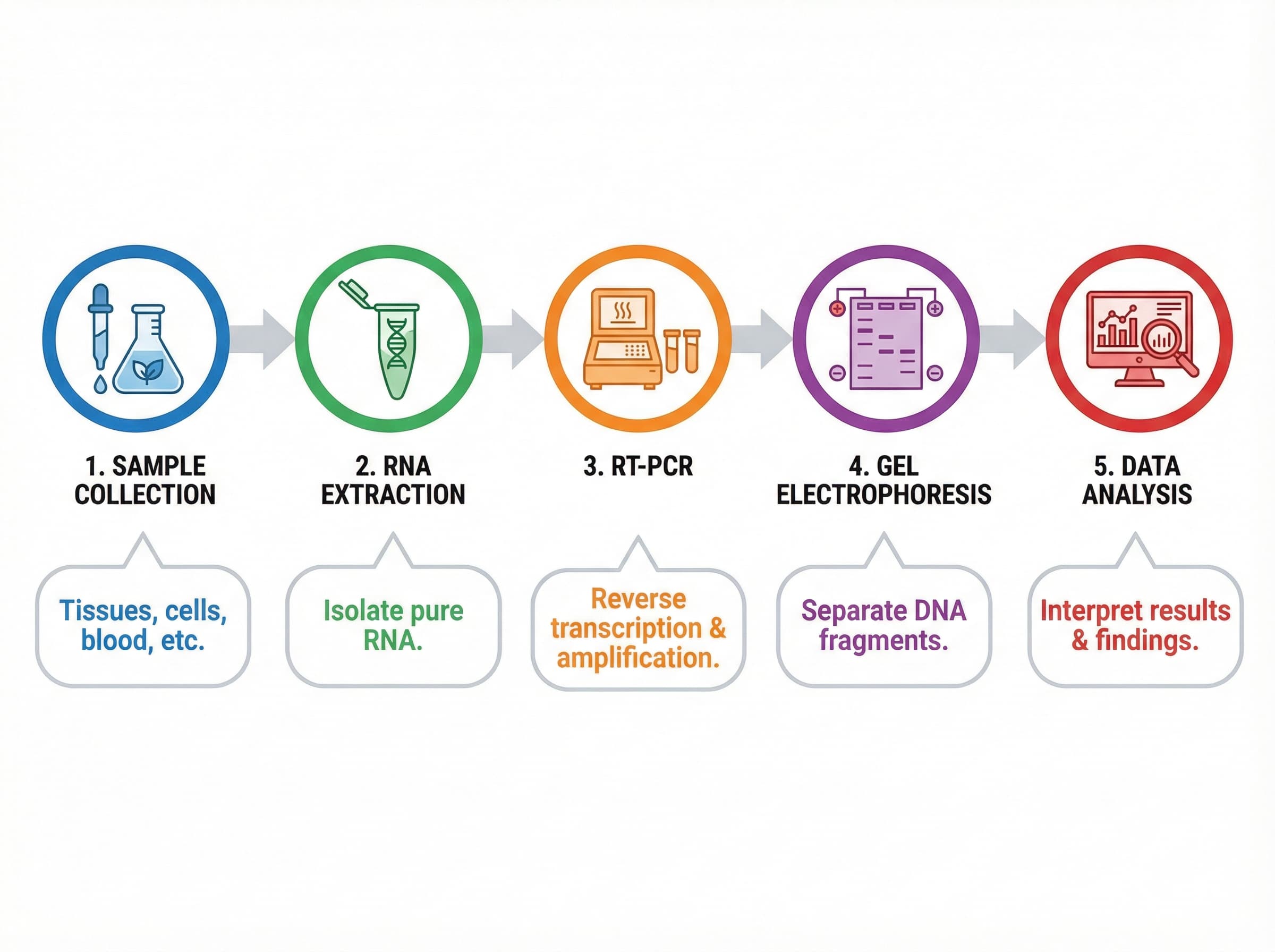
Convert this workflow figure to an editable PowerPoint file so I can change the labels.

Assistant

convert_figure · 10 credits

Done. Every label in the PPTX is a separate text box you can edit.

Five-step RT-PCR workflow figure, ready to convert to editable PPTX or SVG in SciDraw AI

Frequently asked questions

Do I need an API key?

No. Most assistants sign you in through the browser with your SciDraw AI account. An API key is only for clients that can't open a browser sign-in; they send it as a Bearer token.

I'm already signed in to SciDraw AI. Why do I have to authorize?

Signing in shows who you are. Authorizing tells SciDraw AI which assistant may create figures and spend your credits. Each assistant asks once, and the consent screen lists what it will be able to do.

Which AI assistants work with SciDraw AI?

Any client that supports remote MCP servers over Streamable HTTP, including ChatGPT (with Developer mode), Claude on the web and desktop, Claude Code, Codex and Cursor. Some plans or workspace settings restrict custom connectors.

What can the assistant do?

Generate figures at 2K or 4K, up to 4 per call; edit a figure from an image link; convert a figure to SVG, PPTX, PNG, PDF or TIFF; make a chart from CSV or table rows; check a job's status; and report your credit balance.

How are credits charged?

From your normal SciDraw AI balance, at the same prices as the website. The table on this page lists each operation. Failed jobs are refunded automatically.

What happens after a figure is created?

The assistant shows a preview in the chat and gives you download links for the files, plus a link to open SciDraw AI.

It's taking a while. Should I ask again?

No. A call waits up to 50 seconds. Longer jobs return a job ID, and the assistant checks it until the result is ready. Asking again starts a new job and is charged again.

Can I keep editing a figure?

Yes. Ask for changes in the same chat and the assistant sends the image to the edit tool, at edit prices. You can also convert it to PPTX or SVG and change it yourself.

The SciDraw AI tools don't appear. What should I check?

Check that the connector is turned on for this chat, that you finished signing in, and that the email on your SciDraw AI account is verified. In Claude Code, run /mcp again; in Codex, run codex mcp login scidraw-ai again.

How do I disconnect?

Remove the SciDraw AI connector in your assistant's settings. In Claude Code, run claude mcp remove scidraw-ai; in Codex, run codex mcp remove scidraw-ai. If you used an API key, delete it in Settings → API Keys.

Make your next figure without leaving the chat

Sign up free, add the server URL to your assistant and ask for a figure. New accounts get free credits to try it.

Sign up freeSee what you can make