💡 SciDraw AI Figure Checker: Upload one figure and review effective DPI, format risks, grayscale readability, and colorblind safety before submission. Try Figure Checker →
How to Check If a Scientific Figure Is Ready for Journal Submission
Many researchers only discover figure requirements at the worst possible moment: right before upload.
The manuscript is ready. The results are solid. The cover letter is done. Then the journal system asks whether your figure meets resolution, format, and size requirements, and suddenly you are checking exported PNGs, guessing whether "300 DPI" is really enough, and wondering if the labels will still be readable once the figure is placed at final width.
That is exactly where a scientific figure checker becomes useful.
This guide explains what to review before submission, why file metadata alone is not enough, and how to run a practical preflight check on a figure before sending it to a journal.
What "Submission-Ready" Actually Means
A figure is not submission-ready just because it looks fine on your screen.
In practice, journals, production teams, and editors care about whether the figure still works in the final publishing workflow. That usually comes down to four questions:
| Check | What can go wrong | Why it matters |
|---|---|---|
| Effective DPI | The figure is too small once placed at final width | Low-resolution output, blurry print, rejection or revision |
| File format | JPEG artifacts, transparency issues, weak export settings | Text and edges degrade during submission or production |
| Grayscale readability | Different colors collapse into similar gray values | Reviewers or printed copies become hard to interpret |
| Colorblind safety | Important color pairs become too similar | Critical distinctions disappear for some readers |
These are not abstract design details. They directly affect whether the figure can survive real submission, peer review, production, and downstream reuse.
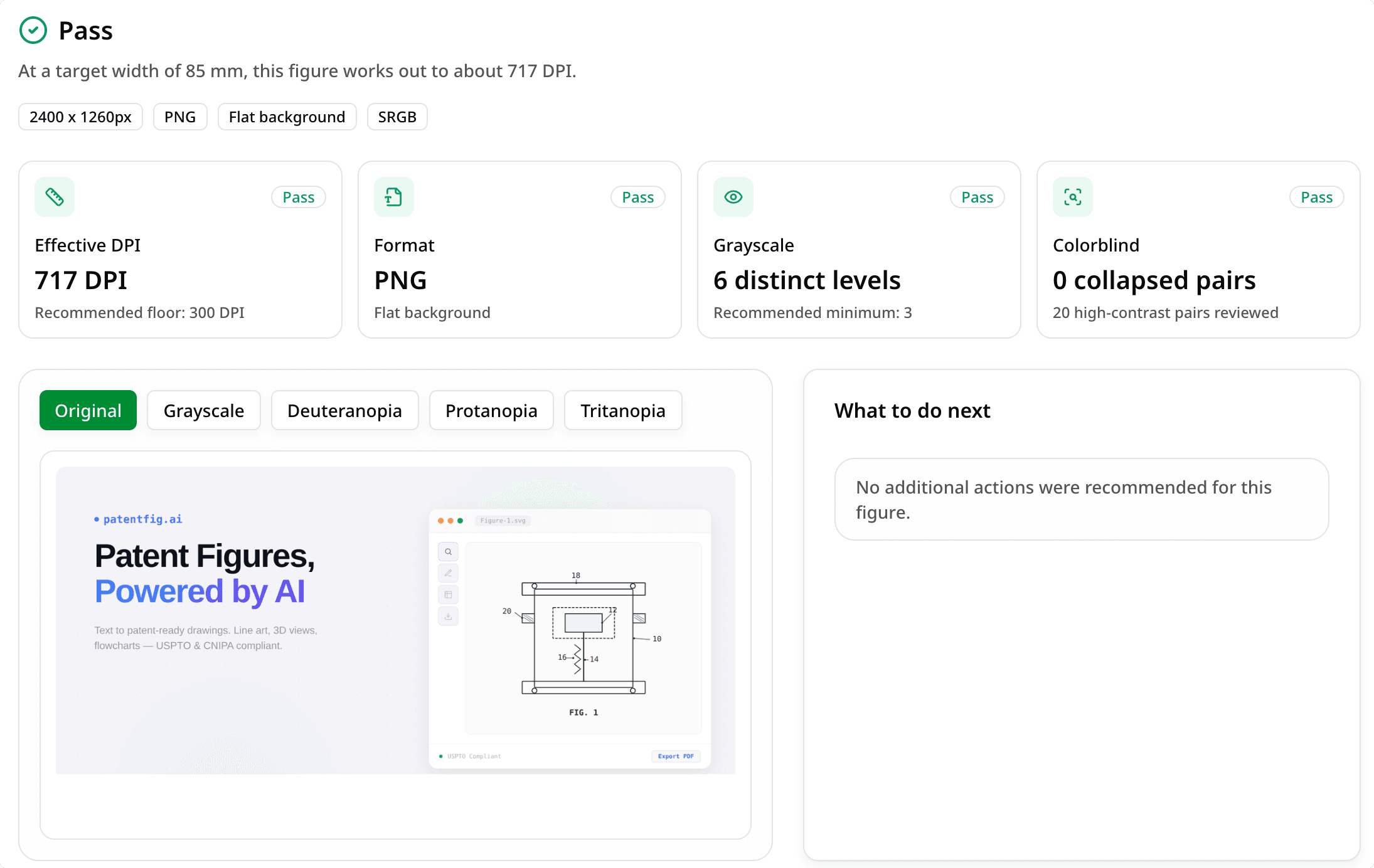
 A preflight check runs a figure through resolution, format, grayscale, and colorblind gates before it reaches the journal.
Why File Metadata Is Not Enough
One of the most common mistakes is assuming that the file's stored DPI number tells the whole story.
It does not.
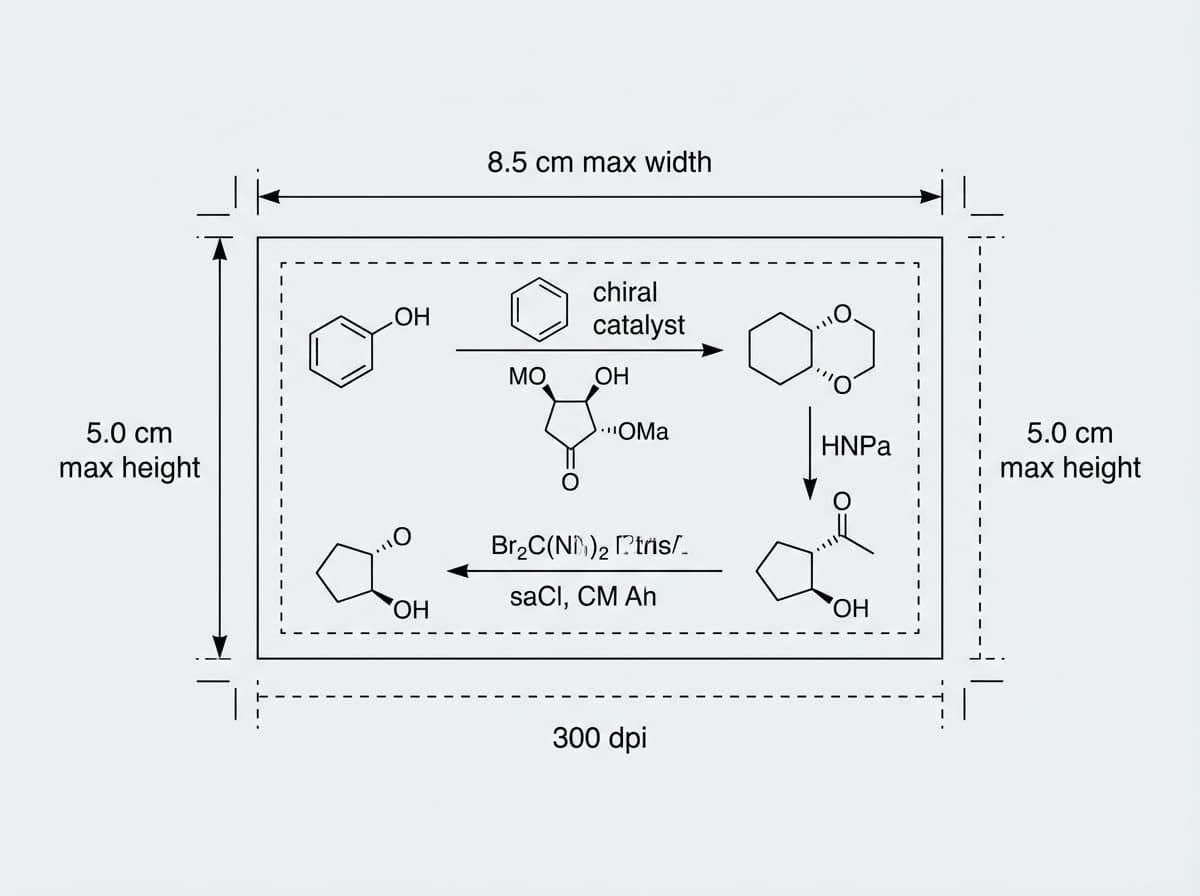
What matters is effective DPI at final layout width. The same image can be acceptable at single-column width and fail at double-column width.
For example:
- A figure might look sharp at 85 mm wide
- The same file may become too soft at 180 mm wide
- A "300 DPI" export may no longer behave like 300 DPI after the real placement width changes
That is why a proper preflight check should evaluate the figure against the width it will actually occupy in the journal layout, not just the number stored in the file properties.
The Four Checks to Run Before Submission
1. Check Effective DPI at Final Width
This is the first question most authors ask:
Is this figure really 300 DPI?
The right answer depends on the final width.
Before submission, you should know whether the figure is intended for:
- Single-column layout
- Double-column layout
- A custom journal-specific width
Once that width is set, you can estimate the real output resolution. This is much more useful than trusting export settings alone.
2. Check the Export Format
Even when the resolution is acceptable, the export format can still introduce problems.
Typical issues include:
- JPEG compression artifacts around labels, arrows, and fine lines
- Unexpected alpha channels or transparency that do not behave well in downstream workflows
- Re-exported images that have already lost edge clarity
As a rule of thumb, figures with text, labels, and line work should be treated more carefully than purely photographic panels.
If the checker flags format problems, the next step is usually to re-export or convert the image before submission.
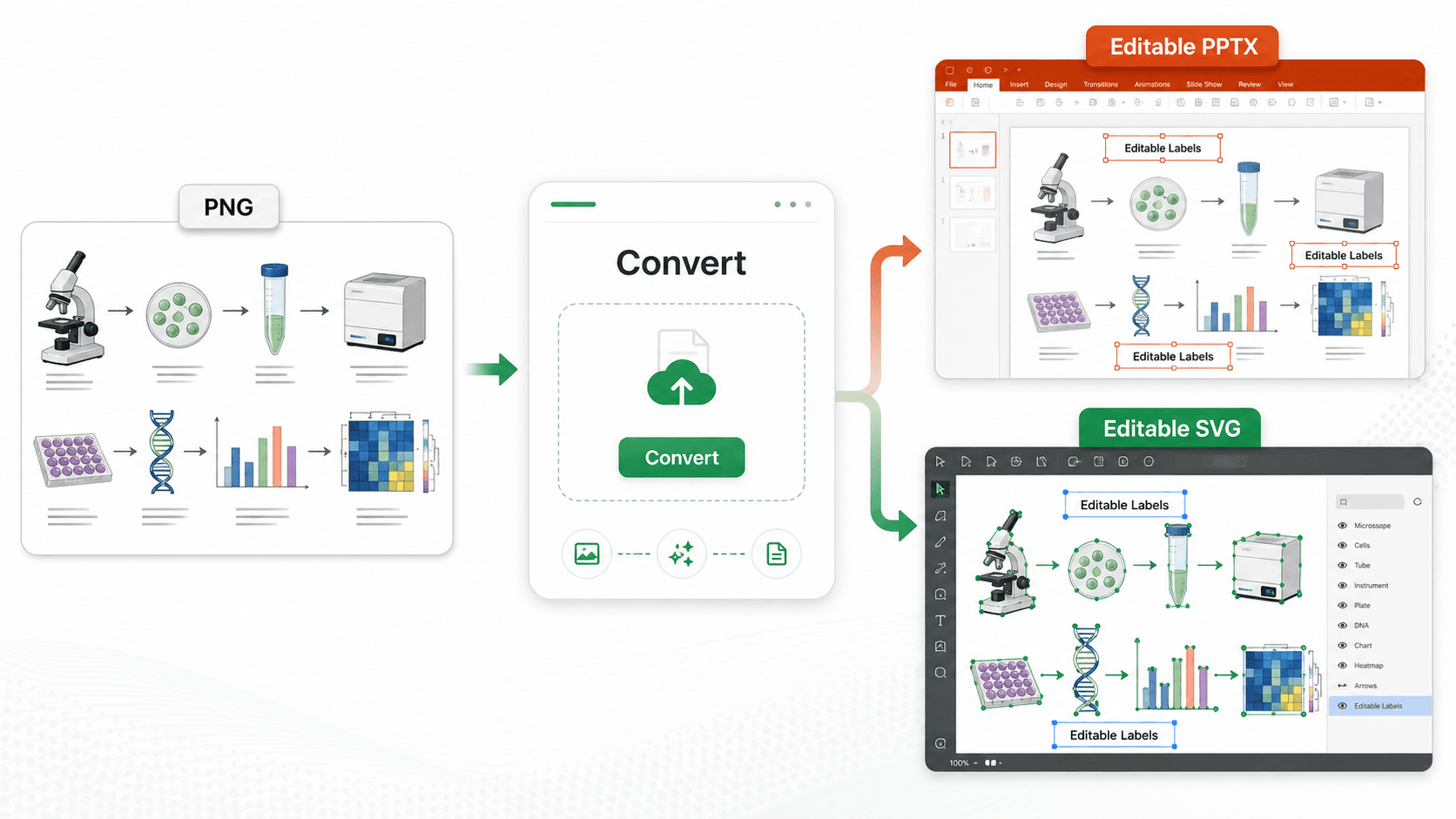
Use the SciDraw AI converter →
3. Check Grayscale Readability
Many figures look clear in color but become ambiguous in grayscale.
This matters because:
- Some reviewers print manuscripts in black and white
- Internal lab circulation often happens in grayscale PDFs
- Some journal workflows still compress visual information in ways that reduce color separation
A good submission check should tell you whether the figure still separates clearly when color is removed.
Typical grayscale failure modes:
- Two colored curves become nearly identical
- Heatmap steps lose contrast
- Annotation colors no longer separate from the background
- Panel highlights disappear after desaturation
4. Check Colorblind Safety
Even when a figure works in full color, it may rely on color pairs that are too difficult to distinguish for some readers.
This is especially risky when the figure uses:
- Red/green comparisons
- Multiple saturated categories in one chart
- Similar hues to represent different conditions
- Color as the only cue for interpretation
A colorblind safety review does not mean every figure must be redesigned from scratch. It means checking whether the key distinctions still survive under common color-vision deficiency simulations.
 Inspecting a figure up close across effective DPI, grayscale readability, and colorblind safety catches the problems metadata hides.
A Practical Preflight Workflow
Here is a simple workflow you can use before submission:
Step 1: Use the figure version closest to final submission
Do not test an early draft if the submitted version will be exported differently.
Use the actual file you expect to upload, or the closest possible version.
Step 2: Set the intended layout width
Tell the checker whether the figure is meant for:
- single-column width
- double-column width
- custom width
This is what makes the DPI check useful.
Step 3: Review the report like an editor would
Instead of asking "does this look okay?", review the figure with stricter questions:
- Will this still look sharp at final size?
- Is the file format safe for submission?
- Do labels and highlights survive grayscale conversion?
- Are key color distinctions still visible?
Step 4: Decide whether to keep, convert, or redraw
Once you see the report, the next action is usually one of three:
| Result | Best next move |
|---|---|
| Pass | Keep the figure and submit confidently |
| Warn | Re-export, simplify, or improve labels/colors |
| Fail | Convert the file or redraw key elements before submission |
If the problem is mainly export quality, format, or raster resolution, conversion may be enough.
If the problem is structural, such as crowded labels or poor visual separation, you may need to rebuild the figure more deliberately.
Where Figure Checker Fits
SciDraw AI's Figure Checker is designed for this exact preflight step.
Instead of making you guess from file metadata alone, it helps you review:
- effective DPI
- format and transparency risks
- grayscale readability
- colorblind safety
That makes it useful for:
- manuscript figures
- supplementary figures
- thesis figures
- poster figures
- annotated result panels
- mixed figures that combine raster content and labels
The goal is not just to say whether a figure "looks fine." The goal is to show whether the figure is close to pass, warning territory, or likely redo territory before you upload it.
Common Cases Where a Figure Checker Helps
Case 1: The figure looks fine, but the layout width changes
This is a classic failure mode. The figure seems sharp in a slide deck or PDF draft, but once placed at publication width, the effective DPI drops more than expected.
Case 2: The export format is technically valid, but visually risky
A JPEG may still open correctly, but small artifacts around labels and edges can become obvious when viewed closely or processed again.
Case 3: Color did too much of the work
A chart may depend entirely on color differences that disappear in grayscale or become ambiguous under colorblind simulation.
Case 4: The figure is good scientifically, but weak operationally
The science is correct. The annotations are accurate. But the file is not robust enough for the practical submission workflow. This is often the last-mile gap between "finished figure" and "submission-ready figure."
A Short Figure Submission Checklist
Before you upload a figure, ask:
- Is the figure being checked at the actual final width?
- Does the effective DPI still hold at that width?
- Is the export format safe for text, lines, and repeated handling?
- Does the figure still work in grayscale?
- Do critical distinctions survive a colorblind safety review?
If you cannot answer those questions clearly, the figure probably needs a proper preflight pass.
Final Thoughts
Most figure problems are easier to fix before submission than after a system rejection, editorial query, or reviewer complaint.
That is why a figure checker is valuable. It turns vague last-minute doubts into a concrete review workflow:
- check width
- check effective DPI
- check format
- check readability
- fix only what actually needs fixing
If you want a faster way to review a figure before submission, start with SciDraw AI Figure Checker.
Start Checking Your Figure
Run a submission-focused preflight report before you upload your next figure:
- check effective DPI at final width
- catch export and transparency risks
- preview grayscale readability
- test colorblind safety
Related Guides
- Nature, Science & Cell Figure Requirements — size, DPI, and format cheat sheet
- Convert Figures to 300/600 DPI TIFF — step-by-step conversion guide
- Scientific Figure Types Guide — graphical abstract vs mechanism vs pathway
- Experimental Workflow Diagrams — create clear methods figures
- Figure Checker Tool — automated figure quality verification
- Journal Figure Requirements Reference — filterable, sourced specs for 10 publishers (CSV/JSON download)