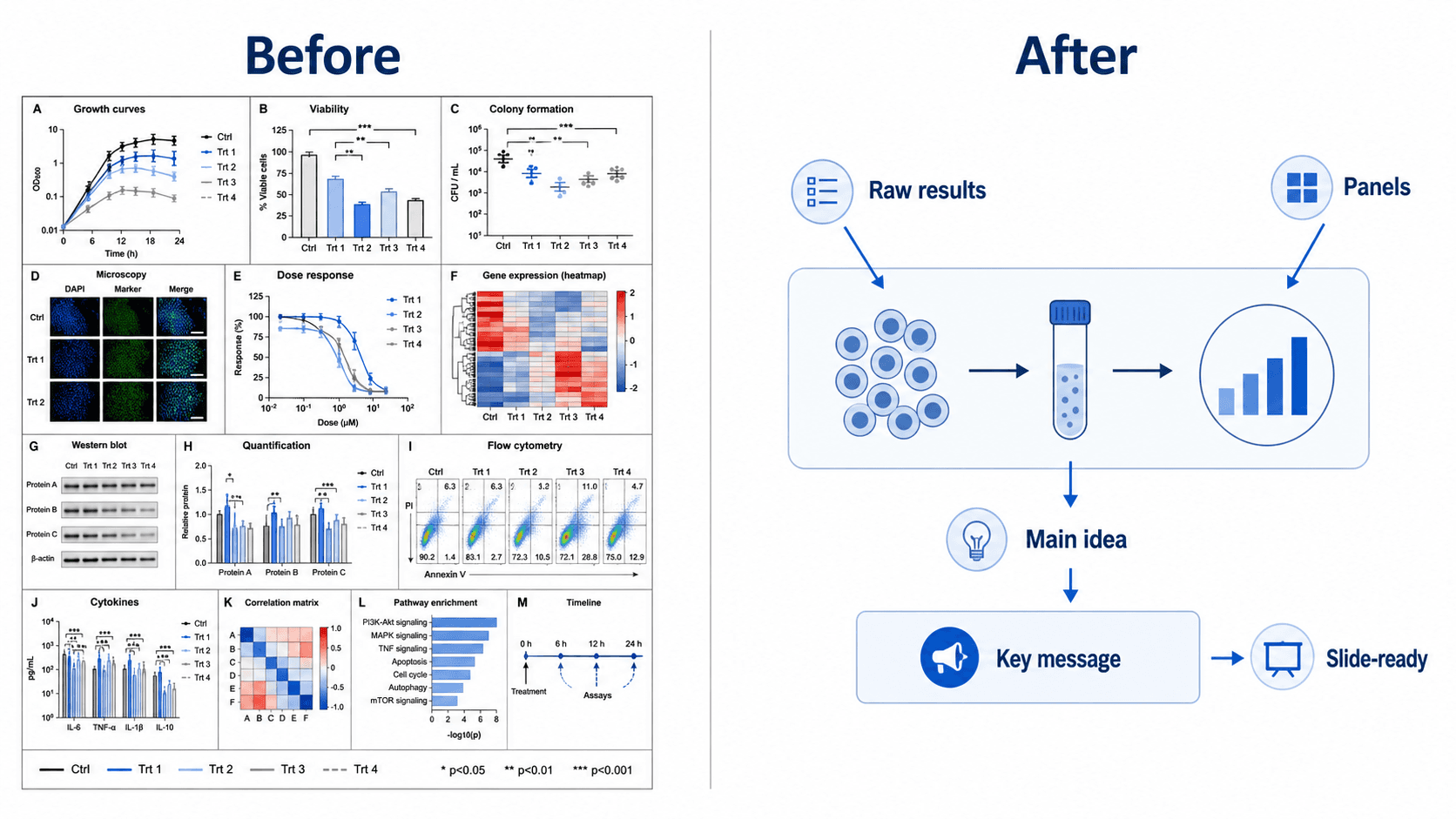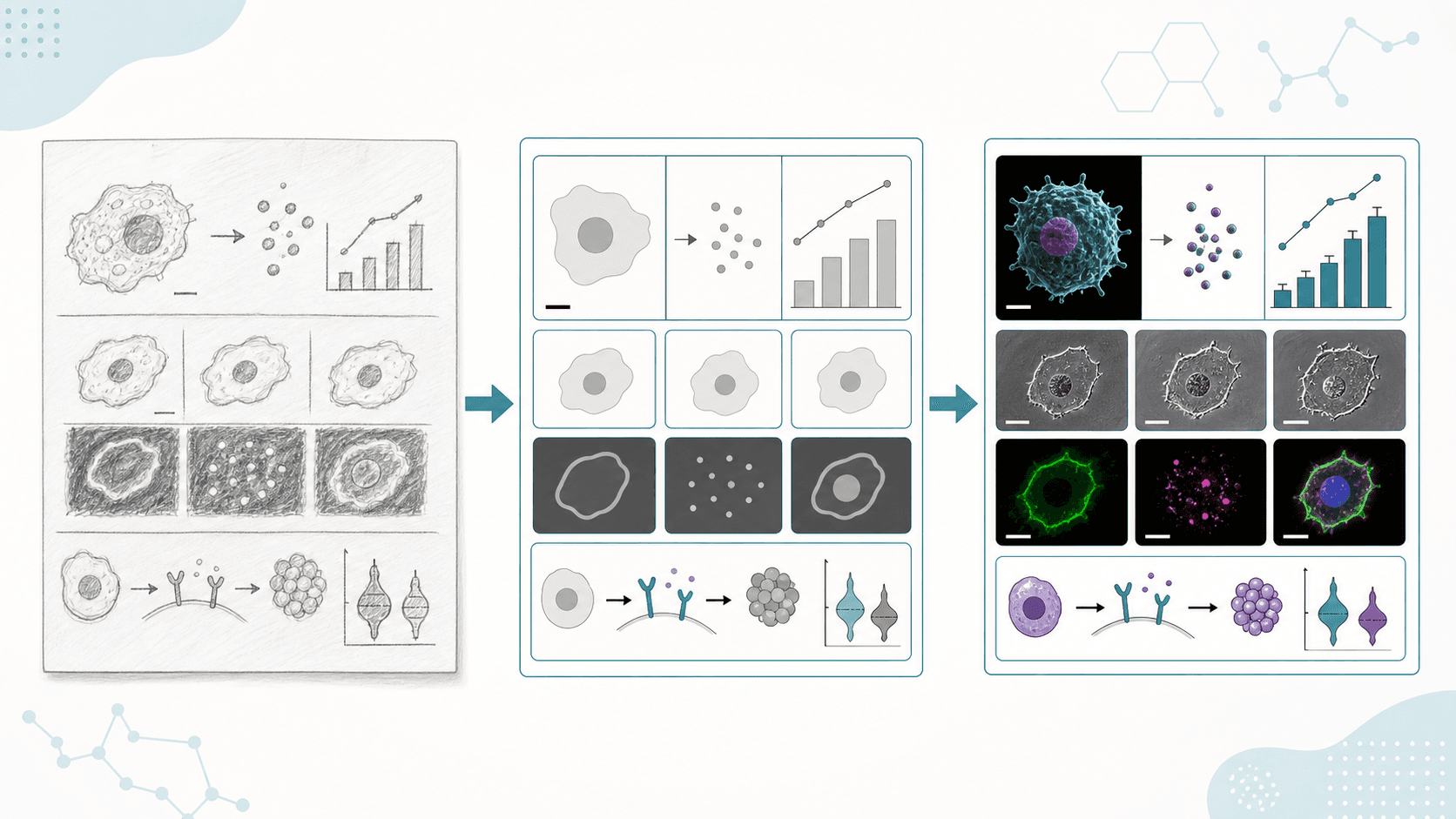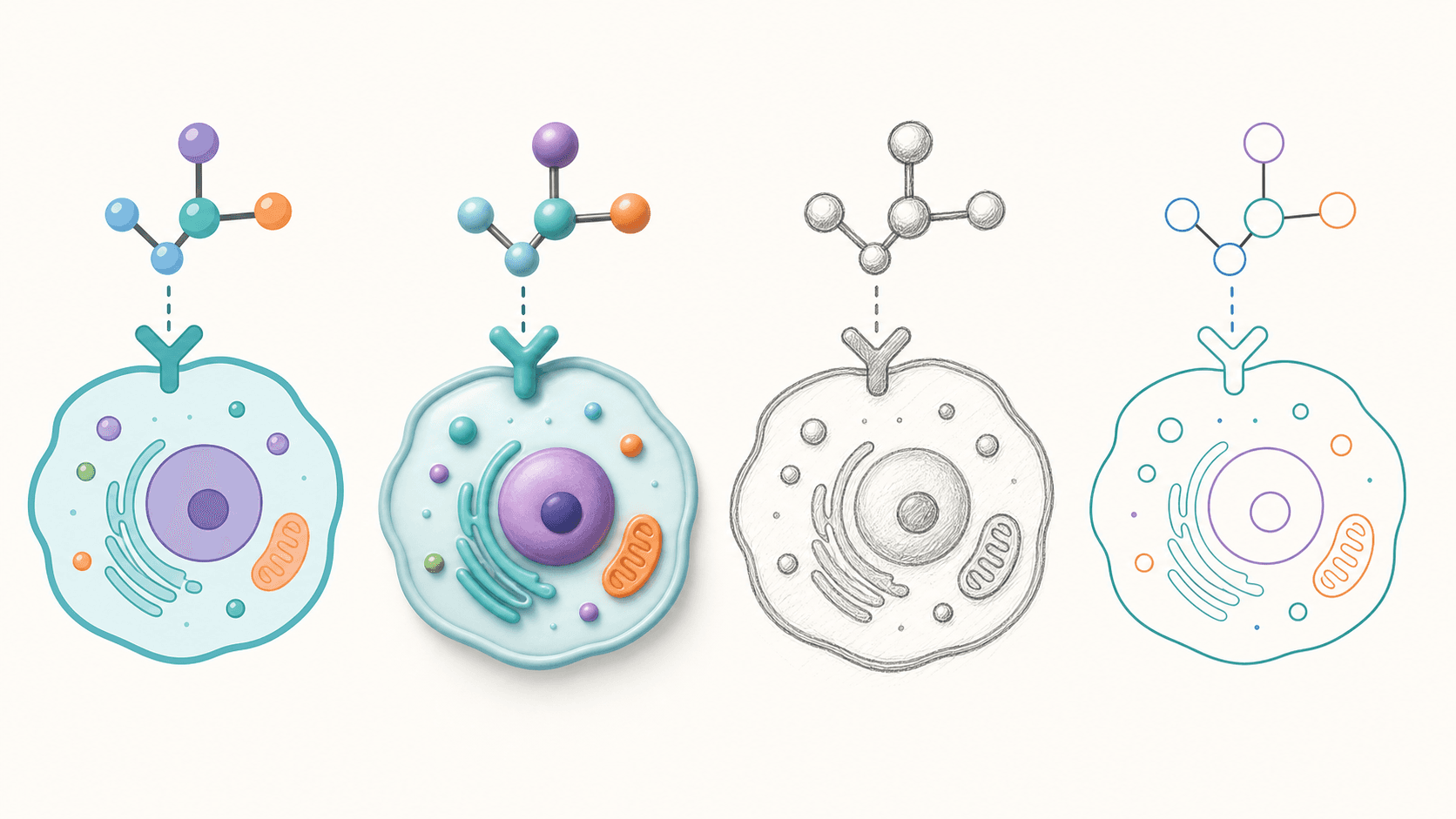
Du hast eine wissenschaftliche Abbildung, die das Richtige aussagt, aber für ihren Bestimmungsort falsch aussieht: ein flaches Lehrbuchdiagramm, das für ein Journal-Cover hochwertig wirken soll, ein überladener 3D-Render, der für einen Förderantrag eine klare Strichzeichnung sein sollte, oder ein steifes Vektorschema, das als freundliche handgezeichnete Skizze auf einer Folie besser ankäme. Du musst es nicht neu zeichnen. Mit einem KI-nativen Abbildungswerkzeug sagst du der KI einfach den gewünschten Stil, und sie gestaltet das vorhandene Bild neu, während Struktur, Beschriftungen und Bedeutung gleich bleiben. Diese Anleitung zeigt dir, wie du den Stil einer Abbildung änderst und ein Diagramm mit KI neu gestaltest — Flat Vector, 3D, handgezeichnet oder Journal-Stil — ohne Designsoftware und ohne von vorne anzufangen.
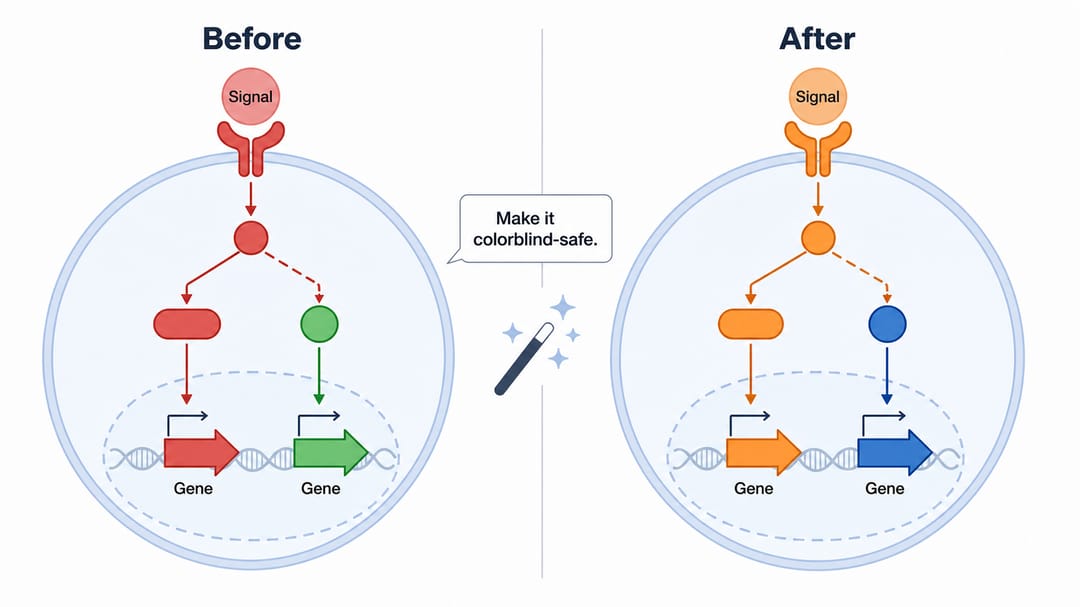
Am Ende dieser Anleitung kannst du:
- eine Abbildung in den Flat-Vector-Stil ändern für saubere, publikationsreife Schemata.
- ein Diagramm in 3D umwandeln für Tiefe auf einem Cover oder einer Marketinggrafik.
- eine Abbildung in eine handgezeichnete Skizze verwandeln für nahbare Folien und die Lehre.
- ein Diagramm in den Journal-Stil überführen — gedämpfte Palette, dünne Striche, professionelle Typografie.
- Stile ohne Neuzeichnen wechseln, sodass die Wissenschaft bleibt und sich nur der Look ändert.
Jede Neugestaltung unten entsteht durch das Eintippen eines Satzes in den SciDraw AI Editor — den KI-Abbildungseditor, in dem dein Bild die Leinwand und Sprache das Werkzeug ist.
Warum Stil eine vom Inhalt getrennte Entscheidung ist
Eine Abbildung leistet zwei Dinge gleichzeitig: Sie trägt die Wissenschaft und sie setzt einen visuellen Ton. Ein Diagramm, das perfekt für einen Methodenabschnitt ist, kann auf einer Konferenzfolie fehl am Platz wirken, und ein glänzender 3D-Render, der auf einem Cover beeindruckt, kann in einem peer-reviewten Paper ablenken. Traditionell bedeutete es, eine Abbildung an ihren Kontext anzupassen, sie in einem anderen Programm neu zu zeichnen. Mit KI-Neugestaltung werden Inhalt und Stil unabhängig — du legst die korrekte Struktur einmal fest und bittest dann um die visuelle Behandlung, die der Bestimmungsort braucht. So kann eine einzige Quellabbildung ein Flat-Vector-Methoden-Panel, eine 3D-Covergrafik und eine handgezeichnete Vorlesungsfolie werden, alles ohne sie neu aufzubauen.
Die Kerntechnik: den Stil benennen, die Struktur schützen
Die ganze Fertigkeit besteht darin, den gewünschten Look zu beschreiben und der KI zu sagen, sie soll die Bedeutung bewahren. Statt von Grund auf neu zu generieren (und neue Beschriftungen, ein neues Layout oder neue Fehler zu riskieren), gibst du eine gezielte Neugestaltungs-Anweisung.
- ❌ Vage: "lass das schöner aussehen"
- ✅ Gezielt: "Gestalte dieses Diagramm in einem sauberen Flat-Vector-Stil mit dünnen Konturen und einer gedämpften Palette neu. Behalte Layout, Elemente und Beschriftungen bei."
Vorlage: "Gestalte diese Abbildung in einem [Flat Vector / 3D-Render / handgezeichnete Skizze / Journal]-Stil neu, mit [Strichstärke, Palette, Schattierung]. Behalte Layout, Elemente und Beschriftungen bei."
Öffne deine Abbildung im Editor, tippe die Anweisung ein, und die KI malt das Bild im neuen Stil neu, während sie alles semantisch an seinem Platz hält. Zu benennen, was bewahrt werden soll — "behalte Layout und Beschriftungen bei" — trennt eine saubere Neugestaltung von einem versehentlichen Neuzeichnen.
Flat-Vector-Stil — sauber und publikationsreif
Flat Vector ist der Standard-Look für die meisten wissenschaftlichen Abbildungen: solide Flächen, dünne gleichmäßige Konturen, keine Verläufe, keine Schlagschatten. Er reproduziert sich gut im Druck, bleibt in kleiner Größe lesbar und wirkt professionell. Nutze ihn, wenn du ein Methodenschema, ein Signalweg-Diagramm oder eine beliebige Abbildung für ein Manuskript vorbereitest.
- "Gestalte diese Abbildung als Flat-Vector-Illustration neu: solide Flächen, dünne gleichmäßige schwarze Konturen, keine Verläufe oder Schatten."
- "Wandle das in ein minimales Flat-Design-Diagramm um, mit einer begrenzten, gedämpften Farbpalette, die für ein Journal geeignet ist."
- "Flache die 3D-Schattierung in saubere 2D-Vektorformen ab, während du jede Beschriftung und jeden Pfeil behältst."
- "Mach das zu einem Flat-Infografik-Stil mit konsistenten Strichstärken und abgerundeten Ecken."
3D-Render-Stil — Tiefe für Cover und Öffentlichkeitsarbeit
Ein 3D-Stil fügt Tiefe, weiches Licht und dimensionale Formen hinzu. Er ist ein Blickfang für Journal-Cover, grafische Abstracts für ein breites Publikum, Labor-Websites und Social Media — überall dort, wo die Abbildung herausstechen statt im Text untergehen soll.
- "Gestalte dieses Molekül als 3D-Render neu, mit weichem Studiolicht, dezenten Schatten und glänzenden Oberflächen."
- "Wandle dieses flache Zelldiagramm in eine halb-3D-Illustration mit Tiefe und sanfter Ambient Occlusion um und halte die Beschriftungen lesbar."
- "Gib diesem Signalweg einen modernen isometrischen 3D-Look, während du die Reihenfolge der Schritte bewahrst."
- "Mach die Cover-Abbildung zu einer polierten 3D-Szene mit dunklem Verlaufshintergrund und Kantenlicht."
Handgezeichneter Skizzenstil — freundlich und nahbar
Ein handgezeichneter oder Skizzenstil verwendet lockere, bleistift- oder tuscheartige Striche und ein leicht unperfektes Gefühl. Er ist ideal für Lehrfolien, erklärende Beiträge, Laborbücher und jedes Umfeld, in dem die Abbildung menschlich und einladend statt klinisch wirken soll.
- "Gestalte dieses Diagramm als handgezeichnete Skizze neu, mit lockeren Tuschekonturen und leichten Aquarellfüllungen."
- "Wandle dieses Schema in eine Tafelzeichnung um, mit weißen Linien auf dunkelgrünem Hintergrund."
- "Lass das wie ein freundliches Notizbuch-Gekritzel mit Markerstrichen aussehen und halte die Beschriftungen lesbar."
- "Gib dem einen weichen Bleistift-Skizzen-Stil, der für eine Vorlesungsfolie geeignet ist."
Journal-Stil — Neugestaltung für die Publikation
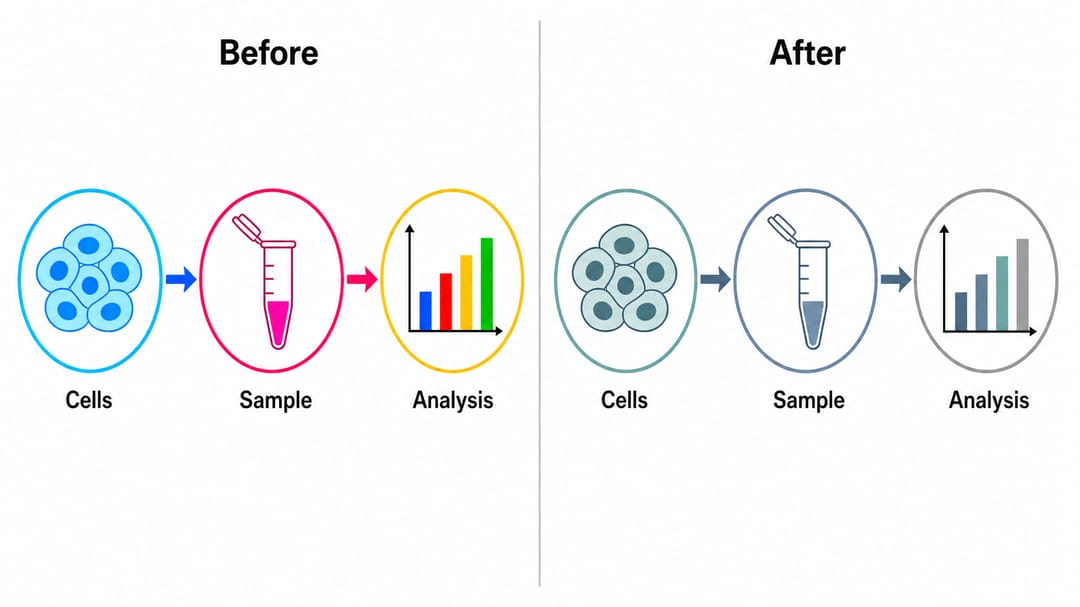
"Journal-Stil" bedeutet meist eine zurückhaltende, professionelle Behandlung: eine gedämpfte Palette oder eine Palette mit einem einzelnen Akzent, dünne konsistente Striche, saubere serifenlose Beschriftungen und keine dekorativen Effekte. Viele Journals erwarten zudem einen bestimmten Look — graustufenfreundlich, farbenblindsicher oder an eine Hauspalette angepasst. Das alles kannst du in einer Anweisung verlangen.
- "Gestalte diese Abbildung in einem sauberen Journal-Stil neu: gedämpfte Palette, dünne Striche, serifenlose Beschriftungen, keine Schatten oder Verläufe."
- "Mach das farbenblindsicher und graustufenfreundlich, während du den Flat-Vector-Journal-Look behältst."
- "Passe das an eine Abbildung im Nature-Stil an: minimal, professionell, mit einer zurückhaltenden Zwei-Farben-Akzentpalette."
- "Gestalte für einen Methodenabschnitt neu: neutrale Grautöne mit einem einzelnen blauen Akzent, dünne Linien, kompakte Beschriftungen."
Tipps für saubere Neugestaltungs-Ergebnisse
- Benenne den Bestimmungsort, nicht nur den Stil. "Gestalte für ein Journal-Cover neu" oder "für eine Lehrfolie" gibt der KI nützlichen Kontext über den Look hinaus.
- Schütze Struktur und Beschriftungen. Füge "behalte Layout, Elemente und Beschriftungen bei" hinzu, damit sich nur die visuelle Behandlung ändert.
- Sei spezifisch bei Effekten. Nenne Strichstärke, Verläufe, Schatten und Palette — "dünne Konturen, keine Verläufe" schlägt "minimal".
- Gestalte bei Bedarf in Schritten neu. Wechsle zuerst den Stil, verfeinere dann die Palette: "mach jetzt die Akzentfarbe türkis."
- Behalte eine Quellabbildung. Gestalte Kopien für verschiedene Bestimmungsorte neu, statt mehrere fast identische Dateien zu pflegen.
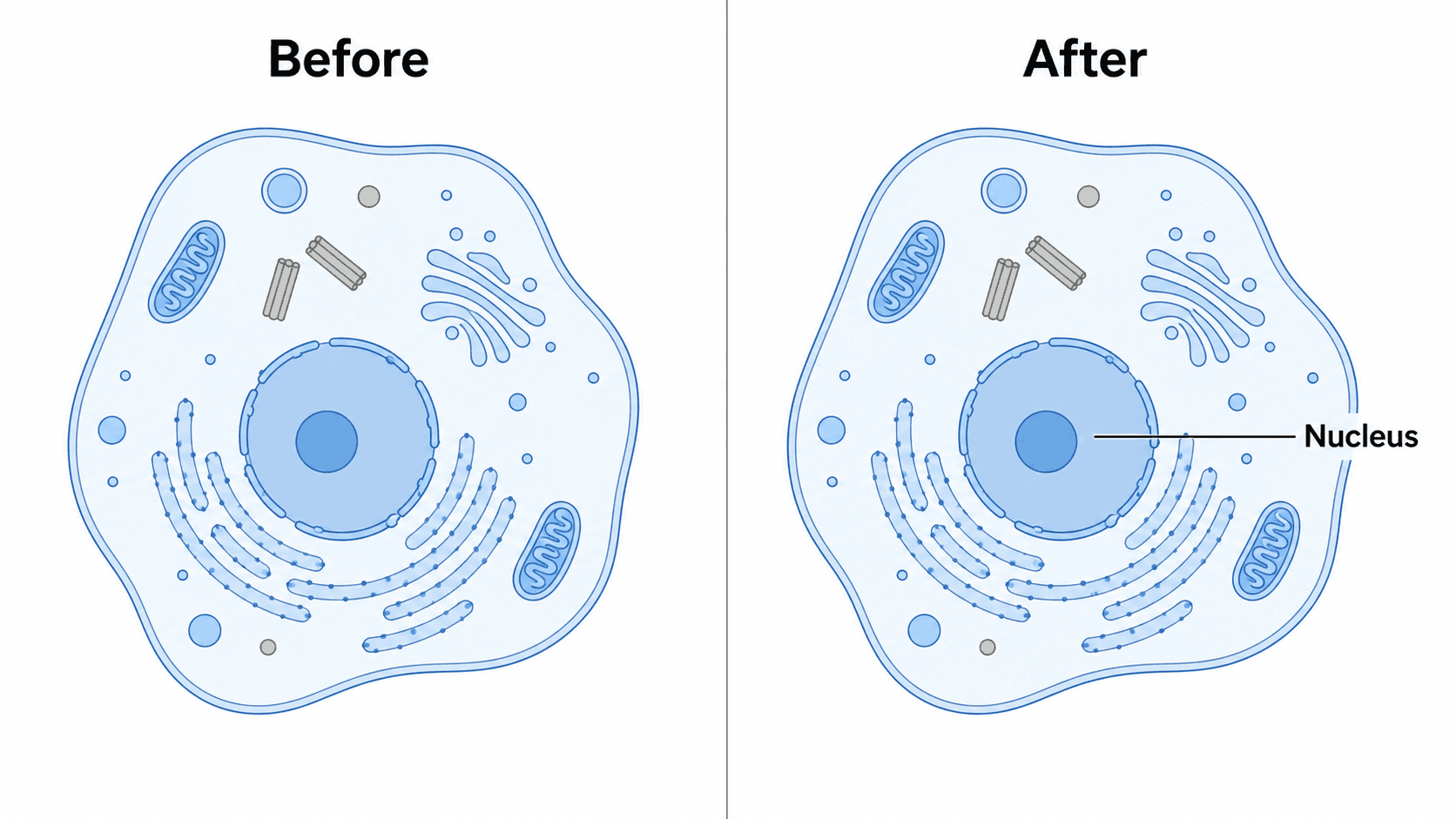
- Iteriere. Wenn die 3D-Schattierung eine Beschriftung verdeckt, hak nach: "reduziere die Schatten, damit die Beschriftung 'Zellkern' lesbar bleibt."
Häufige Fehler (und wie du sie behebst)
- Vage Stilwünsche führen zu einem kompletten Neuzeichnen. Lösung: Benenne Stil und Effekte präzise und füge "behalte Layout und Beschriftungen bei" hinzu.
- Beschriftungen gehen in starkem 3D- oder Skizzenstil verloren. Lösung: Bitte die KI, "alle Beschriftungen scharf und lesbar zu halten", oder gestalte die Beschriftungen anschließend separat neu.
- Der neue Stil kollidiert mit den Anforderungen des Journals. Lösung: Gib für Publikationsabbildungen von vornherein "farbenblindsicher" und "graustufenfreundlich" an.
- Überstilisiertes Ergebnis wirkt unwissenschaftlich. Lösung: Zieh zurück mit "zurückhaltender, weniger Effekte, dünnere Linien" für einen publikationsgerechten Look.
- Die Neugestaltung ändert versehentlich den Inhalt. Lösung: Vergleiche mit dem Original und prompte erneut "stelle das ursprüngliche Layout wieder her, aber behalte den neuen Flat-Vector-Stil bei".
- Verstümmelter Text nach einer starken Neugestaltung (typisch für generische Bild-KI). Lösung: SciDraw AI rendert saubere, lesbare Beschriftungen neu — prompte den exakten Wortlaut erneut, falls eine Beschriftung abdriftet.
Exportiere und nutze deine neu gestaltete Abbildung
Sobald der Look stimmt, exportiere die Abbildung als bearbeitbare SVG oder PowerPoint (PPTX) oder lade ein hochauflösendes Bild für dein Manuskript, deine Folien, dein Cover oder dein Poster herunter. SVG und PPTX erlauben dir (oder einer Kollegin), die gestaltete Abbildung später anzupassen, während der KI-Editor die schnellen Neugestaltungen jetzt übernimmt.
Musst du die Farben nach der Neugestaltung feinjustieren? Siehe wie du ein wissenschaftliches Diagramm umfärbst (inklusive farbenblindsicherer Paletten). Musst du eine Beschriftung oder Annotation im neuen Stil korrigieren? Siehe wie du Text und Beschriftungen in einer KI-Abbildung bearbeitest.
Häufig gestellte Fragen
Wie ändere ich den Stil einer Abbildung mit KI? Öffne die Abbildung im SciDraw AI Editor und tippe eine kurze Anweisung wie "gestalte dieses Diagramm in einem sauberen Flat-Vector-Stil neu und behalte Layout und Beschriftungen bei". Die KI gestaltet das vorhandene Bild direkt neu, sodass du den Look änderst, ohne die Abbildung neu zu zeichnen.
Kann ich ein Diagramm in 3D umwandeln, ohne es neu zu zeichnen? Ja. Sag der KI: "wandle dieses flache Diagramm in eine halb-3D-Illustration mit weichem Licht und Tiefe um und halte die Beschriftungen lesbar." Nur die visuelle Behandlung ändert sich; Struktur und Beschriftungen bleiben gleich.
Wie verwandle ich eine Abbildung in einen handgezeichneten oder Skizzenstil? Beschreibe den Look — "gestalte das als handgezeichnete Skizze mit lockeren Tuschekonturen und leichten Füllungen neu" — und die KI malt die Abbildung in diesem Stil neu, während sie den Inhalt bewahrt.
Was bedeutet "Journal-Stil" für eine wissenschaftliche Abbildung? Journal-Stil bedeutet meist einen zurückhaltenden, professionellen Look: eine gedämpfte Palette, dünne konsistente Striche, saubere serifenlose Beschriftungen und keine dekorativen Schatten oder Verläufe. Bitte um "einen sauberen Journal-Stil, farbenblindsicher und graustufenfreundlich", um die meisten Publikationsanforderungen zu erfüllen.
Kann ich eine Abbildung kostenlos neu gestalten? Du kannst Abbildungen im KI-Abbildungseditor kostenlos neu gestalten und dann für mehr Credits und bearbeitbaren SVG/PPTX-Export upgraden. Jede Neugestaltung entsteht durch das Eintippen einer Anweisung — keine Designsoftware zu installieren.
Jetzt loslegen
Öffne eine beliebige Abbildung im SciDraw AI Editor und tippe deine erste Neugestaltung ein — Flat Vector für ein Paper, 3D für ein Cover, handgezeichnet für eine Folie oder Journal-Stil für die Einreichung. Die KI übernimmt das Neuzeichnen, sodass du es nicht musst, und deine neu gestaltete Abbildung ist nur einen Satz entfernt.