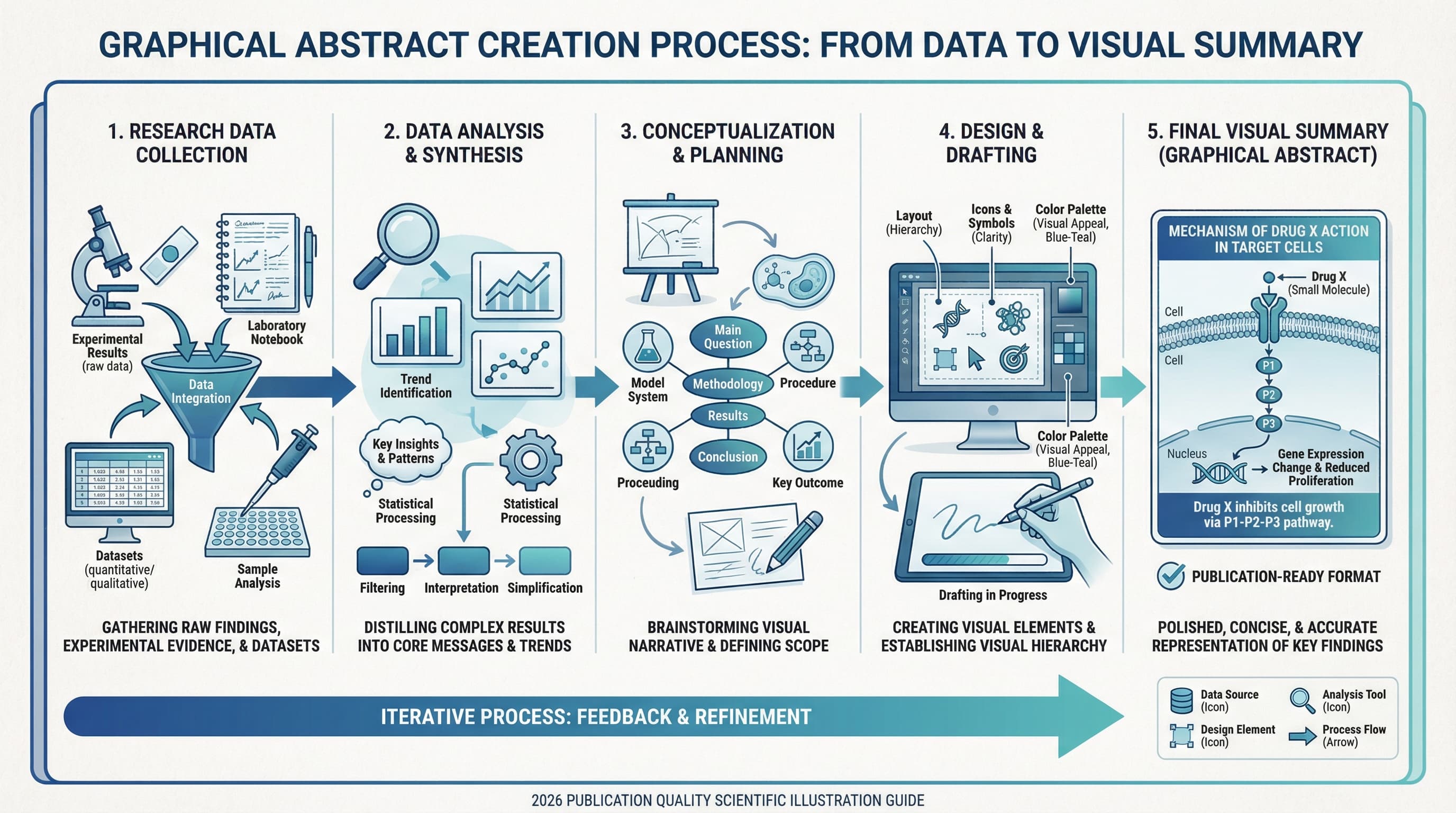
PowerPoint is the tool most researchers already have on their computer. It is not the most powerful graphics application, but for creating a serviceable graphical abstract that meets journal requirements, it is surprisingly capable. Millions of researchers use PowerPoint for figures, posters, and presentations, so the learning curve is essentially zero.
This guide walks through the complete process of creating a publication-ready graphical abstract in PowerPoint, from initial slide setup with journal-specific dimensions to final export at the correct resolution. Every step includes the exact settings you need, so you can follow along and produce a finished graphic in under an hour.
If you need to check the specific dimensions and format requirements for your target journal before starting, see our graphical abstract requirements guide.
Why PowerPoint for Graphical Abstracts
PowerPoint is a legitimate choice for graphical abstracts for several practical reasons.
Accessibility. Nearly every researcher has access to PowerPoint through institutional Microsoft Office licenses. There is no additional software to purchase, install, or learn.
Familiarity. You already know how to add shapes, text boxes, arrows, and images in PowerPoint. The skills you use for lecture slides transfer directly to graphical abstract design.
Vector export. PowerPoint can export to PDF and EMF formats, which preserve vector quality for shapes and text. This means your graphical abstract scales cleanly to any size without pixelation -- as long as you avoid raster images within the design.
Collaboration. Co-authors can easily edit and comment on a PowerPoint file. Try sending an Illustrator file to a collaborator who does not have Illustrator -- it does not go well.
Templates. PowerPoint files are easy to share and reuse. Once you create a graphical abstract layout that works, you have a template for future papers.
When PowerPoint Works (and When It Does Not)
PowerPoint handles certain graphical abstract tasks well and struggles with others. Understanding these limitations upfront saves time.
PowerPoint works well for:
- Block diagrams and flow charts
- Simple process illustrations (input, process, output)
- Text-heavy frameworks and conceptual models
- Basic shapes with color fills and gradients
- Combining icons and text into structured layouts
- Before/after comparisons with simple graphics
PowerPoint struggles with:
- Complex chemical structures (use ChemDraw and import as an image)
- Detailed biological illustrations (cell organelles, protein structures)
- Photorealistic rendering or 3D molecular visualization
- Precise color management for CMYK print workflows
- Fine typographic control (kerning, optical alignment)
For research that requires detailed scientific illustrations -- molecular structures, cellular diagrams, or anatomical drawings -- you will likely need to create those elements in specialized software (ChemDraw, BioRender, PyMOL) and import them into PowerPoint as high-resolution images. PowerPoint then serves as the layout and composition tool.
Step 1: Set Up Your Slide with Journal Dimensions
The most important step is configuring your slide to match the exact dimensions required by your target journal. PowerPoint's default slide dimensions (13.33 x 7.5 inches for widescreen) are not suitable for any journal graphical abstract format.
How to Set Custom Slide Dimensions
- Open PowerPoint and create a new blank presentation
- Go to Design tab in the ribbon
- Click Slide Size (far right of the ribbon)
- Select Custom Slide Size
- Enter the width and height for your target journal
- When prompted, choose Ensure Fit (not Maximize)
Journal-Specific Dimensions
Set your slide size to match these common journal requirements:
| Journal / Publisher | Width | Height | Notes |
|---|---|---|---|
| Elsevier | 11.24 cm (4.43 in) | 4.50 cm (1.77 in) | 1328 x 531 px at 300 DPI, 500:200 ratio |
| ACS (TOC graphic) | 8.26 cm (3.25 in) | 4.45 cm (1.75 in) | Wide rectangle |
| RSC | 8 cm (3.15 in) | 4.0 cm (1.57 in) | Wide rectangle, maximum dimensions |
| Wiley | 5.5 cm (2.17 in) | 5.0 cm (1.97 in) | Nearly square |
| Springer Nature | 18.0 cm (7.09 in) | 18.0 cm (7.09 in) | Square format |
| Cell Press | 18.0 cm (7.09 in) | 18.0 cm (7.09 in) | Square format |
For a comprehensive comparison of requirements across publishers, see our TOC graphics requirements guide.
Important: Work at Scale
Set your PowerPoint zoom to 100% or higher. Because graphical abstract slides are small (often under 10 cm), working at low zoom levels makes precise alignment difficult. Use 150-200% zoom while designing and periodically zoom out to check the overall composition.
Step 2: Plan Your Layout Before Adding Elements
Resist the urge to start dragging shapes immediately. Spend five minutes planning the layout on paper or in your head. This planning step saves significant rearrangement time later.
Choose a Flow Direction
Most effective graphical abstracts use one of these layout patterns:
Left-to-right flow. Best for process-oriented research: starting material transforms to product, patient receives treatment and shows outcome, data enters pipeline and produces result. This is the most common and most intuitive layout.
Top-to-bottom flow. Works well for hierarchical concepts: broad category narrows to specific finding, macro-scale leads to micro-scale observation.
Central hub. A core concept in the center with radiating connections to surrounding elements. Best for platform papers, multi-application studies, or central-hypothesis research.
Two-panel comparison. Left panel shows the problem or control, right panel shows the solution or result. A dividing line or arrow connects them.
Divide the Slide into Zones
Before adding content, mentally divide your slide into 2-4 zones. For a left-to-right flow in a square format:
- Left third: Input, starting point, or problem statement
- Center third: Process, mechanism, or intervention
- Right third: Output, result, or conclusion
For a wide rectangle (ACS/RSC format):
- Left half: Setup (starting material, patient group, input data)
- Right half: Result (product, outcome, key finding)
- Connecting element: Arrow or process indicator between them
Sketch Your Idea
Draw a rough sketch (even on a sticky note) showing where each major element will go. Identify the single most important visual element -- this gets the most space and the most prominent position.
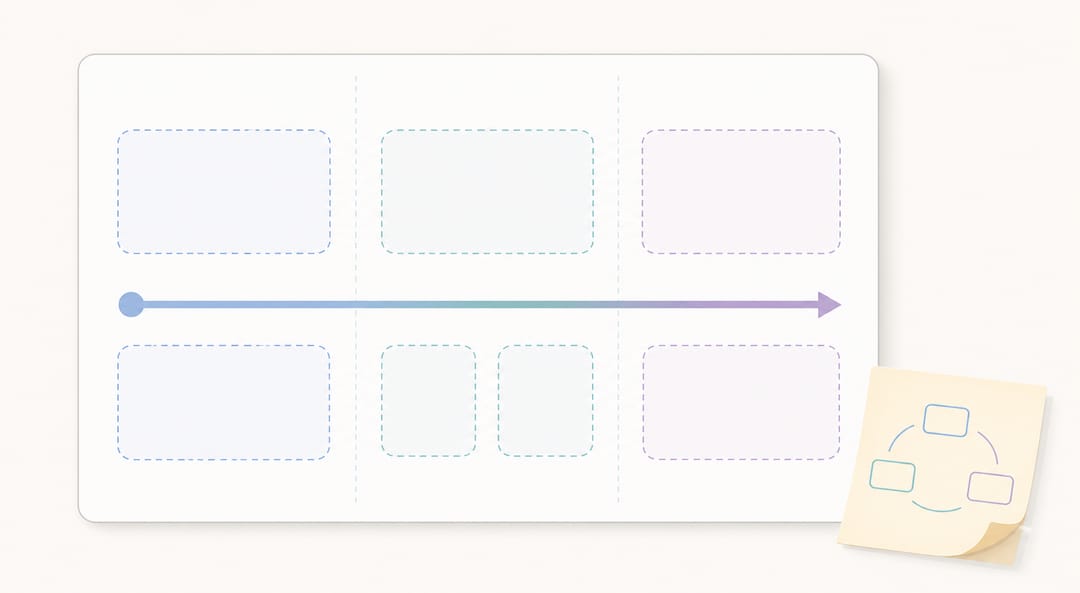 Plan your layout first by dividing the slide into zones and sketching where each element will go.
Step 3: Add Shapes and Icons
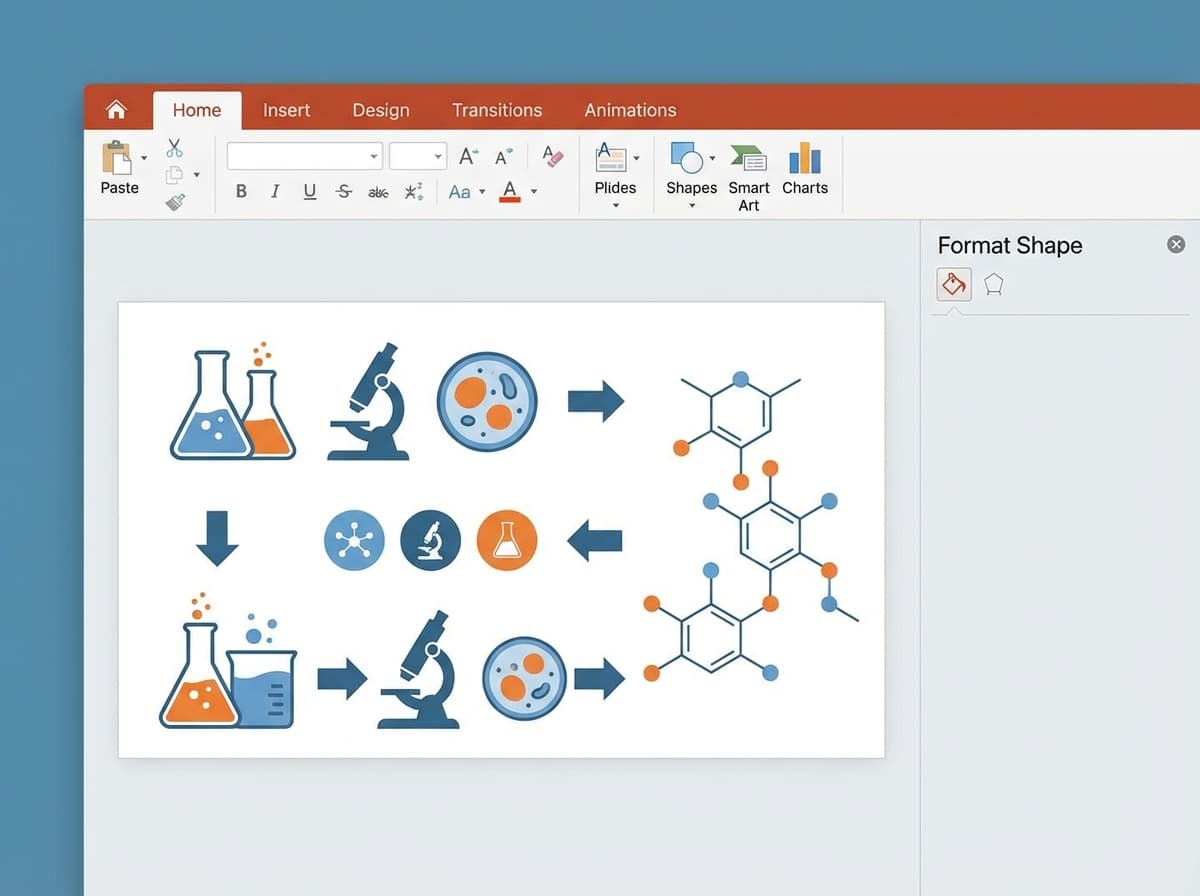
PowerPoint's built-in shape library is more capable than most researchers realize. Combined with free icon sources, you can create most graphical abstract elements without any external software.
Using PowerPoint Shapes
Access shapes through Insert > Shapes. The most useful categories for graphical abstracts:
- Block Arrows: For showing process flow, transformation, or causation
- Basic Shapes: Rectangles for containers, circles for nodes, rounded rectangles for labels
- Callouts: For annotating specific parts of the graphic
- Stars and Banners: Sparingly, for highlighting key results
Shape Formatting Tips
- Fill: Use solid fills in muted, professional colors. Avoid gradients unless they communicate something specific (e.g., a concentration gradient).
- Outline: Use thin outlines (0.5-1 pt) in a darker shade of the fill color, or no outline for a cleaner look.
- Shadows and 3D effects: Avoid these entirely. They add visual clutter and reproduce poorly at small sizes.
- Grouping: Select multiple related shapes, right-click, and choose Group. This keeps elements together during repositioning and ensures alignment is preserved.
Free Icon Sources for Scientific Graphics
PowerPoint's built-in icons (Insert > Icons in Office 365) include some scientific symbols, but the selection is limited. These free resources provide research-appropriate icons:
- The Noun Project (thenounproject.com): Thousands of simple line icons including laboratory equipment, organisms, and scientific instruments. Free with attribution.
- BioRender Icon Library (biorender.com): Scientific icons specifically designed for biology and medicine. Some are available free for academic use.
- Servier Medical Art (smart.servier.com): Free medical and biological illustrations licensed under Creative Commons. Excellent for clinical and biomedical graphical abstracts.
- PhyloPic (phylopic.org): Silhouettes of organisms. Free for academic use.
Importing Icons and Images
- Download icons as SVG or PNG (SVG preferred for scalability)
- In PowerPoint: Insert > Pictures > This Device
- For SVG files: PowerPoint 365 supports direct SVG import; older versions may require conversion to EMF first
- Resize while holding Shift to maintain aspect ratio
- Use Format > Color > Recolor to tint imported icons to match your color scheme
For detailed guidance on working with SVG files in PowerPoint, see our SVG editing guide.
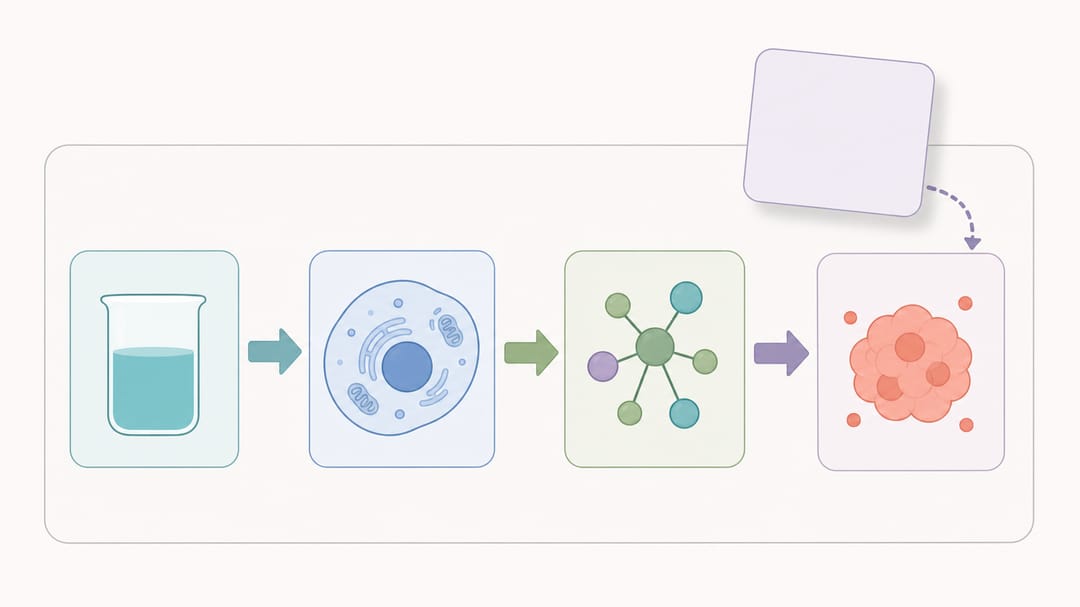 Combine PowerPoint shapes, block arrows, and imported icons into a single structured panel.
Step 4: Add Text and Labels
Text in graphical abstracts should be minimal, but when you need labels, they must be legible at the final display size.
Font Selection
Use a clean sans-serif font throughout. Recommended options:
| Font | Availability | Notes |
|---|---|---|
| Arial | All systems | Safe default, universally available |
| Calibri | Windows/Office | Modern, slightly more refined than Arial |
| Helvetica | macOS | Professional standard for scientific publishing |
| Segoe UI | Windows | Clean and modern, good for on-screen display |
Do not mix more than two fonts. Use one font for labels and one (optionally bold or a different weight of the same font) for emphasis text.
Font Size Guidelines
Font size requirements depend on the final printed dimensions. As a general rule:
- Primary labels: 10-14 pt (visible at thumbnail scale)
- Secondary labels: 8-10 pt (readable at moderate zoom)
- Minimum readable: 7-8 pt at final print size
To verify readability, export your graphic at the final dimensions and view it at 100% on screen. If you need to squint, the text is too small.
Text Formatting Tips
- Bold for key terms and primary labels
- Regular weight for secondary labels and annotations
- Avoid italics for small text (reduces legibility at low resolution)
- Left-align or center-align text consistently throughout the graphic
- Use text boxes, not text placed inside shapes, for easier repositioning
- White text on dark backgrounds and dark text on light backgrounds -- never place colored text on a similarly colored background
Text Placement
Place labels adjacent to the elements they describe, not in a separate legend at the bottom. Proximity is the most powerful visual association tool. If a label belongs to a shape, put it next to or inside that shape, not three inches away with a reference line.
Step 5: Color and Style
Color is the most impactful design decision in a graphical abstract. A well-chosen color palette immediately communicates professionalism, while poor color choices signal amateur work.
Building a Color Palette
Limit your palette to 3-5 colors plus black, white, and gray. Here is a practical approach:
- Choose one primary color for the most important element (your key finding or novel contribution). Blues, teals, and deep oranges work well in scientific contexts.
- Choose one secondary color for supporting elements. This should complement the primary color without competing for attention.
- Use gray (50-70% brightness) for background elements, borders, and less important components.
- Use white for backgrounds and negative space.
- Use black only for text and thin outlines.
Colorblind-Safe Palettes
Approximately 8% of men and 0.5% of women have some form of color vision deficiency. Many journals now require or strongly recommend colorblind-safe palettes.
Avoid: Red-green combinations (the most common source of confusion)
Use instead:
- Blue and orange (distinguishable by nearly all color vision types)
- Blue and yellow
- Purple and green
- Different saturations of the same hue combined with pattern or shape differences
Applying Colors in PowerPoint
- Select a shape, go to Format > Shape Fill, and enter a specific hex color code for consistency
- To reuse a color, use the Eyedropper tool (Format > Shape Fill > Eyedropper) to sample from an existing element
- Create a custom color palette in Design > Variants > Colors > Customize Colors so your colors appear in the quick-access color picker
Style Consistency Checklist
- All shapes use the same outline weight (or all have no outline)
- All arrows use the same head style and line weight
- All text uses the same font family
- Colors are used consistently (the same blue always means the same thing)
- Spacing between elements is uniform
- Alignment is snapped to grid (use View > Gridlines and Snap to Grid)
Step 6: Export for Journal Submission
This is where most PowerPoint-created graphical abstracts fail. PowerPoint's default export settings produce images that are too low in resolution for journal submission. You need to adjust settings carefully.
Exporting as High-Resolution PNG
PowerPoint's default PNG export is 96 DPI, which is far below the 300 DPI minimum required by journals. To fix this:
On Windows:
- Close PowerPoint
- Open Registry Editor (regedit)
- Navigate to:
HKEY_CURRENT_USER\Software\Microsoft\Office\16.0\PowerPoint\Options - Create a new DWORD value named
ExportBitmapResolution - Set the value to
300(decimal) for 300 DPI, or600for 600 DPI - Restart PowerPoint
- Go to File > Save As, select PNG as the format, and choose Just This Slide
On macOS:
- macOS PowerPoint does not support the registry trick
- Instead, export as PDF: File > Save As > PDF
- Open the PDF in Preview
- File > Export, select PNG, set resolution to 300 pixels/inch
Exporting as PDF (Vector)
For journals that accept PDF graphical abstracts:
- File > Save As (or Export)
- Select PDF as the format
- Ensure the PDF dimensions match your slide dimensions
- Verify that text remains selectable in the PDF (this confirms vector export)
Exporting as TIFF
TIFF is preferred by many journals for raster submissions:
- Export as high-resolution PNG first (using the method above)
- Open the PNG in any image editor (even Preview on macOS or Paint on Windows)
- Save as TIFF with LZW compression (lossless)
- Verify the DPI metadata reads 300 or higher
Post-Export Verification Checklist
After exporting, verify these properties before submission:
- Dimensions: Open the image properties and confirm width and height match journal requirements
- Resolution: Confirm 300 DPI or higher (check in image properties or an image editor)
- File size: Confirm under the journal's maximum (typically 5-10 MB)
- Visual quality: Open the exported file and zoom to 100% -- check for pixelation, color shifts, or cropped elements
- Text readability: View the image at the approximate size it will appear in the journal listing
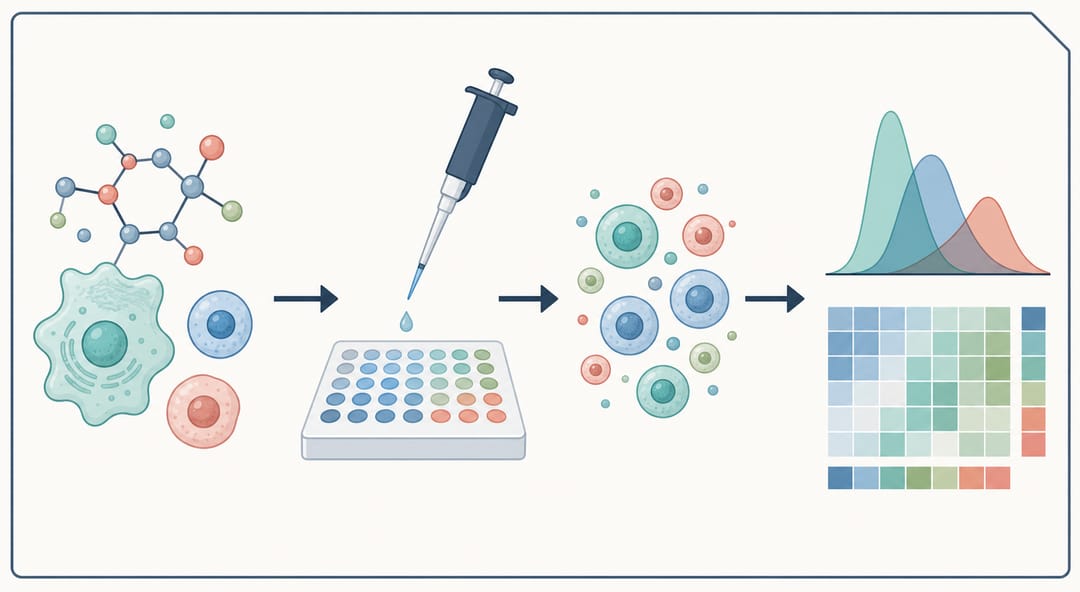 Export at 300 DPI or higher so your finished graphical abstract stays sharp at journal submission size.
PowerPoint vs. Dedicated Tools: Comparison
Understanding where PowerPoint fits relative to other graphical abstract tools helps you decide when to use it and when to consider alternatives.
| Feature | PowerPoint | Adobe Illustrator | BioRender | AI Tools (SciDraw AI) |
|---|---|---|---|---|
| Cost | Included with Office | $22.99/mo | $45/mo academic | Free tier available |
| Learning curve | None (familiar) | Steep (weeks) | Moderate (hours) | Minimal (minutes) |
| Chemical structures | Import only | Draw manually | Limited library | AI-generated |
| Biology icons | Limited built-in | Manual creation | Extensive library | AI-generated |
| Vector output | PDF, EMF | AI, EPS, PDF, SVG | PNG, SVG | PNG, SVG |
| CMYK support | No | Yes | No | No |
| Collaboration | Excellent | Poor | Good | N/A |
| Batch export | Manual | Scripted | Manual | Automated |
| Time to first draft | 30-60 min | 2-4 hours | 15-30 min | 2-5 min |
| Quality ceiling | Good | Excellent | Very good | Very good |
| Custom dimensions | Yes | Yes | Limited | Yes |
When to Use PowerPoint
- You need a graphical abstract quickly and your design is diagram-based (flow charts, block diagrams, framework models)
- You are working with co-authors who all have PowerPoint
- Your graphical abstract is primarily composed of shapes, arrows, text, and imported icons
- You do not need CMYK color space
- The journal accepts PNG or PDF format
When to Use Something Else
- Your graphical abstract requires detailed chemical structures (use ChemDraw + PowerPoint, or ChemDraw + Illustrator)
- You need precise CMYK color control for a print journal (use Illustrator)
- You need extensive biological illustration elements (use BioRender)
- You want a professional-quality result in minutes with minimal design effort (use SciDraw AI's AI tool)
For a more general overview of graphical abstract creation approaches across different tools, see our complete graphical abstract creation guide.
Common PowerPoint Mistakes to Avoid
These are the issues we see most frequently in PowerPoint-created graphical abstracts.
Using Default Slide Dimensions
The single most common mistake. A graphical abstract exported from a standard 16:9 slide will be the wrong aspect ratio for every journal. Always set custom dimensions first.
Forgetting to Increase Export Resolution
The second most common mistake. Default 96 DPI export will be rejected by every journal. Follow the export instructions in Step 6 carefully.
Overcrowding the Slide
PowerPoint makes it easy to keep adding elements. A graphical abstract is not a poster -- it is a thumbnail. If your slide has more than 6-8 distinct visual elements, you probably need to simplify.
Using PowerPoint Clip Art
The built-in clip art in PowerPoint looks dated and unprofessional. Use purpose-built scientific icons from the sources listed in Step 3, or generate custom illustrations with AI.
Inconsistent Alignment
Unaligned elements make a graphical abstract look sloppy. Use PowerPoint's alignment tools: select multiple objects, go to Format > Align, and choose Align Center, Distribute Horizontally, or Distribute Vertically as needed. Enable gridlines and snap-to-grid for precision.
Low-Resolution Imported Images
If you import a small JPEG into PowerPoint and stretch it to fill a large area, it will appear pixelated in the export. Always import images at the highest available resolution and scale down rather than up.
Try an AI-Powered Alternative
PowerPoint is a capable tool for straightforward graphical abstract designs, but it has real limitations for scientific illustration. If you find yourself spending more than an hour wrestling with shapes and alignment, or if your research requires visual elements that PowerPoint cannot produce well (molecular structures, cellular diagrams, complex biological pathways), consider an AI-powered approach.
SciDraw AI generates publication-ready graphical abstracts from text descriptions of your research. Describe what your paper is about, specify the target journal format, and receive a professional-quality graphic in minutes. The AI understands scientific visual conventions across fields, so you get field-appropriate illustrations without needing design expertise.
For researchers who have been using PowerPoint because it was the only accessible option, AI tools offer a meaningful upgrade in both quality and speed.
Try SciDraw AI's AI Drawing Tool