How to Make a Volcano Plot from CSV Data (2026)
2026/06/18

How to Make a Volcano Plot from CSV Data (2026)

Create a publication-ready volcano plot from CSV or Excel data without coding. Map log2 fold change and adjusted p-values, set thresholds, label hits, and continue editing in SciVis.

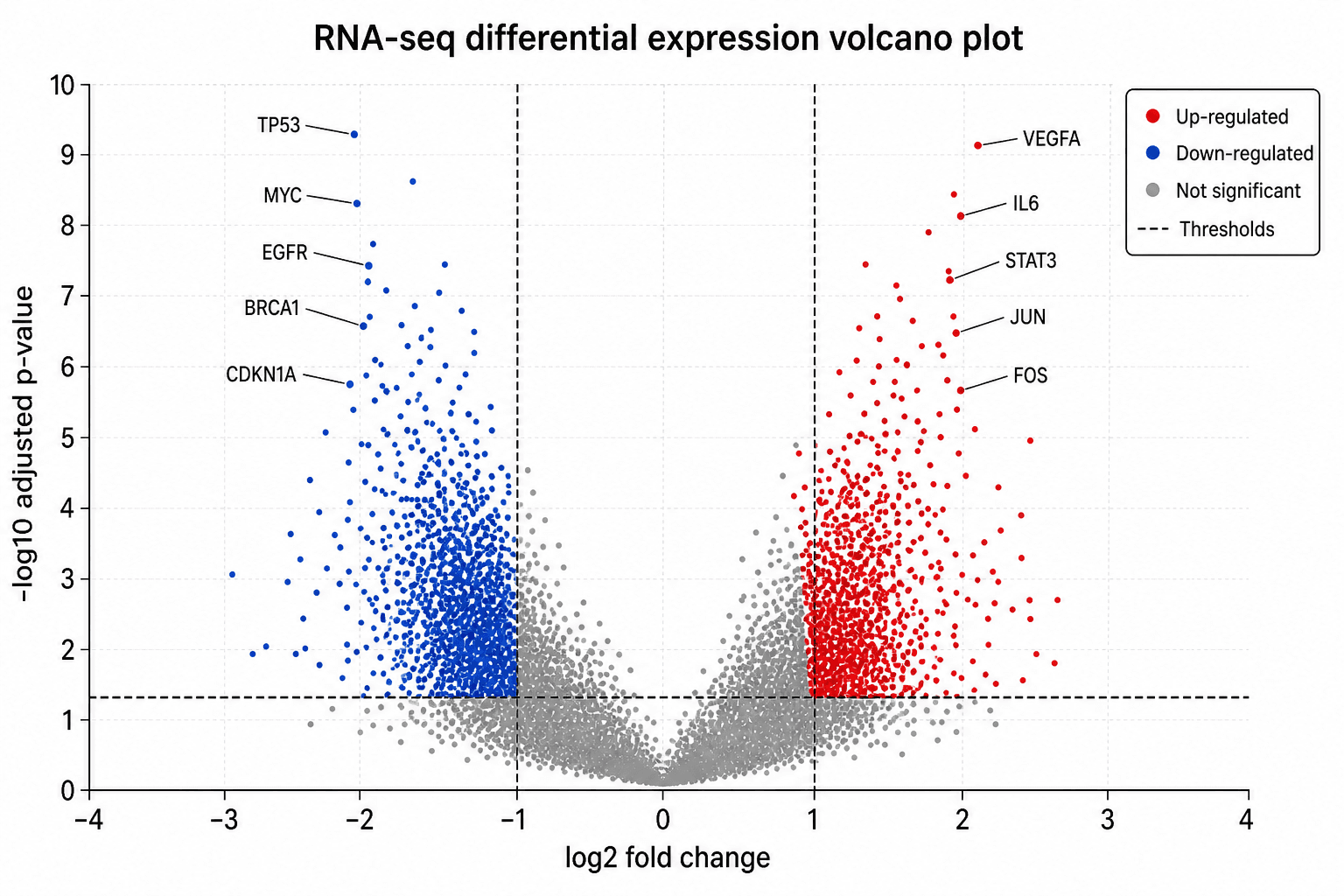
A volcano plot summarizes differential expression by placing effect size on the x-axis and statistical significance on the y-axis. In SciDraw, you can build it directly from a data file: upload the results table, generate the first chart, and then open the result in SciVis to refine labels, colors, thresholds, annotations, and layout.

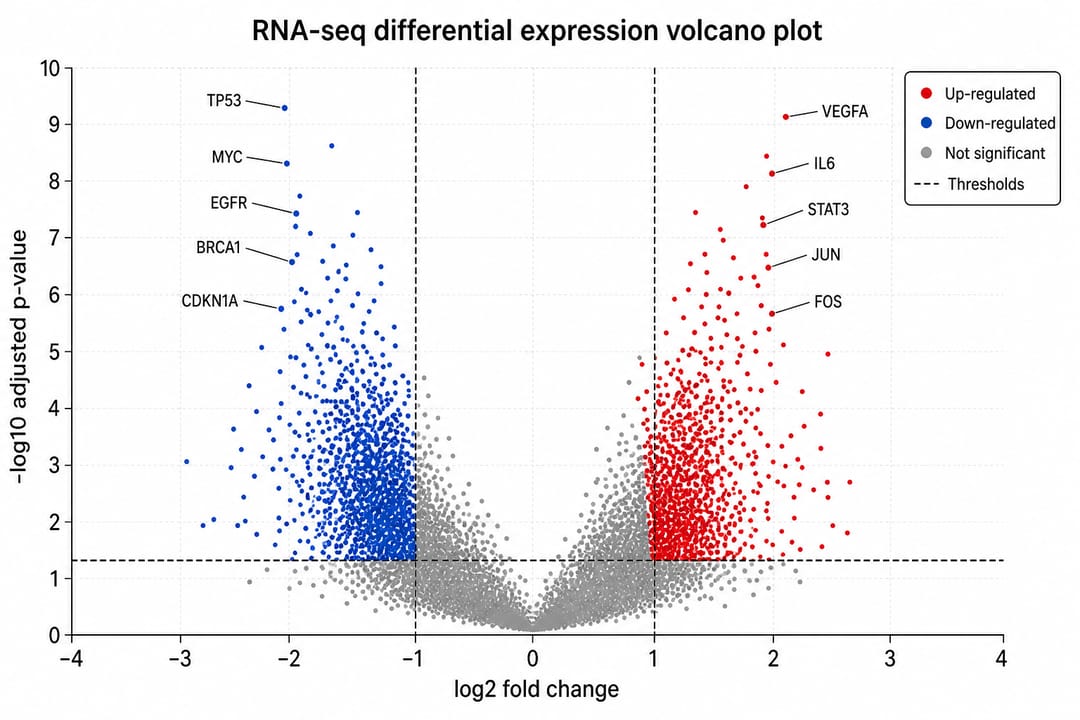
RNA-seq volcano plot with up- and down-regulated genes

What data does a volcano plot need?

Use one CSV, TSV, TXT, XLSX, or XLS file. For Excel files, SciDraw imports the first worksheet. A practical table contains:

ColumnPurposeExample
featureGene, protein, or metabolite labelTP53
log2_fold_changeEffect size and direction2.121
adjusted_p_valueMultiple-testing-adjusted significance4.912e-7
significanceOptional precomputed classUp

Keep one observation per row. Use numeric values for fold change and p-values, and avoid merged cells or decorative headers.

Step 1: Start from sample data or upload your file

Open the volcano plot generator. You can inspect six prepared datasets for RNA-seq, proteomics, single-cell, metabolomics, clinical biomarkers, and custom thresholds. Select an example to see the expected structure, or upload your own file.

The generator accepts one file at a time. If an Excel workbook contains several sheets, move the table you want to plot to the first worksheet or export that sheet as CSV.

Step 2: Generate the volcano plot

The tool uses the selected volcano-plot intent and your uploaded columns to create the initial figure. For a conventional result:

  • map log2 fold change to the x-axis;
  • map -log10(adjusted p-value) to the y-axis;
  • separate significant up-regulated, down-regulated, and non-significant points;
  • show vertical fold-change cutoffs and a horizontal significance cutoff.

Common starting thresholds are |log2FC| > 1 and adjusted p < 0.05, but your analysis plan should determine the final values.

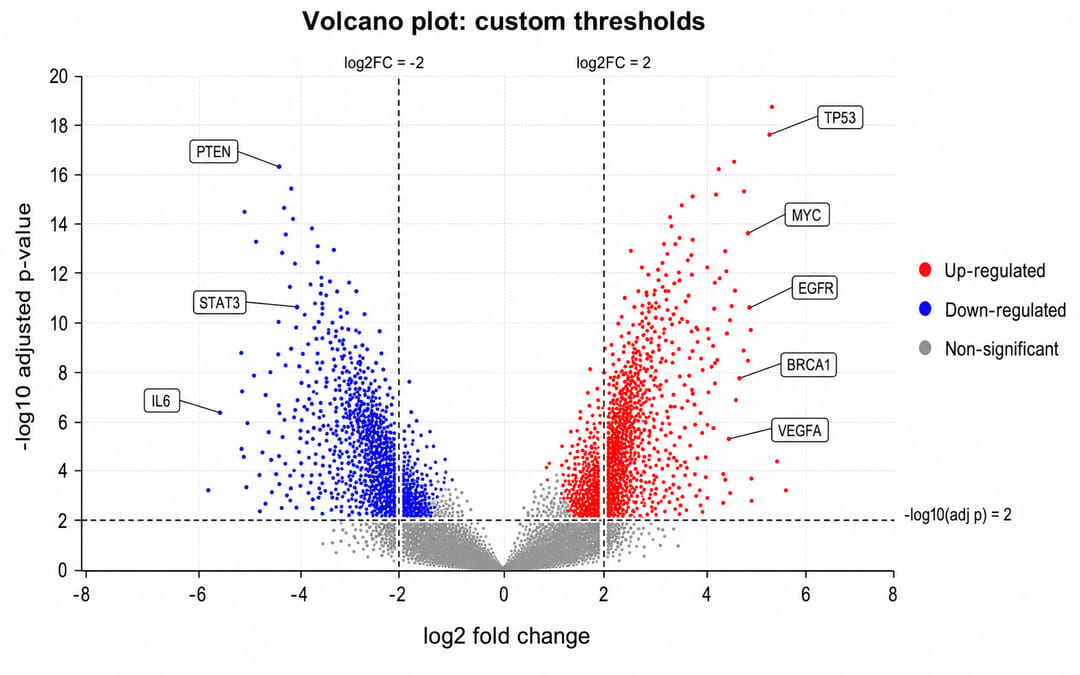
Volcano plot with custom fold-change and p-value thresholds

Step 3: Continue editing in SciVis

After generation, choose Continue editing in SciVis. The result opens in the SciVis workspace instead of remaining on the landing page. There you can:

  • change the fold-change and adjusted p-value thresholds;
  • edit axis titles, legend text, and the figure title;
  • adjust colors, point size, opacity, and label placement;
  • annotate selected genes or proteins;
  • refine the layout before export.

This separation keeps the tool page focused on uploading and previewing data while SciVis handles iterative editing.

How to choose and label hits

Label only the genes that support the result you discuss. A useful rule is to label a short list selected by adjusted p-value, absolute fold change, or prior biological relevance. Too many names obscure the point cloud and make the plot harder to read.

Use an x-axis centered on zero so up- and down-regulation remain visually balanced. Keep the non-significant points neutral and less prominent than the highlighted categories. If extremely small p-values produce a long tail, document any clipping or cap used on the y-axis.

Common volcano plot mistakes

  • Using raw p-values: Prefer adjusted p-values for high-dimensional experiments.
  • Hiding the threshold definition: Show cutoff lines and state the values in the caption.
  • Using an asymmetric x-axis: A centered scale makes direction easier to compare.
  • Labeling too many points: Select a defensible subset and use leader lines where needed.
  • Treating missing values as zero: Clean or exclude invalid rows before plotting.
  • Skipping data verification: Check that transformed axes and category counts match your source analysis.

Frequently asked questions

Can I make a volcano plot without R or Python?

Yes. Upload a supported table to the volcano plot generator, generate the chart, and edit it visually in SciVis. No plotting code is required.

Can I use Excel data?

Yes. XLSX and XLS files are supported, and SciDraw imports the first worksheet. CSV, TSV, and TXT are also accepted.

Does this work for proteomics and metabolomics?

Yes. The same structure works for differential abundance results as long as each row has a feature identifier, an effect size, and a p-value or adjusted p-value.

Can I edit the chart after it is generated?

Yes. Continue to SciVis to revise labels, colors, annotations, and layout without uploading the data again.

Create your volcano plot

Start with one of the six example datasets or upload your own differential-expression table in the volcano plot generator. Generate the first figure, verify every value, and finish the visual treatment in SciVis.

Author

avatar for Davie Chen / SciDraw AI
Davie Chen / SciDraw AI

Researcher

Davie Chen is a researcher at the Faculty of Animation and Intermedia, University of Arts in Poznan, studying generative AI for scientific figure creation, patent illustration, and manuscript drafting. SciDraw AI is one of the research-to-product tools built from this work.

Author profile

Categories

Create your scientific figures with AI

Thousands of researchers use SciDraw AI to make publication-ready figures for papers, grants, and journal submissions — in minutes, with no design skills.