Рецензент хочет исправленную подпись, две перекрашенные группы и заново пронумерованные буквы панелей — к пятнице. Перерисовывать рисунок вы не хотите. Хотите открыть, поменять три вещи и переэкспортировать в нужном DPI.
Если файл — настоящий SVG с живым текстом, это дело 10 минут, и руководство проведёт вас по шагам. Но многие «SVG» втайне не редактируются: текст переведён в контуры, или у вас вообще был только PNG. Поэтому здесь оба пути: чистый — и что делать, когда файл сопротивляется.
Коротко: откройте SVG в PowerPoint, Illustrator или Inkscape, разгруппируйте, отредактируйте текст и цвета как векторные объекты, переэкспортируйте. Если текст не редактируется (переведён в контуры) или у вас только PNG/JPG — вручную не выйдет: сначала векторизуйте в редактируемый SVG или пересоберите панель.
Найдите свою ситуацию
| С чем вы столкнулись | Самый быстрый путь |
|---|---|
| Настоящий SVG, нужна только подпись/опечатка/буква панели | Разгруппируйте и правьте текст — к PowerPoint |
| Путь/группе нужен новый цвет (безопасный для дальтоников) | Выделите одинаковые заливки и перекрасьте пакетно — способ Illustrator |
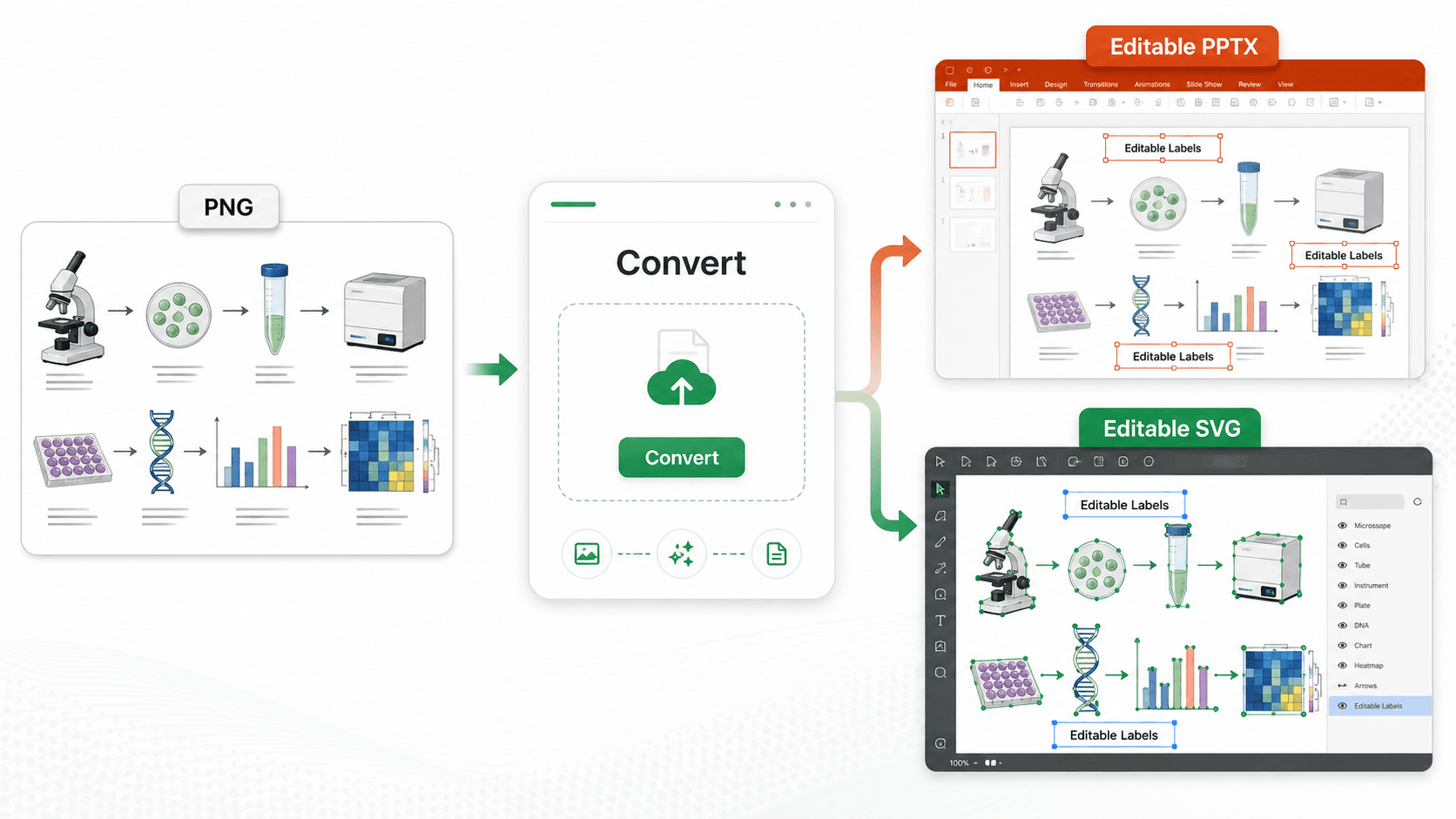
| Только PNG/JPG, нет редактируемого вектора | Перед правкой текста векторизуйте в редактируемый SVG |
| Текст показан как фигуры, а не редактируемый текст | SVG переведён в контуры — см. решение |
| Рисунок размыт после изменения размера | Переэкспортируйте в 300/600 DPI под ширину печати |
| Больше, чем мелкая правка | Пересоберите через Mechanism Figure Generator или Workflow Diagram Generator |
Для кого это руководство
Вы создали рисунок — ИИ, BioRender, ChemDraw, matplotlib — экспортировали в SVG, и теперь нужна разовая правка для Nature, Cell, Science, журнала Elsevier или диссертационного совета. Начинать заново вы не хотите: поменять подпись, цвет или порядок панелей и чисто переэкспортировать.
Сначала: ваш SVG вообще редактируется?
Этот тест на 30 секунд решает всё. Откройте SVG и кликните по фрагменту текста.
- Выделяется как текстовое поле, можно перепечатать → живой SVG. Все способы ниже работают.
- Выделяется как фигура/контур, ввести нельзя → текст переведён в кривые. Ни один редактор не «вернёт» редактируемость; перепечатываете или извлекаете заново (см. На помощь: текст не редактируется).
- Вектора нет вовсе, просто плоская картинка → PNG/JPG в SVG-оболочке или растр. Сначала векторизуйте.
Почему стоит держать SVG, когда текст живой:
| SVG (живой текст) | PNG / JPEG | |
|---|---|---|
| Масштабирование | Бесконечно, без потерь | Фиксированное разрешение |
| Правка подписи | Перепечатать за секунды | Перерисовать область |
| Перекраска пути | Поэлементно | Переделать всё |
| Приём в журнале | Всё чаще предпочтителен | Пока распространён |
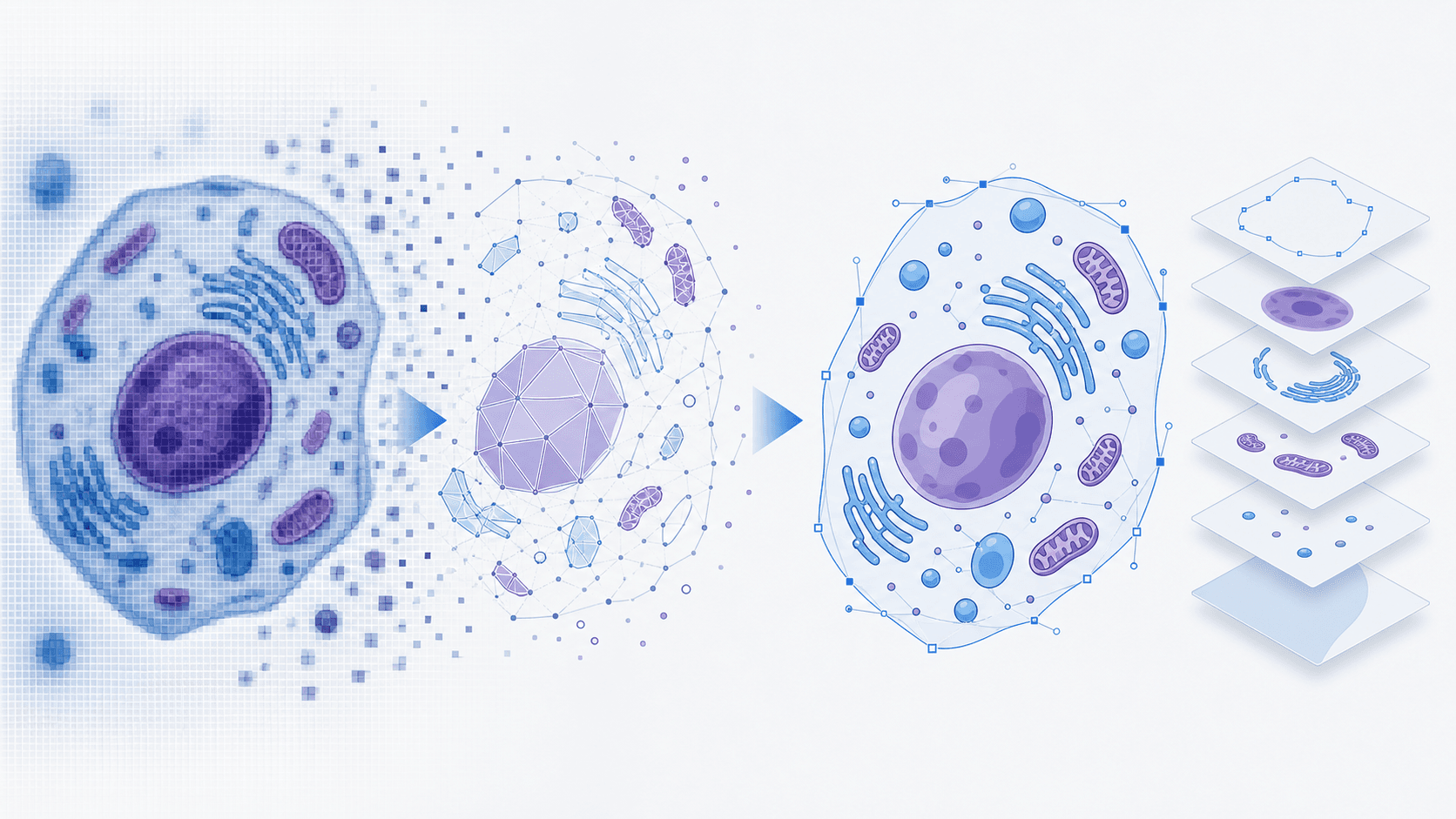
 Живой SVG превращает плоское изображение в редактируемые векторные фигуры — узлы, контуры и слои, которые действительно можно менять.
Способ 1 — PowerPoint (самый быстрый путь)
Он уже у вас есть, и для «исправить подпись и переподать» он быстрее всех.
- Вставка → Рисунки → Это устройство → выберите SVG. Появится как один сгруппированный объект.
- Разгруппируйте дважды. Правый клик → Группировать → Разгруппировать. PowerPoint предложит преобразовать в объект-рисунок — Да. Снова правый клик → Группировать → Разгруппировать. Теперь каждая фигура и подпись — отдельный объект.
- Правьте текст. Кликните подпись, перепечатайте. Держитесь Arial / Helvetica / Times New Roman, чтобы журнал не отметил замену шрифта.
- Перекрасьте. Выделите фигуру → Формат → Заливка фигуры. Удерживая Shift, выделите несколько и перекрасьте вместе.
- Переэкспорт. Сохранить как рисунок → SVG, чтобы остаться редактируемым, или PNG 300 DPI для подачи. Для итогового TIFF в точной ширине см. руководство по конвертации.
Способ 2 — Illustrator (для точного контроля)
Когда много изменений цвета или нужна точная типографика:
- Файл → Открыть SVG; слои сохраняются.
- Инструментом «Текст» (T) правьте текст; панель «Символ» для шрифта, кегля, трекинга.
- Пакетная перекраска: выделите один элемент нужного цвета → Выделение → По общему признаку → Цвет заливки → измените заливку один раз, обновятся все. Самый быстрый способ применить палитру для дальтоников ко всему пути.
- Экспортировать как → TIFF (LZW) или PDF для подачи, 300/600 DPI, RGB, если журнал не требует CMYK.
 Маркеры выделения, манипуляторы масштабирования и образцы цвета по каждому элементу делают точную правку подписей и палитры простой.
Способ 3 — Inkscape (бесплатно)
Нет Illustrator? Inkscape редактирует SVG нативно и бесплатно: Файл → Открыть, клик для выбора, двойной клик для правки текста, «Заливка и обводка» для цвета, Файл → Экспорт в PNG в 300+ DPI. Кривая обучения круче, чем у PowerPoint, но для правок рисунков делает всё нужное.
На помощь: текст не редактируется
Здесь упирается большинство, и клики не помогают: SVG экспортирован с текстом, переведённым в контуры (кривые). PowerPoint и Illustrator правят только настоящие текстовые слои, так что ваши подписи — застывшие фигуры.
Два выхода:
- Перепечатать поверх — нормально для одной-двух подписей, мучительно на плотном рисунке.
- Извлечь текстовый слой заново. Прогоните рисунок через ИИ-шаг, который воссоздаёт редактируемый текст, а не обводит его как фигуры, и правьте как обычно. Это же — единственный реальный путь, когда у вас только PNG/JPG без векторного исходника.
Застряли на SVG в контурах или плоском PNG? Не перепечатывайте 40 подписей вручную. Vectorize Image вернёт его в редактируемый вектор с текстом как настоящими слоями, а Конвертация ИИ-изображений в редактируемый SVG проведёт по ИИ-пути по шагам.
Когда править невыгодно — пересобрать
Некоторые правки больше, чем кажутся. Если комментарий означает переупорядочить весь механизм, добавить два шага, или файл слишком деградировал для чистой правки, вы провозитесь с SVG дольше, чем заняла бы регенерация.
Mechanism Figure Generator и Workflow Diagram Generator пересобирают панель из запроса с чёткими редактируемыми подписями и экспортом под журнал — часто быстрее, чем двигать узлы вручную.
Больше, чем смена подписи? Сгенерируйте рисунок заново с чистыми подписями, а не воюйте со сломанным файлом.
Четыре правки, которые рецензенты просят чаще всего
1. Сменить подпись. Выделите, перепечатайте, согласуйте шрифт и кегль с окружением. (Если не редактируется — см. выше.)
2. Перейти на палитру для дальтоников. Не поэлементно. Illustrator: Выделение → По общему признаку → Цвет заливки; PowerPoint: Shift для множественного выбора. Запишите HEX-коды, чтобы все рисунки были согласованы.
3. Подогнать под колонку. Одна колонка часто 85–88 мм, двойная 174–180 мм. Illustrator: Объект → Трансформировать → Масштаб (равномерно). PowerPoint: Shift + угол.
4. Добавить шкалу, легенду или аннотацию. Инструментами фигур и текста, в стиле существующего, и сгруппируйте связанное для следующего круга.
Решение проблем
«Цвета сместились после экспорта.» Проверьте режим — RGB для экрана, CMYK в части типографских процессов. Экспортируйте в режиме назначения.
«Файл огромный.» Сведите прозрачность, сократите узлы сложных путей, удалите скрытые элементы.
«На экране чётко, в PDF размыто.» Вы экспортировали ниже DPI журнала. Переэкспортируйте в 300 (фото) / 600 (штрих) под итоговую ширину — шаги здесь.
Привычки, облегчающие следующую правку
- Сохраняйте редактируемый SVG/AI-исходник перед любым плоским экспортом.
- Версионируйте:
figure1_v1.svg,figure1_v2_revised.svg. - Ведите документ HEX-палитры для статей с несколькими рисунками.
- Смотрите в реальном печатном размере перед подачей.
Частые вопросы
Можно ли править текст SVG в PowerPoint?
Да — вставьте SVG, затем разгруппируйте дважды (правый клик → Группировать → Разгруппировать, согласитесь преобразовать в объект-рисунок, разгруппируйте снова). Текст станет редактируемыми полями: перепечатывайте, стилизуйте, перекрашивайте.
Почему текст SVG не редактируется после разгруппировки?
SVG экспортирован с текстом, переведённым в контуры (кривые), живого текста нет. Перепечатайте поверх или извлеките настоящий текстовый слой через ИИ-шаг — см. Конвертация ИИ-изображений в редактируемый SVG. Если только PNG/JPG — сначала векторизуйте.
Какой шрифт для SVG-рисунков?
Arial, Helvetica или Times New Roman. Есть в любой системе, журналы принимают по умолчанию, замена не сдвигает макет. Избегайте Calibri, Open Sans и собственных шрифтов — в PDF рецензентов они могут отрисоваться иначе.
Как экспортировать готовый рисунок после правки?
Пересохраните в SVG, чтобы остаться редактируемым, затем экспортируйте PNG 300 DPI (фото) или TIFF 600 DPI (штрих) в точной ширине — 88/180 мм для Nature, 85/174 мм для Cell. Подробности в руководстве по конвертации.
Можно ли править рисунок BioRender как SVG?
Только если вы экспортировали его в SVG (премиум-уровень BioRender). PNG бесплатного уровня — плоский растр: векторизуйте или пересоберите макет в Scientific Figure Maker.
Какой инструмент быстрее всего для «исправить подпись и переподать»?
PowerPoint, когда в SVG живой текст — разгруппировка в один клик, правки за секунды. Illustrator — для точной типографики или множества изменений цвета. А когда текст не редактируется или есть только PNG, ручные инструменты не помогут — векторизуйте или пересоберите.
Связанные руководства
- 4 способа конвертировать PNG/JPG в SVG — из растра в вектор
- Конвертация ИИ-изображений в редактируемый SVG — векторизация ChatGPT, Midjourney, DALL·E
- Требования Nature, Science и Cell — DPI, размер, формат
- Инструмент Vectorize Image — PNG/JPG в редактируемый SVG онлайн
- Конвертер изображений — между TIFF, PNG, SVG и другими