La tua figura è quasi finita — ma manca una cosa. Un revisore vuole una freccia che mostri la direzione della segnalazione, al diagramma serve un'etichetta sulla struttura che hai dimenticato, oppure alla tua via manca un passaggio tra due riquadri. Non devi ridisegnare l'intera figura per aggiungerlo. Con uno strumento di figure AI-native ti basta dire all'AI cosa aggiungere e dove, e inserisce il nuovo elemento nell'immagine esistente mantenendo tutto il resto esattamente com'era. Questa guida ti mostra come aggiungere un elemento a una figura, aggiungere un'etichetta a un diagramma e aggiungere una freccia a una figura con l'AI — senza software di grafica, senza maniglie di selezione, senza ricominciare da capo.
Al termine di questa guida sarai in grado di:
- Aggiungere un'etichetta a un diagramma con una linea di richiamo che punta esattamente al punto giusto.
- Aggiungere una freccia a una figura — direzionale, di attivazione o di inibizione — per mostrare flussi e relazioni.
- Aggiungere un nuovo elemento come un organello, una cellula, una molecola, un pannello o un passaggio a una figura esistente.
- Aggiungere annotazioni come barre di scala, lettere di pannello, didascalie e callout.
- Aggiungere a una figura senza ridisegnarla, così non perdi mai le parti che già ti piacciono.
Ogni aggiunta qui sotto si realizza digitando una sola frase nell'editor di SciDraw AI — l'editor di figure AI in cui la tua immagine è la tela e il linguaggio è lo strumento.
Perché aggiungere è più sicuro che rigenerare
Quando a una figura manca un pezzo, l'istinto è riscrivere l'intero prompt e generare di nuovo. Il problema: una rigenerazione completa sposta il layout, ricolora gli elementi e a volte ricalcola etichette che avevi già sistemato. Aggiungere è una modifica mirata — l'AI mantiene intatta l'immagine esistente e inserisce solo il nuovo elemento. Questo significa che l'organello che hai posizionato con cura, i colori che hai scelto e le frecce che hai già corretto restano tutti al loro posto. L'abilità è la stessa di qualsiasi buona modifica di figura: essere precisi su cosa aggiungere, dove va e cosa resta invariato.
La tecnica fondamentale: di' cosa aggiungere e dove
La differenza tra un'aggiunta pulita e un ridisegno accidentale è la precisione sul posizionamento.
- ❌ Vago: "aggiungi più dettagli"
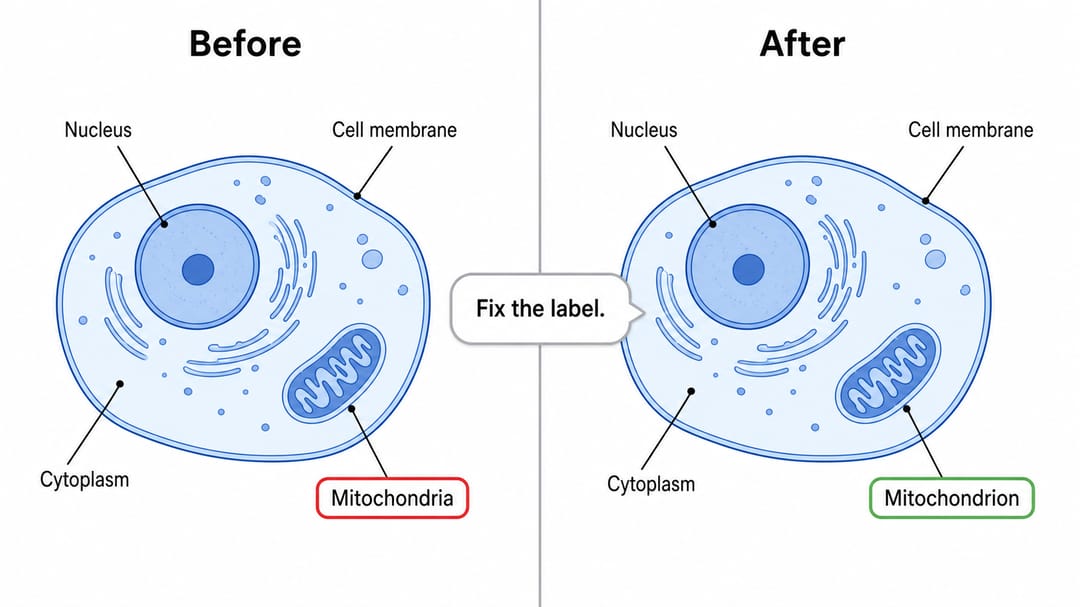
- ✅ Mirato: "Aggiungi un'etichetta 'Mitocondrio' con una sottile linea di richiamo che punta all'organello a forma di fagiolo sulla destra. Mantieni tutto il resto invariato."
Modello: "Aggiungi [elemento/etichetta/freccia] [descrizione] che punta a / situato in [posizione], e mantieni invariati il layout, i colori e le etichette esistenti."
Apri la tua figura nell'editor, digita l'istruzione, e l'AI inserisce l'elemento sul posto. Ancorare l'aggiunta a un elemento esistente ("che punta all'organello centrale", "tra i due riquadri") è ciò che la posiziona dove intendi.
Aggiungere un'etichetta o un'annotazione a un diagramma
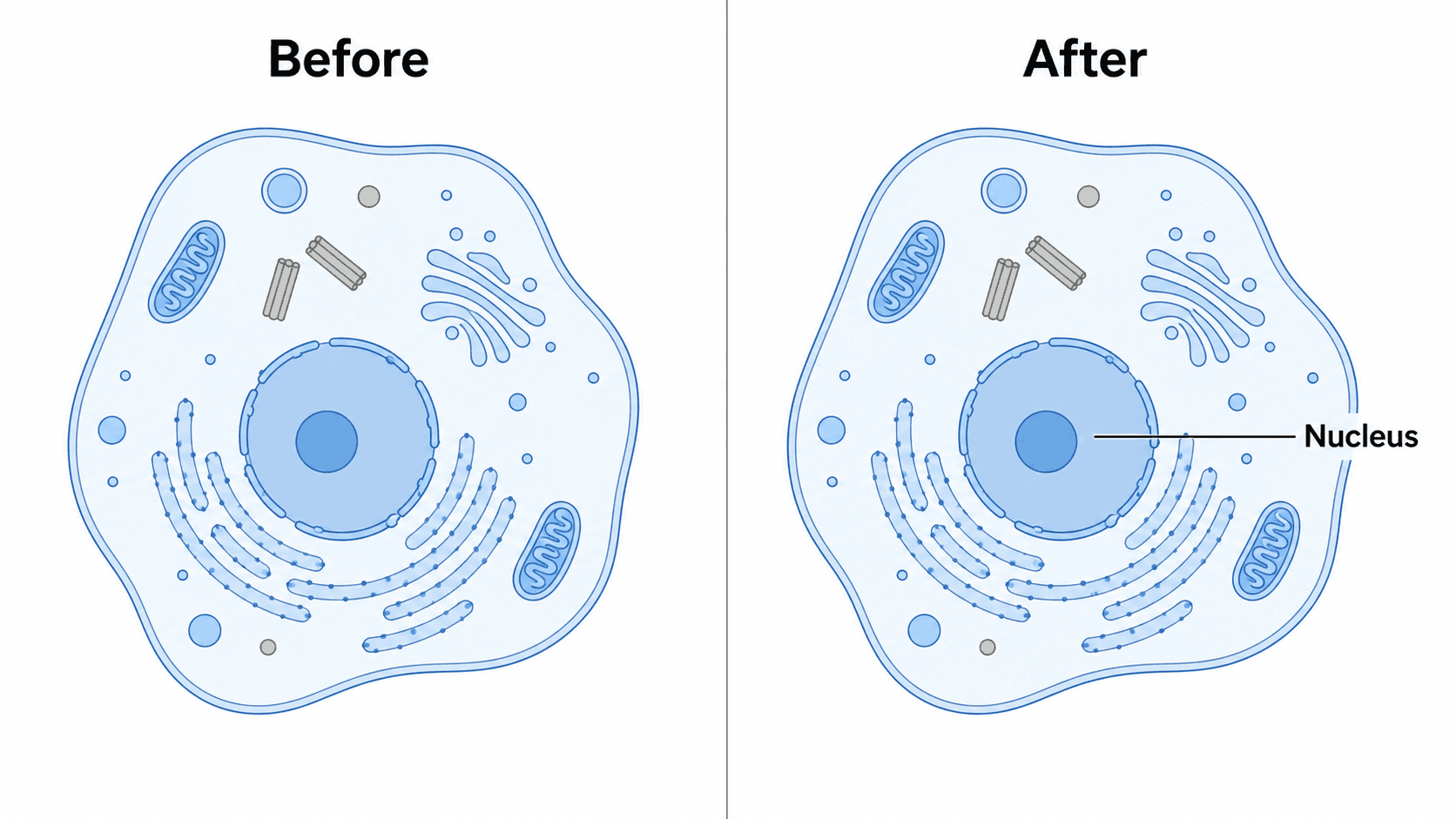
Etichette e annotazioni sono le aggiunte più comuni. Nomina il testo esatto, puntalo a un elemento, e l'AI disegna un'etichetta pulita con una linea di richiamo dove serve.
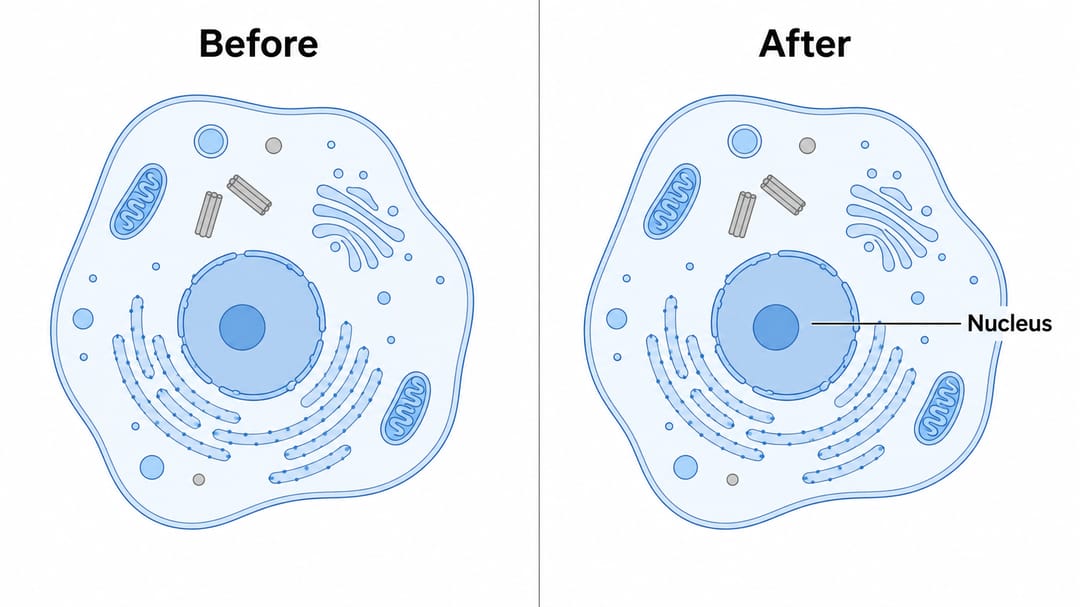
- "Aggiungi un'etichetta 'Nucleo' con una sottile linea di richiamo che punta al grande organello centrale."
- "Aggiungi l'etichetta 'mRNA' accanto al filamento che esce dal nucleo."
- "Aggiungi una lettera di pannello 'A' nell'angolo in alto a sinistra della figura."
- "Aggiungi una barra di scala etichettata '10 µm' nell'angolo in basso a destra."
- "Aggiungi una piccola didascalia sotto il diagramma: 'Figura 1. Cellula eucariotica.'"
- "Aggiungi un riquadro di callout che spiega il sito attivo, con una linea verso la tasca dell'enzima."
Aggiungere una freccia a una figura — direzione, attivazione, inibizione
Le frecce trasmettono significato nelle figure scientifiche: mostrano flusso, sequenza, attivazione o inibizione. Sii esplicito sul tipo di freccia e sulla sua direzione così la figura si legga correttamente.
- "Aggiungi una freccia direzionale dal riquadro 'Substrato' al riquadro 'Prodotto' che mostri la direzione della reazione."
- "Aggiungi una freccia di attivazione (punta a punta) dal recettore alla chinasi."
- "Aggiungi una barra di inibizione (estremità piatta a forma di T) dal farmaco all'enzima per mostrare che è bloccato."
- "Aggiungi una freccia curva che mostri il ciclo di retroazione dall'output al primo passaggio."
- "Aggiungi una freccia tratteggiata dal citoplasma al nucleo per indicare la traslocazione."
- "Aggiungi una grande freccia tra i pannelli 'prima' e 'dopo' per mostrare la transizione."
Aggiungere un nuovo elemento, una cellula o un passaggio
Puoi anche inserire un intero nuovo componente — un organello, una cellula, una molecola, un passaggio aggiuntivo in una via o un nuovo pannello — e l'AI lo integra nella scena esistente.
- "Aggiungi un ribosoma sul reticolo endoplasmatico rugoso ed etichettalo."
- "Aggiungi un secondo linfocita T accanto al primo, che interagisce con la stessa cellula presentante l'antigene."
- "Aggiungi un passaggio intermedio tra 'Trascrizione' e 'Traduzione' etichettato 'Maturazione dell'mRNA'."
- "Aggiungi un terzo pannello sulla destra che mostri il prodotto finale, nello stile degli altri pannelli."
- "Aggiungi una membrana a doppio strato lipidico attorno alla cellula e mantieni invariate le strutture interne."
- "Aggiungi una legenda in basso a sinistra che associ ogni colore alla sua molecola."
Consigli per aggiunte pulite
- Ancora a un elemento esistente. "Che punta all'organello centrale" o "tra i due riquadri" posiziona il nuovo elemento con precisione.
- Nomina il testo esatto per le etichette tra virgolette così l'AI lo digiti correttamente.
- Specifica tipo e direzione della freccia. "Freccia di attivazione (punta a punta)" vs "barra di inibizione (estremità piatta)" rende il significato inequivocabile.
- Di' cosa preservare — "mantieni invariati il layout, i colori e le etichette esistenti" — per evitare derive.
- Adatta lo stile. "Nello stesso stile delle altre etichette/pannelli" mantiene la figura coerente.
- Aggiungi una cosa alla volta per un controllo preciso, poi concatena aggiunte correlate.
- Itera sul posizionamento. Se la nuova etichetta si sovrappone a una freccia, prosegui: "sposta leggermente in alto l'etichetta 'Apparato di Golgi' così non si sovrappone."
Errori comuni (e come correggerli)
- Aggiunte vaghe causano un ridisegno completo. Soluzione: nomina l'elemento, il suo testo esatto e la sua posizione, poi aggiungi "mantieni tutto il resto invariato".
- La freccia punta nella direzione sbagliata o ha la punta sbagliata. Soluzione: specifica direzione e tipo — "freccia di attivazione dal recettore alla chinasi, punta a punta".
- La nuova etichetta si sovrappone a una vicina. Soluzione: ripeti il prompt "sposta leggermente in alto la nuova etichetta così non si sovrappone alla freccia".
- L'elemento aggiunto non corrisponde allo stile della figura. Soluzione: chiedilo "nello stesso stile flat-vector e schema di colori del resto della figura".
- L'AI lo aggiunge nel posto sbagliato. Soluzione: ancora a un elemento chiaramente nominato ("accanto all'organello a forma di fagiolo sulla destra").
- Testo confuso su una nuova etichetta (tipico delle AI generiche di immagini). Soluzione: SciDraw AI rende etichette pulite e leggibili — ripeti il prompt con la dicitura esatta.
Esporta e usa la tua figura aggiornata
Una volta che tutto è al suo posto, esporta la figura in SVG modificabile o PowerPoint (PPTX), oppure scarica un'immagine ad alta risoluzione per il manoscritto, le slide o il poster. SVG e PPTX permettono ai collaboratori di regolare i nuovi elementi più tardi, mentre l'editor AI si occupa delle aggiunte rapide ora.
Devi correggere o rinominare il testo che hai appena aggiunto? Vedi come modificare testo ed etichette in una figura AI. Vuoi che i nuovi elementi corrispondano a uno schema di colori specifico? Vedi come ricolorare un diagramma scientifico (incluse le palette adatte ai daltonici).
Domande frequenti
Come aggiungo un elemento a una figura con l'AI? Apri la figura nell'editor di SciDraw AI e digita una breve istruzione come "aggiungi un ribosoma sul reticolo endoplasmatico rugoso ed etichettalo." L'AI inserisce il nuovo elemento nell'immagine esistente, così aggiungi alla figura senza ridisegnarla.
Come aggiungo un'etichetta a un diagramma dopo che è stato generato? Di' all'AI esattamente cosa aggiungere e dove: "aggiungi un'etichetta 'Nucleo' con una sottile linea di richiamo che punta all'organello centrale." Puoi aggiungere lettere di pannello, barre di scala, didascalie e callout allo stesso modo.
Come aggiungo una freccia a una figura? Descrivi il tipo e la direzione della freccia — "aggiungi una freccia di attivazione dal recettore alla chinasi" o "aggiungi una barra di inibizione dal farmaco all'enzima." L'AI disegna la freccia tra gli elementi che nomini mantenendo intatto il resto della figura.
Posso aggiungere un elemento senza modificare il resto della figura? Sì. Aggiungere è una modifica mirata. Ancora il nuovo elemento a un elemento esistente e aggiungi "mantieni invariati il layout, i colori e le etichette esistenti", e l'AI modifica solo ciò che hai chiesto.
Posso aggiungere a una figura gratuitamente? Puoi iniziare ad aggiungere elementi, etichette e frecce gratuitamente nell'editor di figure AI, poi passare a un piano superiore per più crediti e l'esportazione SVG/PPTX modificabile. Ogni aggiunta si realizza digitando un'istruzione — nessun software di grafica da installare.
Inizia a creare
Apri una qualsiasi figura nell'editor di SciDraw AI e digita la tua prima aggiunta — un'etichetta mancante, una freccia direzionale, un nuovo passaggio o una barra di scala. L'AI si occupa del ridisegno al posto tuo, e la tua figura completata è a una frase di distanza.