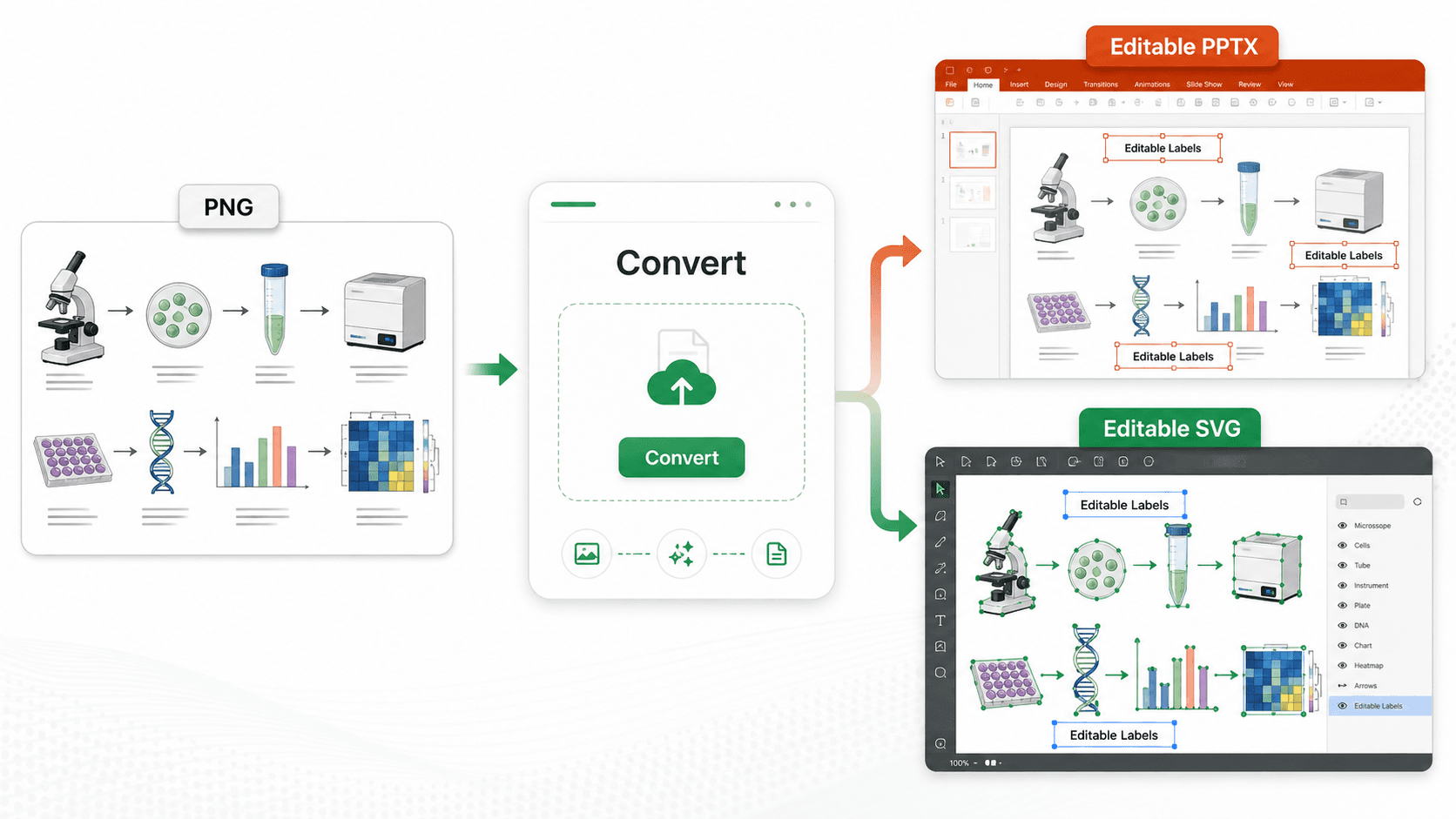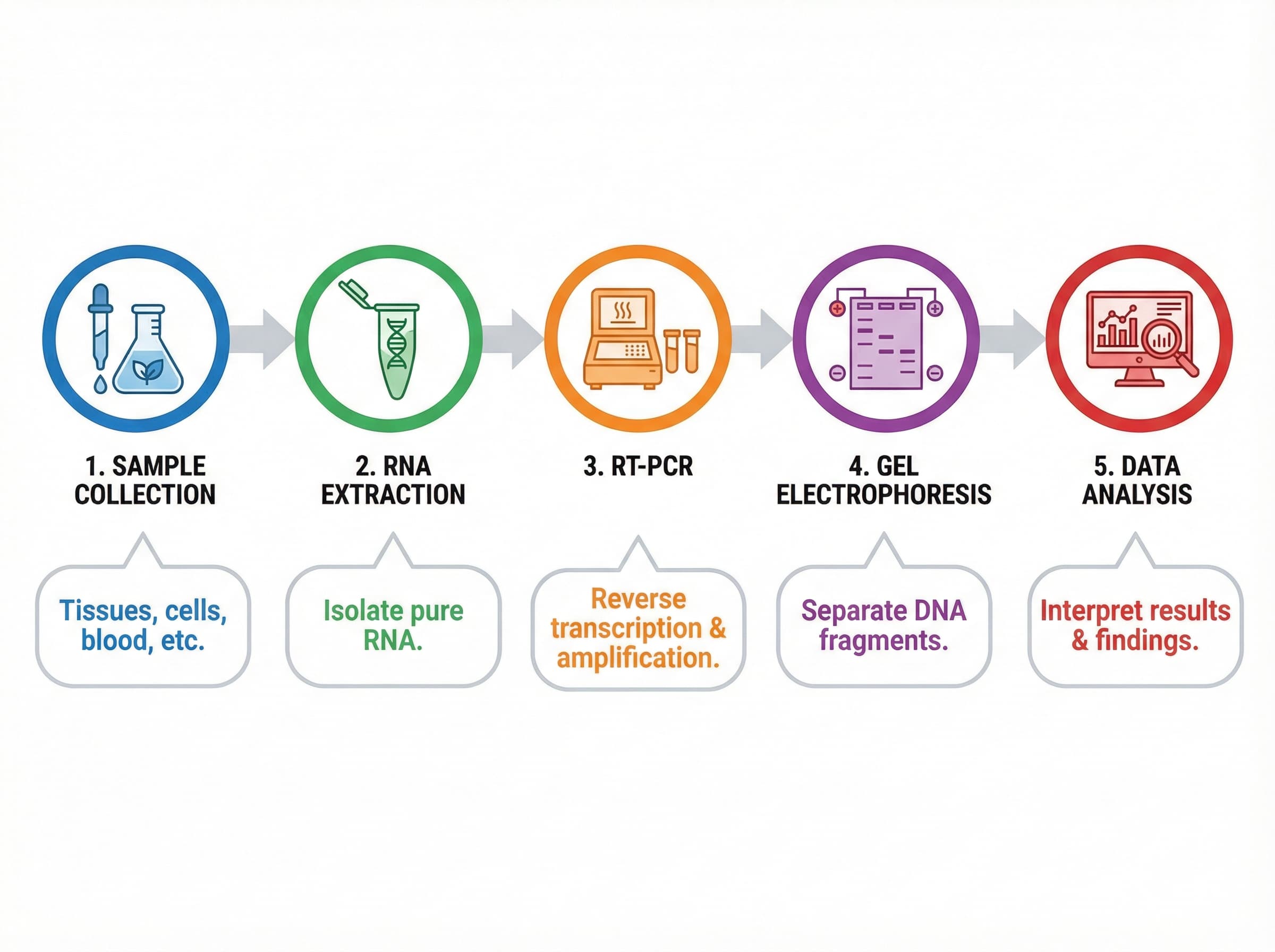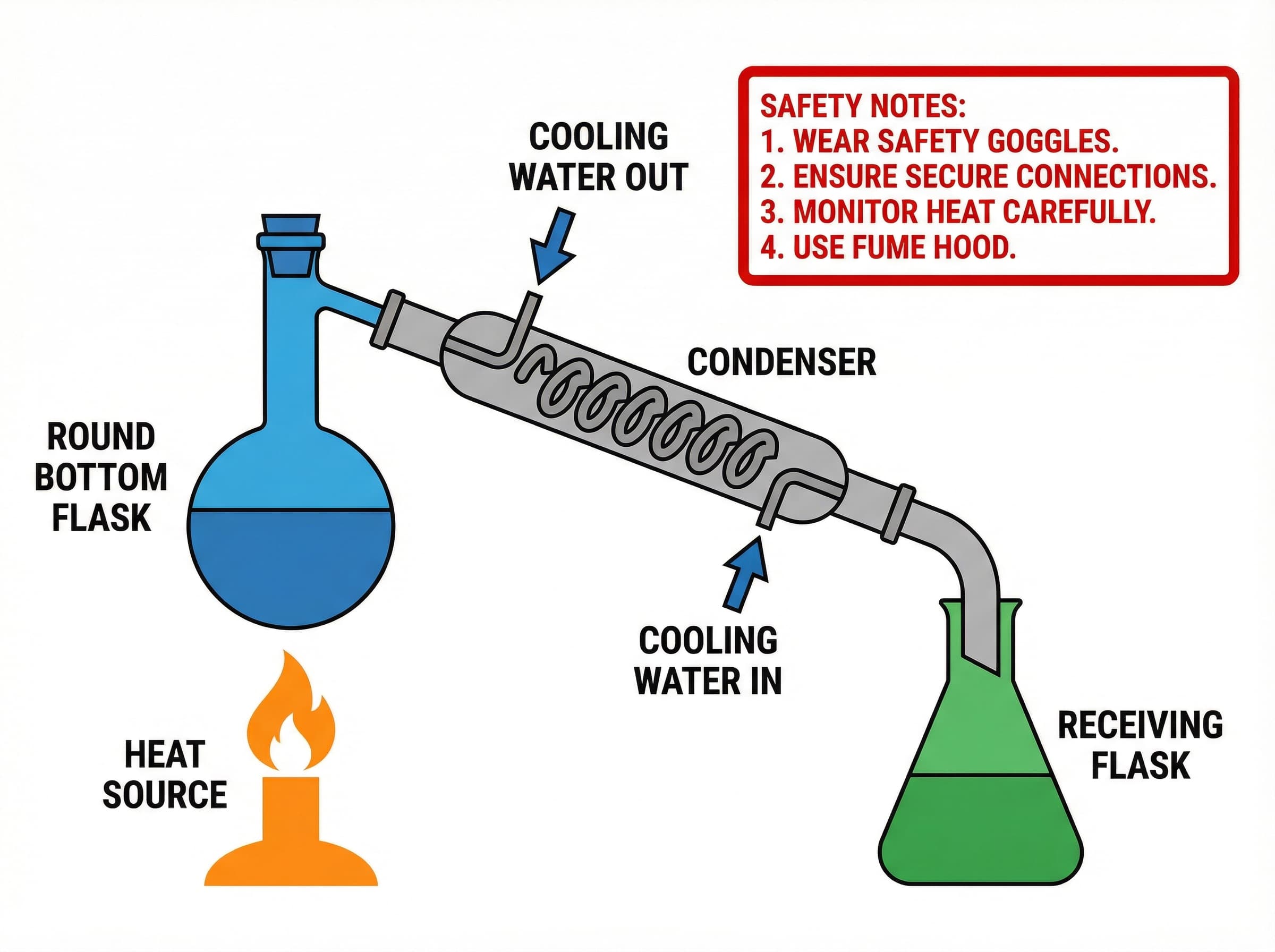
Have you ever received reviewer feedback asking you to change figure labels, only to realize you no longer have the original design files? Or needed to translate figure text for an international publication but only had a PNG or JPEG?
This guide covers 4 practical methods to convert scientific images to editable SVG format, each with different trade-offs in cost, convenience, and output quality.
Why Convert to SVG?
SVG (Scalable Vector Graphics) offers significant advantages for scientific publishing:
- Infinite scalability — No pixelation when resizing for posters or high-resolution prints
- Smaller file sizes — Vector graphics are often lighter than high-res rasters
- Professional compatibility — Works with PowerPoint, Illustrator, Figma, and most design tools
- Editable elements — The key benefit we'll focus on in this guide
The challenge is that most image-to-SVG converters turn everything—including text—into paths, making the text uneditable. Let's explore your options.
Method 1: Adobe Illustrator — Image Trace
Adobe Illustrator's Image Trace feature is the industry standard for vectorization.
How it works:
- Open your image in Illustrator
- Select the image and go to Object → Image Trace → Make
- Adjust fidelity settings in the Image Trace panel
- Click Expand to convert to vector paths
Pros:
- Professional-grade control over vectorization settings
- Excellent for complex scientific diagrams
- High-quality output suitable for print
Cons:
- Requires paid subscription ($22.99/month)
- Steep learning curve for new users
- Text becomes paths — not directly editable as text
Best for: Researchers with existing Adobe subscriptions who need maximum control.
Method 2: Inkscape — Trace Bitmap
Inkscape is a free, open-source alternative that offers similar functionality.
How it works:
- Import your image into Inkscape
- Select the image and go to Path → Trace Bitmap
- Choose between brightness cutoff, edge detection, or color modes
- Click OK to generate vector paths
Pros:
- Completely free and open source
- Cross-platform (Windows, Mac, Linux)
- Good community support and documentation
Cons:
- Requires software installation
- Interface can be confusing for beginners
- Text becomes paths — still not editable
Best for: Budget-conscious users comfortable with desktop software.
Method 3: Online Vectorization Tools
Several web-based tools offer quick image-to-SVG conversion without software installation.
Popular options include:
- Vectorizer.ai
- Vector Magic
- Convertio
How it works:
- Upload your image to the web tool
- Wait for automatic processing
- Download the SVG result
Pros:
- No software installation required
- Quick and convenient
- Some offer free tiers
Cons:
- Quality varies significantly between services
- Free versions often have limitations or watermarks
- Text still becomes paths — the common limitation persists
Best for: Quick one-off conversions when quality isn't critical.
Method 4: AI-Powered Smart Conversion
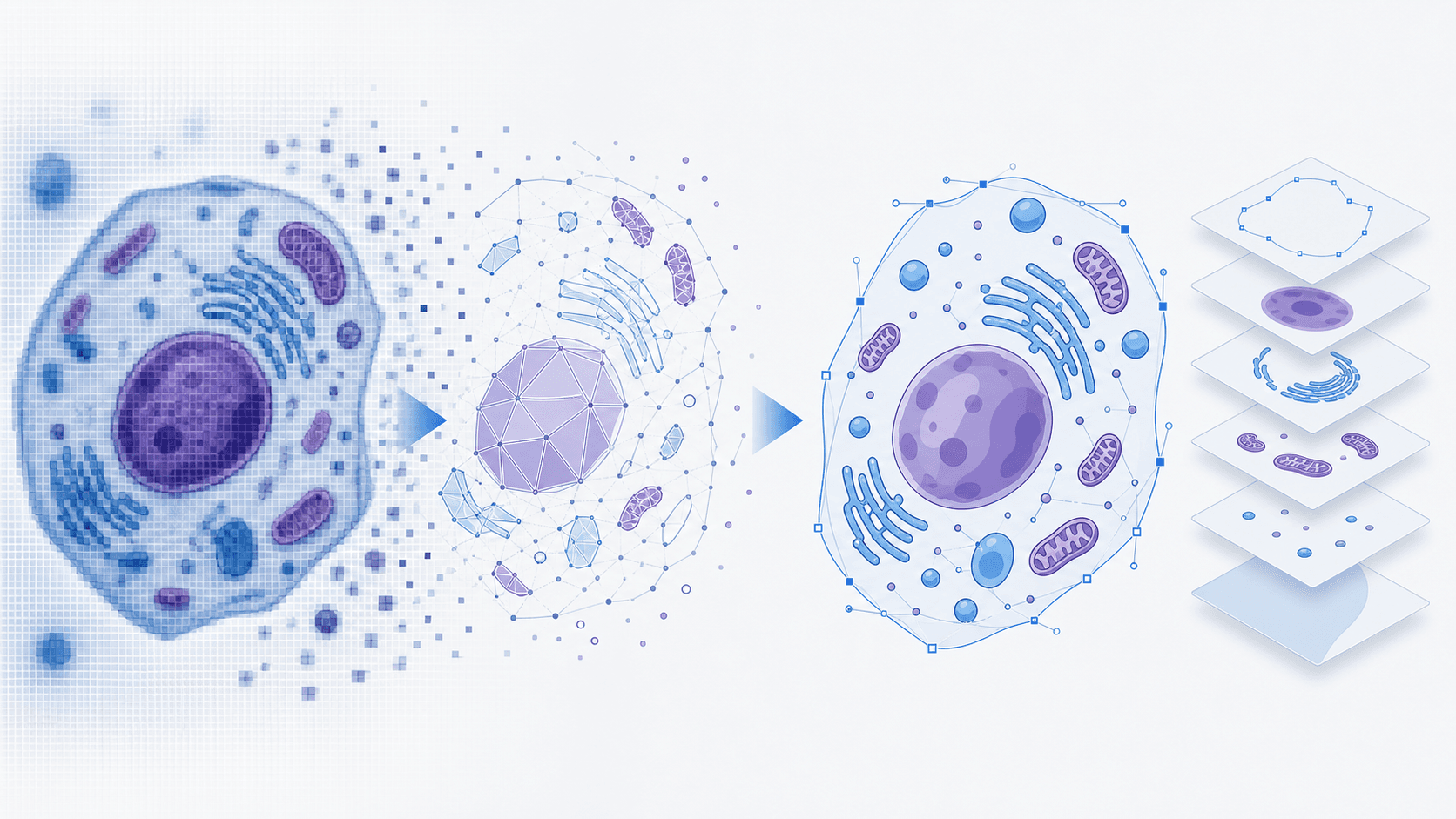
Methods 1–3 all work the same way: they trace pixels into outline paths, so every letter ends up as a shape. A newer approach uses AI to redraw the figure instead of tracing it, rebuilding it element by element as a vector file.
SciDraw AI works this way, with a single Convert to SVG mode that costs 10 credits per image.
How it works:
- Upload your figure at Vectorize Image. For a figure you generated in SciDraw AI, choose Convert → Convert to SVG in the workspace instead.
- The AI redraws the figure as pure vector SVG, keeping the layout, shapes, colors, arrows and all of the text. It takes about 1–3 minutes, and you can watch the drawing stream in live.
- Download the SVG, or open it in the built-in editor.
Pros:
- Text stays real text: labels become selectable SVG
<text>, including symbols, subscripts and superscripts, instead of outlines - Clean, layered file: repeated icons are drawn once and reused, and no bitmap is embedded
- No software installation; works directly in the browser
Cons:
- It is a redraw, not a trace: photos, complex gradients and shading are simplified to a flat vector style
- Labels can occasionally be misread, so check them against the original before you submit
- Requires an internet connection and credits
Best for: Flat illustrations, flowcharts and mechanism diagrams whose labels you need to edit or translate.
SVG results in the SciDraw AI workspace also have an Edit button that opens an in-browser SVG editor: change text and its font, size, weight, color and alignment, adjust shape fill and stroke, move, delete or insert elements, and export SVG, PNG or PPTX. Saving and exporting from the editor needs a subscription (monthly, yearly or Lifetime) and uses no credits.
Comparison Summary
| Method | Free | No Install | Editable Text | Best For |
|---|---|---|---|---|
| Adobe Illustrator | ❌ | ❌ | ❌ | Professional design work |
| Inkscape | ✅ | ❌ | ❌ | Budget-conscious users |
| Online Vectorizers | ⚠️ | ✅ | ❌ | Quick conversions |
| AI Smart Conversion | ⚠️ | ✅ | ✅ | Flat figures with labels to edit |
Methods 1–3 trace pixels into paths, which is why their text ends up as outlines. Method 4 redraws the figure, so the text stays editable, but photographic detail and gradients are flattened.
Choosing the Right Method
Your choice depends on what you need to accomplish:
- Need maximum design control? → Adobe Illustrator
- Want a free desktop solution? → Inkscape
- Quick conversion, text editing not needed? → Online vectorizers
- Need to edit figure labels or translate text? → AI-powered smart conversion
For most researchers facing the common "need to change figure labels" problem, the AI approach is the most practical, because redrawing the figure keeps the text as text, which tracing cannot do. For photos or images with rich shading, a tracing tool is still the better fit, since a redraw simplifies them.