El revisor quiere una etiqueta corregida, dos grupos de tratamiento recoloreados y las letras de los paneles renumeradas — para el viernes. No quieres redibujar la figura. Quieres abrirla, cambiar tres cosas y reexportar al DPI correcto.
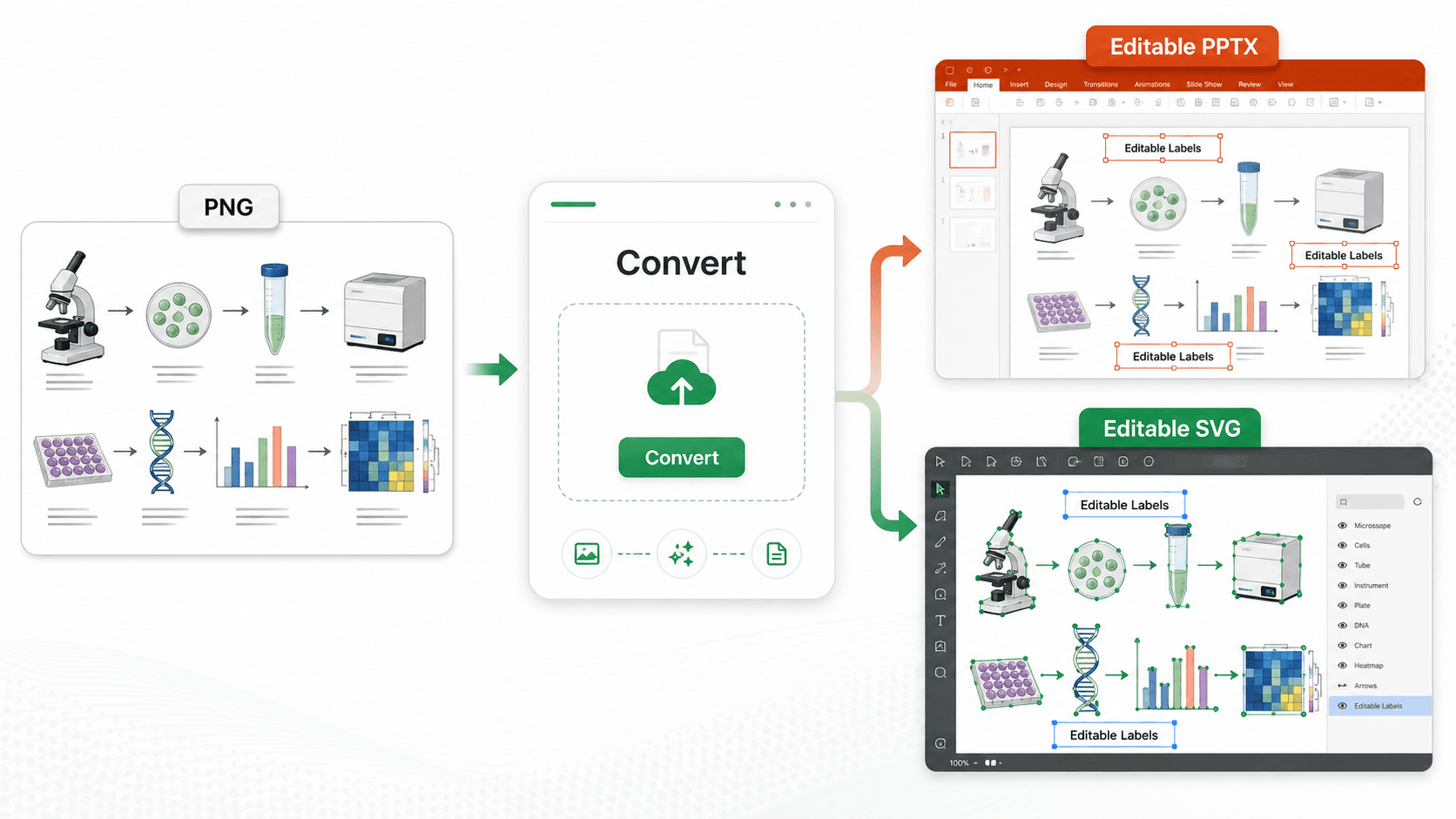
Si tu archivo es un SVG real con texto vivo, es cosa de 10 minutos y esta guía te lleva de la mano. Pero muchos «SVG» en secreto no son editables — el texto se convirtió en contornos, o solo tenías un PNG. Por eso esta guía cubre ambos: el camino limpio y qué hacer cuando el archivo se resiste.
En corto: abre el SVG en PowerPoint, Illustrator o Inkscape, desagrupa, edita texto y colores como objetos vectoriales y reexporta. Si el texto no se edita (convertido a contornos) o solo tienes un PNG/JPG, a mano no se puede — primero vectoriza a SVG editable o reconstruye el panel.
Encuentra tu situación
| A qué te enfrentas | Solución más rápida |
|---|---|
| SVG real, solo una etiqueta/errata/letra de panel | Desagrupa y edita el texto — a PowerPoint |
| Una ruta/grupo necesita color nuevo (apto daltónicos) | Selecciona rellenos iguales y recolorea en lote — método Illustrator |
| Solo un PNG/JPG, sin vector editable | Antes de tocar el texto, vectoriza a SVG editable |
| El texto sale como formas, no como texto editable | El SVG está convertido a contornos — ver solución |
| La figura está borrosa tras redimensionar | Reexporta a 300/600 DPI al ancho de impresión |
| Más que un retoque pequeño | Reconstruye con Mechanism Figure Generator o Workflow Diagram Generator |
Para quién es
Generaste una figura — IA, BioRender, ChemDraw, matplotlib — la exportaste a SVG y necesitas una revisión en una pasada para Nature, Cell, Science, una revista de Elsevier o un tribunal. No quieres empezar de cero: cambiar la etiqueta, el color o el orden de paneles y reexportar limpio.
Primero: ¿tu SVG se puede editar de verdad?
Esta prueba de 30 segundos lo decide todo. Abre el SVG y haz clic en un trozo de texto.
- Se selecciona como cuadro de texto y puedes reescribir → SVG vivo. Todo lo de abajo funciona.
- Se selecciona como forma/contorno y no puedes escribir → el texto se convirtió en trazados. Ningún editor lo «vuelve editable»; reescribes o reextraes (ver Auxilio: el texto no se deja editar).
- No hay vector, solo una imagen plana → un PNG/JPG en una cáscara SVG, o un ráster. Vectoriza primero.
Por qué conservar el SVG cuando el texto está vivo:
| SVG (texto vivo) | PNG / JPEG | |
|---|---|---|
| Escalado | Infinito, sin pérdida | Resolución fija |
| Editar una etiqueta | Reescribir en segundos | Redibujar la zona |
| Recolorear una ruta | Por elemento | Rehacer todo |
| Aceptación de la revista | Cada vez más preferida | Aún común |
 Un SVG vivo convierte una imagen plana en formas vectoriales editables: puntos de anclaje, trazados y capas que sí puedes cambiar.
Método 1: PowerPoint (la vía más rápida)
Ya lo tienes, y para «corregir la etiqueta y reenviar» gana a todo.
- Insertar → Imágenes → Este dispositivo → elige el SVG. Entra como un objeto agrupado.
- Desagrupa dos veces. Clic derecho → Agrupar → Desagrupar. PowerPoint propone convertir a objeto de dibujo — Sí. Clic derecho → Agrupar → Desagrupar otra vez. Cada forma y etiqueta queda individual.
- Edita el texto. Clic en una etiqueta, reescribe. Quédate en Arial / Helvetica / Times New Roman para que la revista no marque la sustitución.
- Recolorea. Selecciona una forma → Formato → Relleno de forma. Mantén Mayús para seleccionar varias y recolorear juntas.
- Reexporta. Guardar como imagen → SVG para seguir editable, o PNG a 300 DPI para enviar. Para un TIFF final al ancho exacto, mira la guía de conversión.
Método 2: Illustrator (para control preciso)
Cuando hay muchos cambios de color o tipografía exacta:
- Archivo → Abrir el SVG; se conservan las capas.
- Con la herramienta Texto (T), edita el texto; panel Carácter para fuente, cuerpo, interletraje.
- Recolorear en lote: selecciona un elemento del color objetivo → Seleccionar → Igual → Color de relleno → cambia el relleno una vez y todos se actualizan. Lo más rápido para aplicar una paleta apta para daltónicos a toda una ruta.
- Exportar como → TIFF (LZW) o PDF para enviar, 300/600 DPI, RGB salvo que la revista pida CMYK.
 Los tiradores de selección, las asas de redimensionado y las muestras de color por elemento hacen sencillos los cambios precisos de etiquetas y paleta.
Método 3: Inkscape (gratis)
¿Sin Illustrator? Inkscape edita SVG de forma nativa y gratuita: Archivo → Abrir, clic para seleccionar, doble clic para editar texto, Relleno y borde para colores, Archivo → Exportar PNG a 300+ DPI. Curva más empinada que PowerPoint, pero hace todo lo necesario para revisiones.
Auxilio: el texto no se deja editar
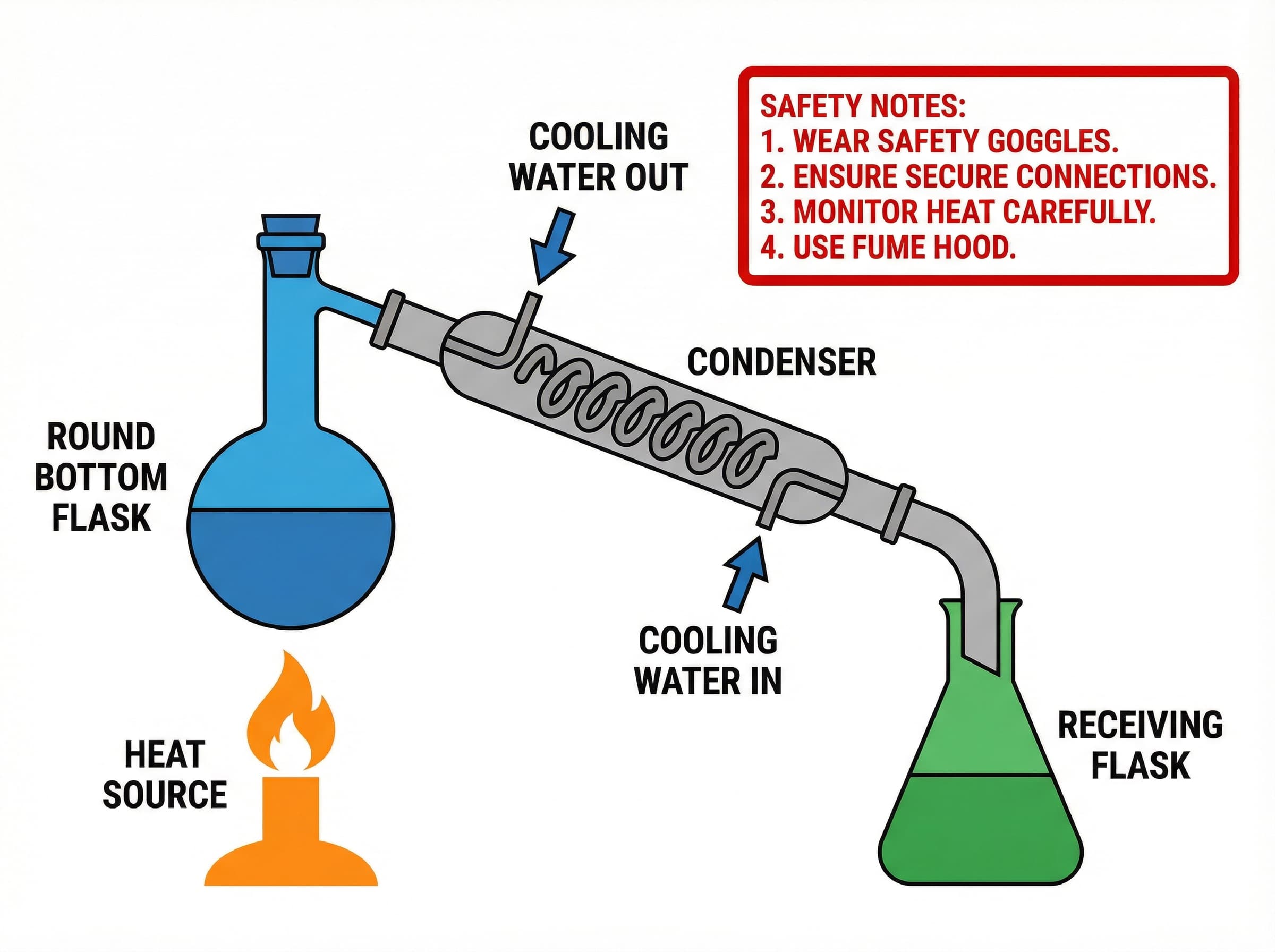
Aquí choca la mayoría, y por más que cliques no cambia: el SVG se exportó con el texto convertido a contornos (trazados). PowerPoint e Illustrator solo editan capas de texto reales, así que tus etiquetas son formas congeladas.
Dos salidas:
- Reescribir encima — bien para una o dos etiquetas, penoso en una figura densa.
- Reextraer la capa de texto. Pasa la figura por un paso de IA que reconstruye texto editable en vez de calcarlo como formas, y luego edita normal. Es también la única vía realista cuando solo tienes un PNG/JPG sin fuente vectorial.
¿Atascado con un SVG en contornos o un PNG plano? No reescribas 40 etiquetas a mano. Vectorize Image lo devuelve a vector editable con el texto como capas reales, y Convertir imágenes de IA a SVG editable detalla la vía con IA paso a paso.
Cuando editar no compensa — reconstruir
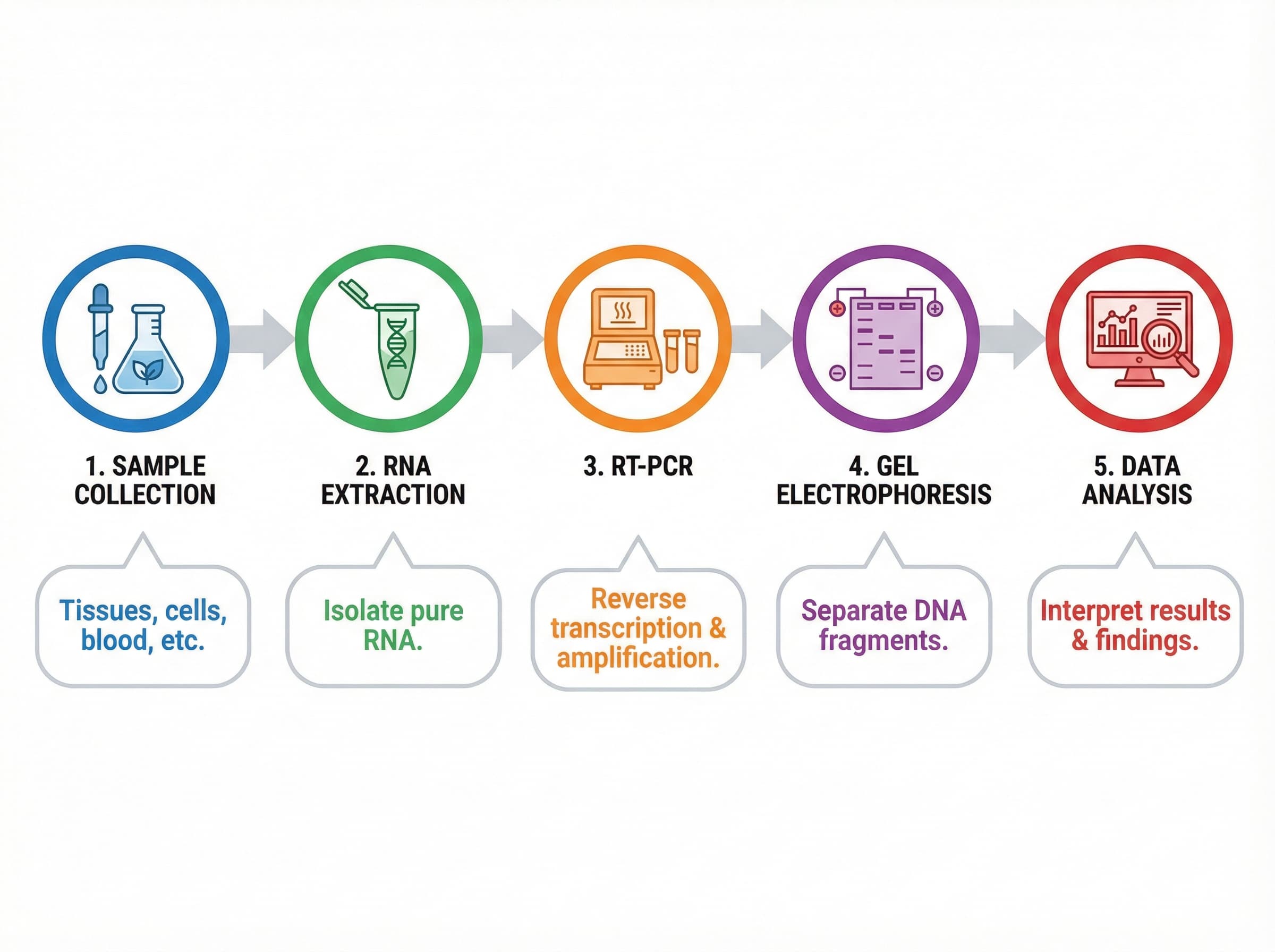
Algunas revisiones son mayores de lo que parecen. Si el comentario implica reordenar todo el mecanismo, añadir dos pasos, o el archivo está demasiado degradado para editarlo limpio, pelearás con el SVG más tiempo que regenerándolo.
Mechanism Figure Generator y Workflow Diagram Generator reconstruyen el panel desde un prompt con etiquetas nítidas, editables y exportación lista para la revista — a menudo más rápido que mover puntos de anclaje a mano.
¿Más que cambiar una etiqueta? Regenera la figura con etiquetas limpias en vez de pelear con un archivo roto.
Los cuatro cambios que más piden los revisores
1. Cambiar una etiqueta. Selecciona, reescribe, iguala fuente y cuerpo del entorno. (Si no se edita, ver arriba.)
2. Pasar a paleta apta para daltónicos. No elemento por elemento. Illustrator: Seleccionar → Igual → Color de relleno; PowerPoint: Mayús para multiselección. Anota los códigos hex para que todas las figuras sean coherentes.
3. Redimensionar a la columna. Una columna suele ser 85–88 mm, doble 174–180 mm. Illustrator: Objeto → Transformar → Escala (uniforme). PowerPoint: Mayús + esquina.
4. Añadir barra de escala, leyenda o anotación. Con las herramientas de forma y texto, igualando el estilo, y agrupa lo relacionado para la siguiente ronda.
Solución de problemas
«Los colores cambiaron tras exportar.» Revisa el modo — RGB para pantalla, CMYK en algunos flujos de imprenta. Exporta en el modo del destino.
«El archivo es enorme.» Aplana la transparencia, reduce puntos de anclaje en trazados complejos, borra elementos ocultos.
«Nítido en pantalla, borroso en el PDF.» Exportaste por debajo del DPI de la revista. Reexporta a 300 (fotos) / 600 (línea) al ancho final — pasos aquí.
Hábitos que facilitan la próxima revisión
- Guarda la fuente SVG/AI editable antes de cualquier exportación plana.
- Versiona:
figure1_v1.svg,figure1_v2_revised.svg. - Ten un documento de paleta hex para artículos con varias figuras.
- Mira al tamaño de impresión real antes de enviar.
Preguntas frecuentes
¿Se puede editar texto SVG en PowerPoint?
Sí — inserta el SVG y desagrupa dos veces (clic derecho → Agrupar → Desagrupar, acepta convertir a objeto de dibujo, desagrupa otra vez). El texto se vuelve cuadros editables: reescribe, da estilo, recolorea.
¿Por qué el texto SVG no se edita tras desagrupar?
El SVG se exportó con el texto convertido a contornos (trazados), no hay texto vivo. Reescribe encima o reextrae una capa de texto real con un paso de IA — ver Convertir imágenes de IA a SVG editable. Si solo tienes PNG/JPG, vectoriza primero.
¿Qué fuente usar en figuras SVG?
Arial, Helvetica o Times New Roman. Están en todos los sistemas, las revistas las aceptan por defecto y la sustitución no desplaza el diseño. Evita Calibri, Open Sans o fuentes propias — los PDF de los revisores pueden renderizarlas distinto.
¿Cómo exporto una figura lista tras editar?
Vuelve a guardar como SVG para seguir editable, luego exporta un PNG a 300 DPI (fotos) o TIFF a 600 DPI (línea) al ancho exacto — 88/180 mm para Nature, 85/174 mm para Cell. Detalles en la guía de conversión.
¿Puedo editar una figura de BioRender como SVG?
Solo si la exportaste como SVG (un plan premium de BioRender). El PNG del plan gratis es un ráster plano — vectoriza o regenera el diseño en Scientific Figure Maker.
¿Qué herramienta es más rápida para «corregir la etiqueta y reenviar»?
PowerPoint, cuando el SVG tiene texto vivo — desagrupar es un clic y los cambios van en segundos. Illustrator para tipografía precisa o muchos cambios de color. Y cuando el texto no se edita o solo tienes un PNG, las herramientas manuales no ayudan — vectoriza o reconstruye.
Guías relacionadas
- 4 formas de convertir PNG/JPG a SVG — de ráster a vector
- Convertir imágenes de IA a SVG editable — vectorizar ChatGPT, Midjourney, DALL·E
- Requisitos de Nature, Science y Cell — DPI, tamaño, formato
- Herramienta Vectorize Image — PNG/JPG a SVG editable en línea
- Conversor de imágenes — entre TIFF, PNG, SVG y más