Un autor de libro de texto redibujó la figura de mitosis cinco veces antes de la publicación. No porque la ciencia estuviera mal — siempre fue correcta. La editora de la editorial seguía rechazándola: el color de la célula no coincidía con la figura dos páginas antes, el estilo de las flechas era distinto del de la figura de meiosis en el capítulo 12, un estudiante tendría que aprender el lenguaje visual dos veces.
Ese es el coste real de la ilustración de libros de texto. Una figura de paper vive sola; una figura de libro de texto convive con otras veinte, en tres ediciones, en dos idiomas, y tiene que enseñar el mismo concepto de la misma manera. La IA reduce el coste de dibujar — no el de mantener la consistencia. Esta guía es sobre cómo controlar ambos.
Errores comunes que hacen fracasar las figuras de libro de texto
- Tratar cada figura como una figura de paper. La figura de paper demuestra un resultado; la figura de libro de texto enseña un concepto. La densidad que funciona para un revisor abruma a un alumno de segundo año.
- Sin style sheet a lo largo de capítulos. La célula A en el capítulo 3 es azul, en el 9 es verde — el estudiante piensa que son células distintas. Elige paleta e iconos una vez, y mantenlos.
- Meter la definición dentro de la imagen. Las etiquetas largas convierten la figura en un glosario. Las definiciones van en el párrafo o pie de figura.
- Cartoons genéricos de IA que ignoran el nivel curricular. Una figura que vale para biología de secundaria es demasiado simple para un capítulo de biología celular de posgrado. Específica el nivel en el prompt.
- Sin exportación editable. Las ediciones traducidas necesitan intercambiar etiquetas — alemán, español, chino simplificado — y eso solo es posible con SVG, no con raster aplanado.
Mal prompt vs. prompt mejor
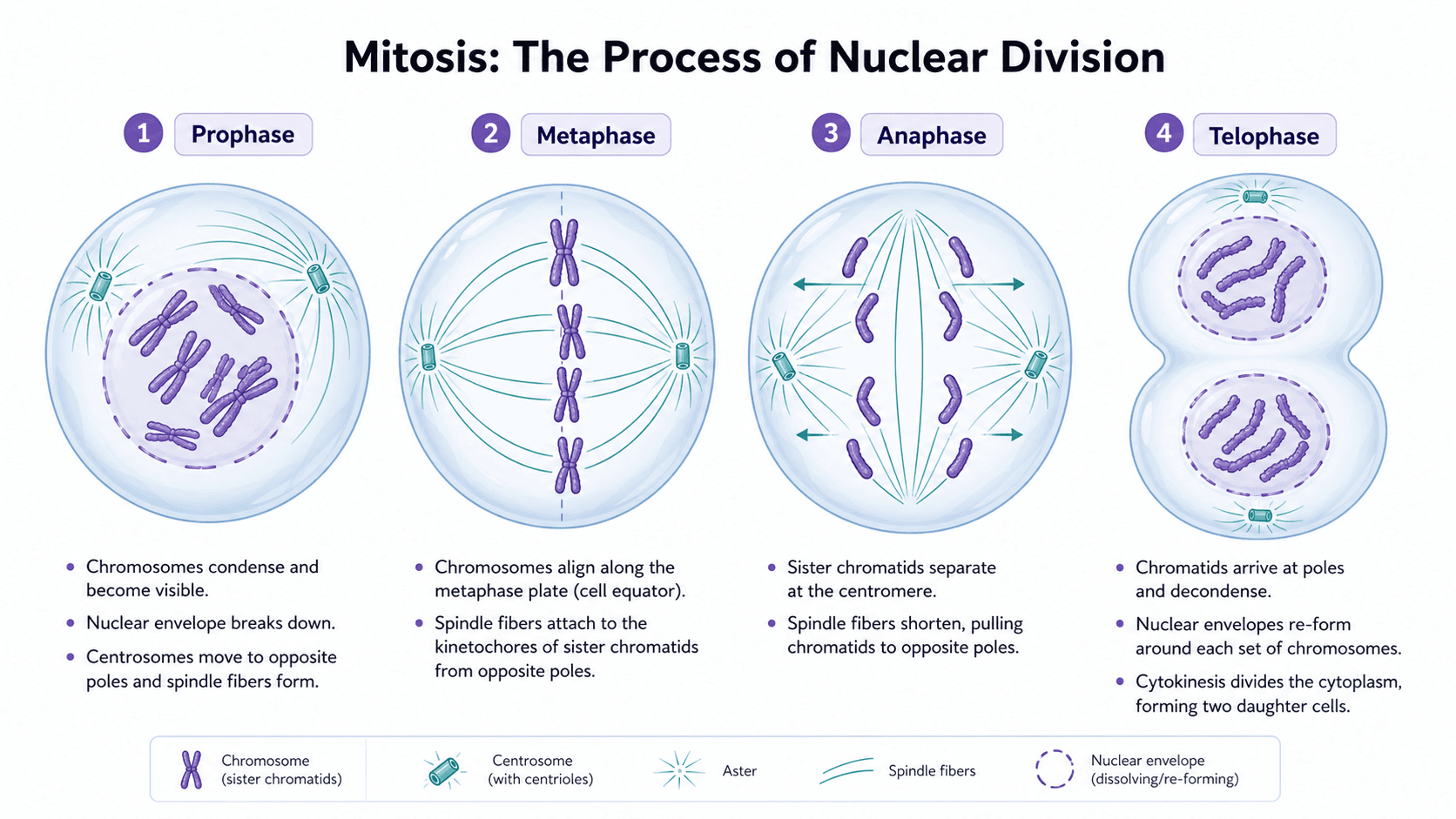
Antes/después real en una figura de capítulo sobre mitosis:
Demasiado corto — produce un cartoon genérico, fuera de currículo:
Make a textbook illustration of mitosis.Reestructurado — produce una figura que encaja con el capítulo:
Create a four-panel textbook illustration of mitosis stages for an undergraduate cell biology chapter.
Panel 1 (prophase): chromosomes condense, nuclear envelope intact.
Panel 2 (metaphase): chromosomes aligned at the metaphase plate, mitotic spindle visible.
Panel 3 (anaphase): sister chromatids pulled to opposite poles.
Panel 4 (telophase): two nuclear envelopes reforming, cell beginning to cleave.
Use a teal cytoplasm and a warm pink for chromosomes — match our chapter palette.
Same cell outline style as our meiosis figure: 2 px stroke, rounded oval.
Labels: short single-word callouts ("chromosome", "spindle", "centrosome"). Definitions stay in the caption, not the image.
Output as editable SVG so labels can be swapped for the German and Spanish editions.
El prompt estructurado fija la style sheet y la densidad pedagógica — las dos cosas que hacen consistentes las figuras de libro de texto.
Nota: los prompts se mantienen en inglés. Los modelos de imagen actuales responden mejor a tokens en inglés. Texto en español, prompt en inglés es práctica común en la comunidad científica.
La style sheet del libro de texto que debes definir primero
Antes de cualquier prompt, decide y escribe:
- Paleta: 4–6 colores usados en todas las figuras (tipos de células, compartimentos, moléculas).
- Pesos de línea: contornos de células, flechas, líneas guía.
- Estilo de etiquetas: tipografía, tamaño, abreviada vs. completa, callout de una palabra vs. frase corta.
- Sistema de iconos: cómo se dibuja cada vez una célula, órgano, instrumento o molécula.
- Convención de pie de figura: dónde viven las definiciones, longitud máxima, reglas de terminología.
Resúmelo en una página de referencia y pégalo en cada prompt. Sin eso, la IA inventará una style sheet nueva para cada figura, y la editora rechazará todas.
Imagen de ejemplo
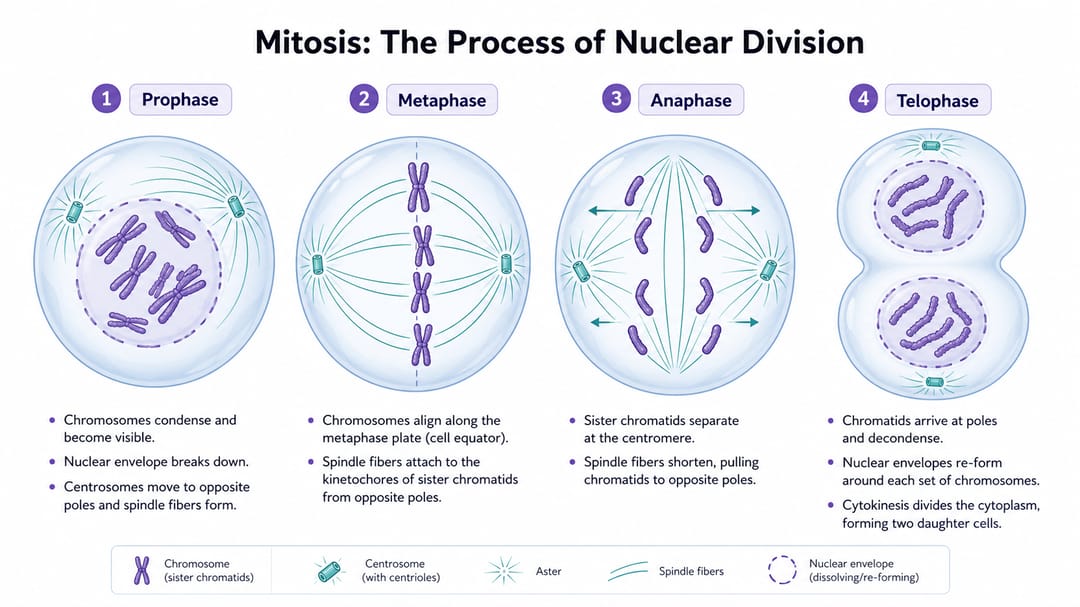
Qué observar: cuatro paneles con igual peso; etiquetas de una palabra; los detalles de apoyo (definiciones, mecanismo) quedan fuera de la figura; el color y trazo de la célula son idénticos en los cuatro paneles, para que los estudiantes comparen etapas, no estilos.
Plantillas listas para pegar por tipo de figura
Reemplaza el texto entre corchetes por el contenido del capítulo. Pega la style sheet al principio de cada prompt.
1. Proceso biológico paso a paso
Create a textbook illustration explaining [process] for [grade level / course] students.
Show [stage 1], [stage 2], [stage 3], and [stage 4] in equally weighted panels with matching aspect ratio.
Use the palette and icon system from our style sheet: [paste style sheet excerpt].
Labels: single-word callouts only. No definitions in the image — those go in the caption.
Movement arrows between stages: thin, single direction, no decorative curves.
White background. Editable SVG output.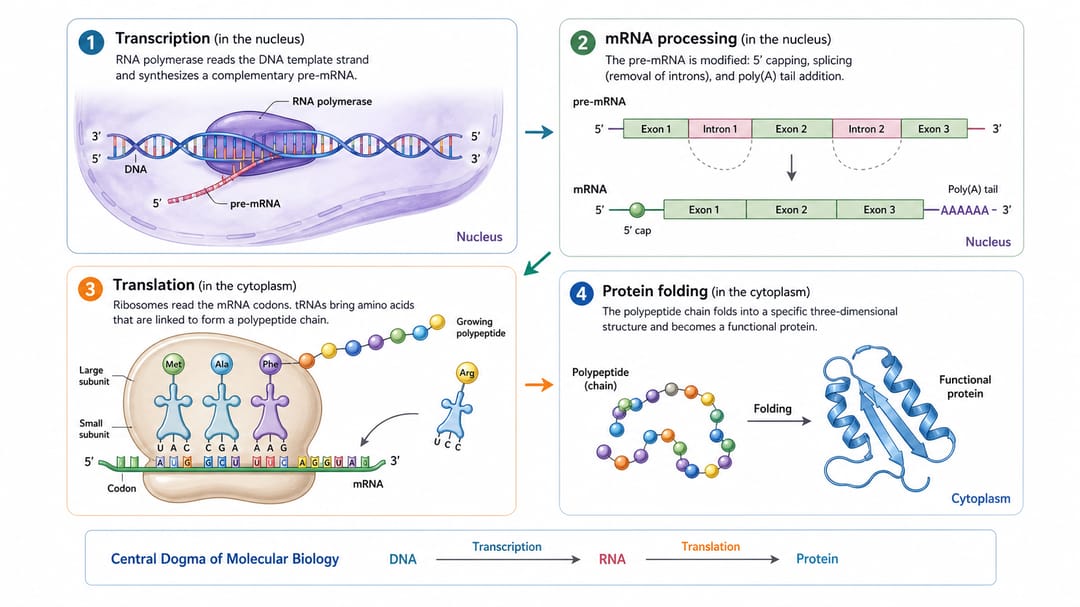
2. Figura médica de capítulo (normal vs. patología)
Create a medical textbook illustration for [condition or organ system] for medical students.
Show four states: [anatomical normal], [early disease change], [advanced disease change], and [clinical or radiological correlate].
Use the same anatomical viewpoint across all four states so students compare changes, not perspectives.
Labels: abbreviated anatomical names. Mark pathology with a dashed outline, not red — color blindness compliance.
Style: educational atlas, no graphic content, calm clinical palette from style sheet.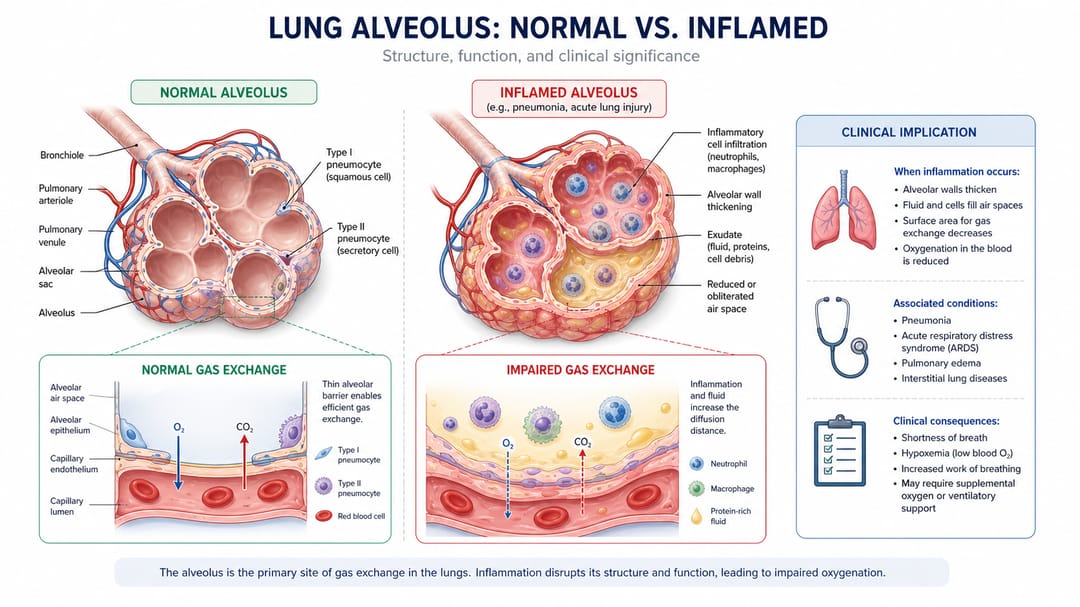
3. Figura de comparación / contraste
Design a textbook figure comparing [concept A] and [concept B] for [grade level] students.
Use two columns of equal width with identical row structure: [mechanism], [structure], [function], [example].
Matching icons on left and right within each row, so the difference is visible at a glance.
Short labels, definitions in caption.
Use the chapter palette; A in [color 1], B in [color 2]. SVG output.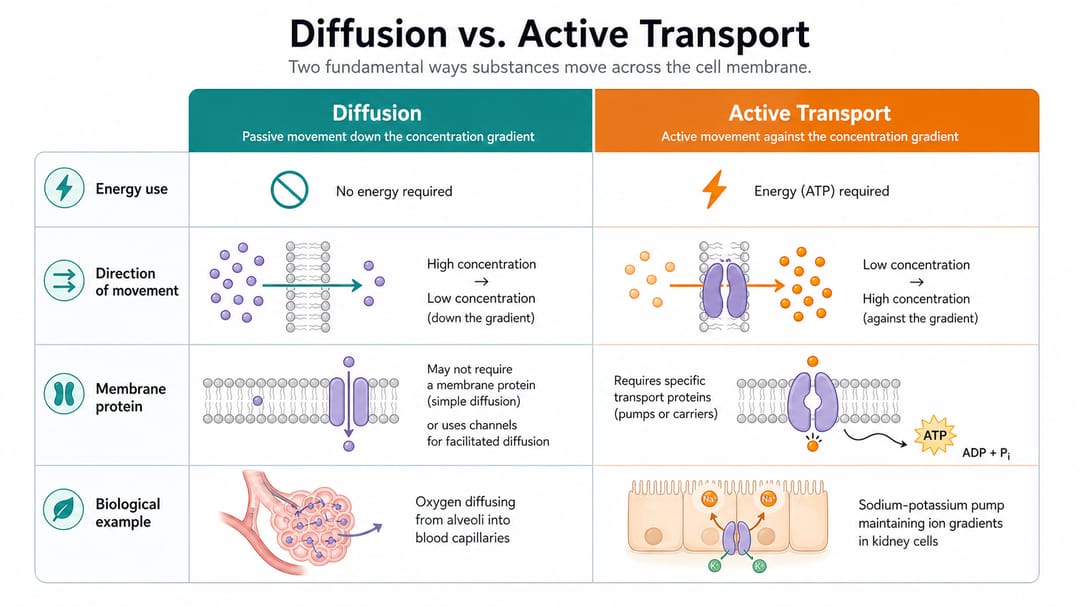
4. Anatomía con etiquetas
Create a labeled anatomy illustration of [organ or system] for [grade level / course] students.
View: [sagittal / coronal / axial / 3-D oblique], specify a single perspective.
Label the following structures: [list every structure to label]. Do not label other structures.
Use leader lines, not arrows. Place labels outside the body outline so the anatomy stays readable.
Style: educational atlas, matching the rest of our anatomy figures (palette and stroke from style sheet).
Output as layered SVG so labels can be translated for international editions.
Cómo usar esta guía según el rol
- Autor de libro de texto por primera vez: escribe la style sheet antes que los prompts. La mayoría de las figuras rechazadas vienen de no tener style sheet, no de prompts malos.
- Editor o jefe de producción: exige la style sheet al recibir la figura. Si una figura entrante no la pegó en el prompt, devuélvela antes de revisar la ciencia.
- Coautor en ediciones internacionales: insiste en SVG para cada figura. Con SVG la traducción es cambio de etiquetas, sin SVG es redibujar.
- Diseñador curricular: usa la plantilla 1 para procesos y la 3 para comparaciones. Cubren la mayoría de los objetivos de aprendizaje.
- Ilustrador médico trabajando con borradores IA: usa la plantilla 2 para el layout, y redibuja la anatomía final tú mismo. La IA es rápida componiendo, poco fiable en precisión clínica.
Workflow realista en SciDraw AI
- Bloquea la style sheet primero. Una página: paleta, trazos, etiquetas, iconos, pies. Pégala en cada prompt.
- Elige la plantilla según la función pedagógica. Proceso, comparación, anatomía o estado médico.
- Genera una variante y verifica contra el capítulo. ¿El color de la célula coincide con la figura de dos páginas antes? ¿El estilo de flecha encaja con el capítulo 12?
- Exporta a SVG y colócala en el borrador del capítulo. Mírala junto a las figuras vecinas, no en aislamiento.
- Traduce intercambiando texto en el SVG. Sin redibujar, sin regenerar con IA. Un archivo por idioma solo difiere en la capa de texto.
- Construye un índice de figuras a nivel capítulo para que los coautores vean todo de un vistazo y detecten inconsistencias antes de las pruebas de imprenta.
Checklist antes de imprenta
- La style sheet está al principio de cada prompt que produjo una figura del capítulo.
- Tipos celulares, órganos e instrumentos usan el mismo color y contorno entre capítulos.
- Las etiquetas son callouts cortos; las definiciones van en pie o texto.
- Sin números inventados, sin datos reales de pacientes, sin logos de revistas.
- La exportación SVG tiene capas con el texto en una capa propia (lista para traducción).
- La paleta cumple contraste para daltonismo (no solo codificación rojo/verde).
- A tamaño de imprenta, cada figura pasa la prueba de lectura de dos segundos para el nivel objetivo.
Workflows SciDraw AI relacionados
Textbook Illustration Maker · Book Illustration Maker · For Educators · Medical Illustration Generator
Preguntas frecuentes
¿En qué se diferencia una ilustración de libro de texto de una figura de paper?
La figura de paper demuestra un resultado a un especialista. La figura de libro de texto enseña un concepto a un no especialista que leerá 19 figuras más en el mismo capítulo. Densidad, etiquetas y consistencia son más estrictas en libro de texto.
¿Deben las figuras de libro de texto tener etiquetas detalladas?
Callouts de una palabra para los objetos que el estudiante debe identificar. Lleva definiciones y mecanismos al pie o al cuerpo del texto. Una figura llena de definiciones deja de ser figura y se convierte en glosario.
¿La misma figura puede reutilizarse en diapositivas o fichas?
Sí, si exportaste SVG y las etiquetas viven en una capa de texto propia. Acortar etiquetas para diapositivas, ocultar definiciones para fichas, cambiar idioma para traducciones — los tres son cambios de etiquetas, no regeneraciones.
¿En qué se diferencia de la ilustración de libro general?
La ilustración de libro de texto prioriza claridad pedagógica y consistencia entre capítulos. La ilustración de libro general incluye también aperturas de capítulo, dobles páginas decorativas y visuales editoriales, donde la consistencia es menos crítica.
¿Cómo evito que la IA invente un estilo nuevo en cada figura?
Pega la style sheet en cada prompt. Los modelos buscan diversidad máxima por defecto, salvo que restrinjas paleta, trazo y estilo de iconos explícitamente. "Match our chapter style" sin especificación no le dice nada al modelo.
¿Y la precisión anatómica? ¿Puede la IA?
Para borradores iniciales, sí. Para la anatomía final de libro de texto médico, un ilustrador médico o anatomista cualificado debe revisar. La IA dibuja detalles clínicamente incorrectos con confianza; el proceso editorial debe atraparlos antes de imprenta.