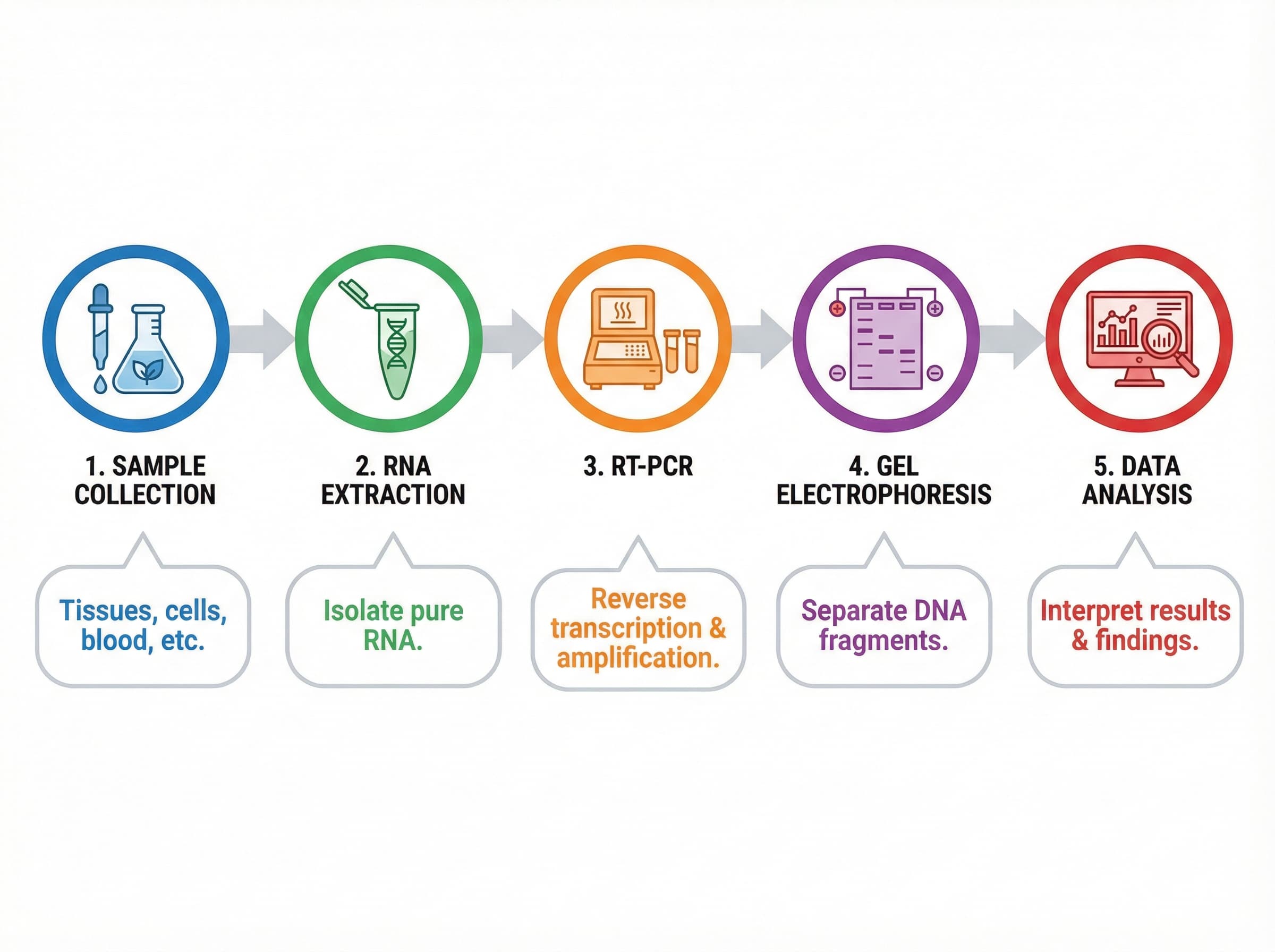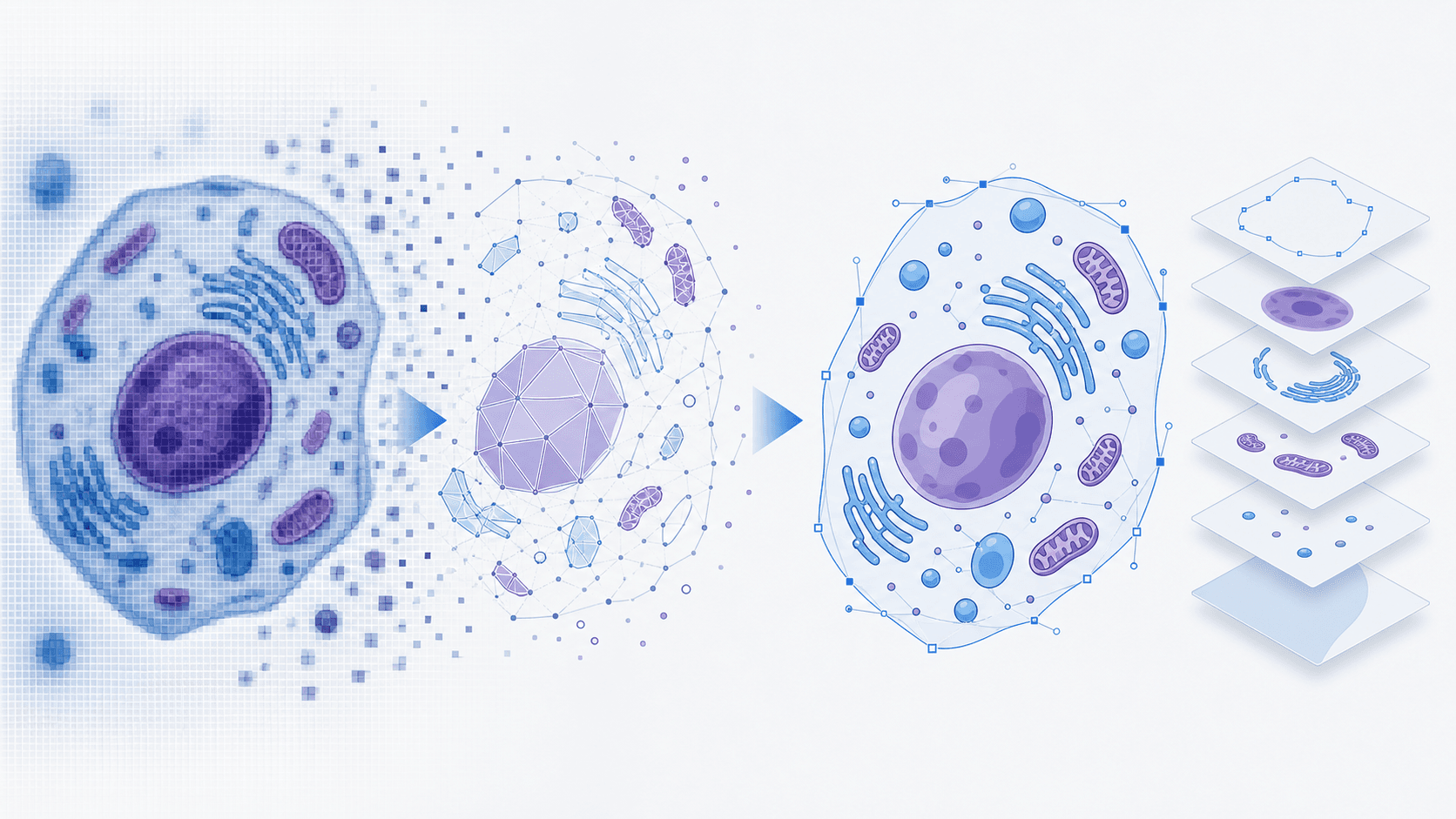
Convert AI Images to Editable SVG for Scientific Figures
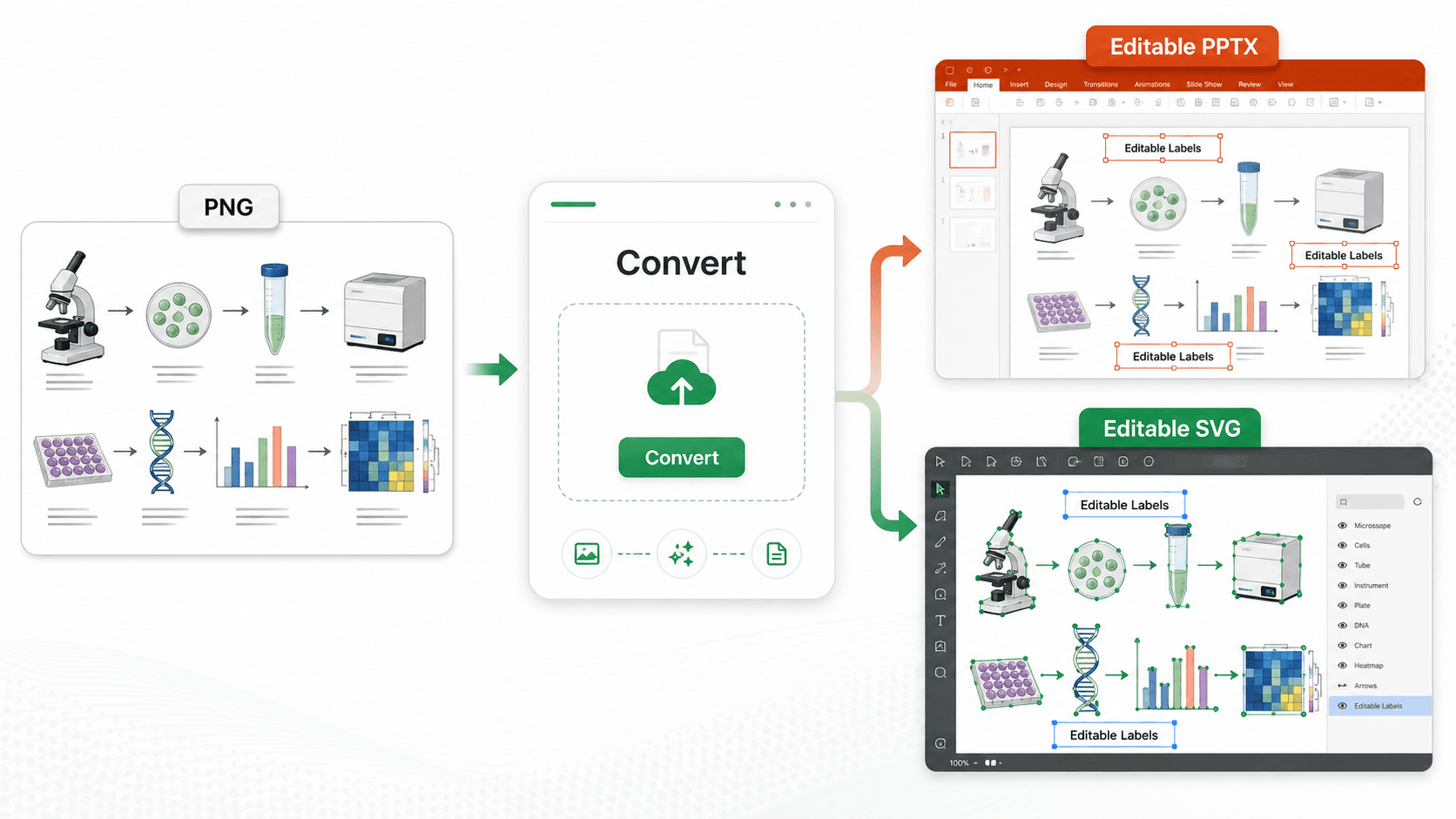
Quick answer: AI tools like Gemini Nano Banana, ChatGPT/DALL-E, Midjourney, Napkin AI, and Stable Diffusion all output PNG/JPG — text inside is baked-in pixels and cannot be edited. To make a generated scientific figure submission-ready, run the PNG through Scidraw AI Convert in Text Extraction mode. It rebuilds the text as real SVG text layers, so you can fix typos, retranslate labels, change fonts to journal-required Arial/Helvetica, and re-export at 300/600 DPI without redrawing the figure.
Who this is for
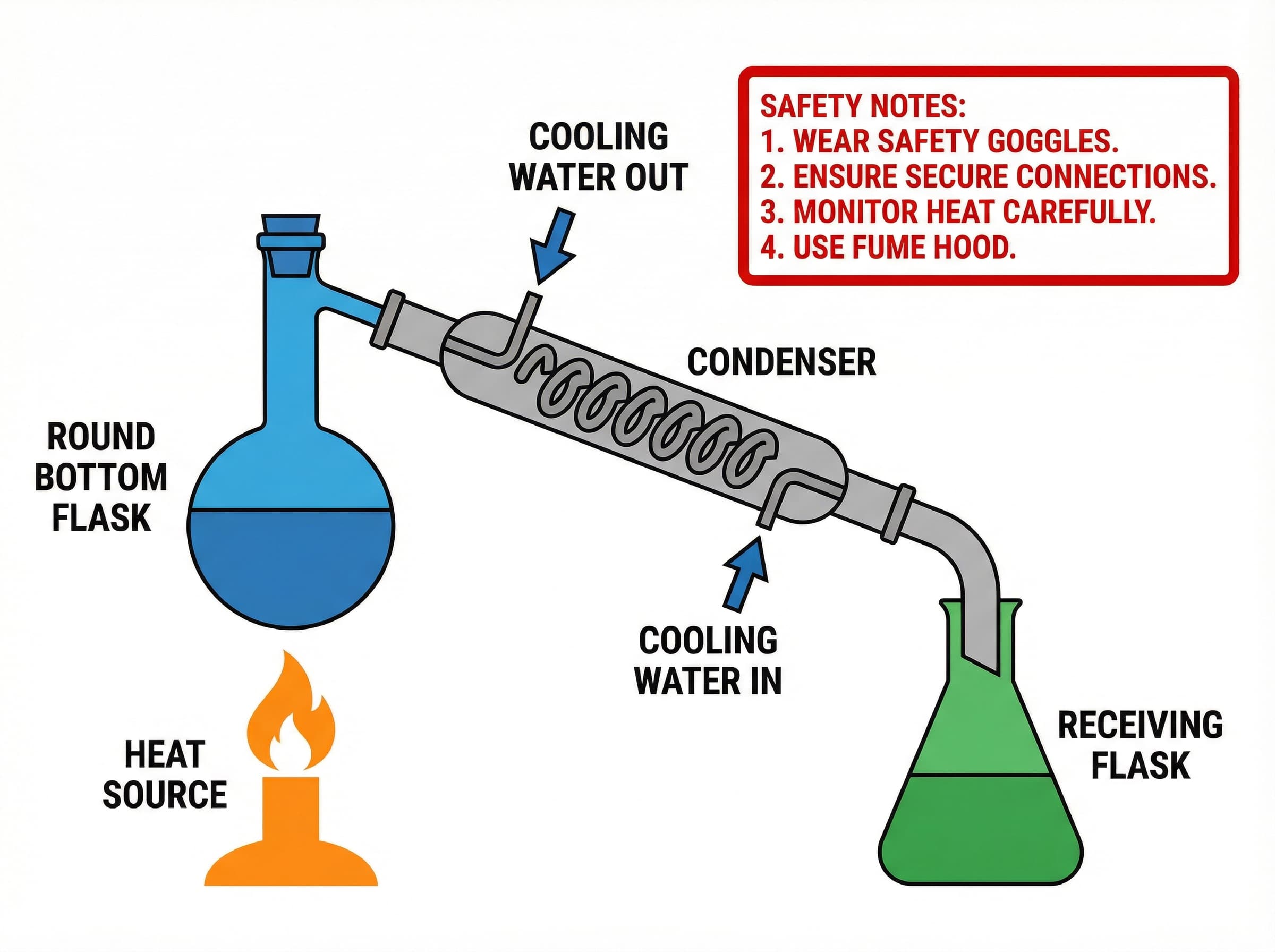
You used Gemini Nano Banana, ChatGPT, Midjourney, or DALL-E to draft a scientific figure (mechanism diagram, graphical abstract, workflow, neural network architecture, schematic). The composition is good but:
- A label is misspelled and the AI keeps regenerating it wrong.
- You need to translate "Activation" / "活化" / "활성화" between language versions.
- Your journal demands Arial — the AI rendered it in something custom.
- You need to swap a panel color, re-arrange annotations, or strip a watermark.
You don't want to redraw. You want a 5-minute fix.
When NOT to use this
- You have the original prompt and the AI nailed everything except a small detail — re-prompt is faster.
- The figure is a continuous-tone image (photo, micrograph, painted illustration) — there's no useful vector representation; convert format only at Convert Tool.
- You need a figure built from scientific primitives (cells, organelles, instruments) — start at Scientific Figure Maker, don't post-process an AI render.
Quick checklist (the 3-step version)
- Save the AI-generated PNG to disk.
- Upload to Scidraw AI Convert → choose SVG → Text Extraction mode (5 credits).
- Open the downloaded SVG in PowerPoint, Illustrator, or Inkscape — text is now selectable. Edit, then re-export at journal DPI (300/600 DPI guide).
For a deep dive on editing the resulting SVG (PowerPoint ungroup, Illustrator color swatches, Inkscape font fixes), see Edit SVG for Scientific Figures.
Why Convert AI Images to SVG?
| Problem with PNG/JPG | Benefit of SVG |
|---|---|
| Gets blurry when enlarged | Stays sharp at any size |
| Text is just pixels | Text is selectable & editable |
| Large file sizes | Smaller, cleaner files |
| Hard to edit in design tools | Easy to edit in Illustrator/Inkscape |
Popular AI Image Generators (All Output PNG/JPG)
Here are the most popular AI tools that generate images—all of them output bitmap formats:
- ChatGPT / DALL-E - OpenAI's image generator
- Midjourney - Popular for artistic images
- Napkin AI - Great for diagrams and infographics
- Nano Banana Pro - AI infographic generator powered by Gemini
- Stable Diffusion - Open-source AI image generation
- Canva AI - Built into Canva's design tool
- Leonardo AI - AI art generator
- Adobe Firefly - Adobe's AI image tool
- Ideogram - AI with good text rendering
All these tools output PNG or JPG files. If your image contains text, that text is "baked in" as pixels—you can't edit it.
3-Step Tutorial: Convert to Editable SVG
Step 1: Go to Scidraw AI Convert Tool
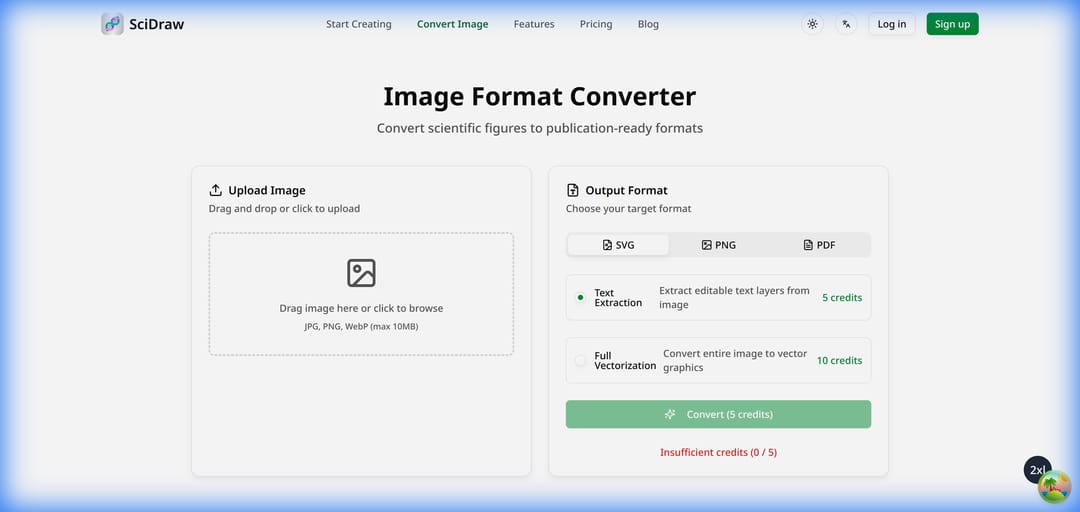
Visit Scidraw AI Image Converter and you'll see the upload interface:

Step 2: Upload Your AI-Generated Image
Drag and drop your PNG/JPG image from ChatGPT, Midjourney, Napkin AI, or any other AI tool.
Supported formats: PNG, JPG, JPEG, WebP
Step 3: Choose SVG Format and Convert
- Select the SVG tab
- Choose conversion mode:
- Text Extraction (5 credits) - Converts text to editable SVG text
- Full Vectorization (10 credits) - Converts everything to vector paths
- Click Convert
- Download your editable SVG file
What Can You Do with the SVG?
After conversion, you can open the SVG in any vector editor:
- Adobe Illustrator - Professional editing
- Inkscape (Free) - Open-source alternative
- Figma - Web-based design tool
- Canva - Easy online editing
In these tools, you can:
- ✅ Select and edit text
- ✅ Change fonts and colors
- ✅ Resize without losing quality
- ✅ Use in presentations and papers
Perfect for Academic Papers
If you use AI to generate scientific figures or diagrams, converting to SVG is essential for journal submissions:
- 300+ DPI output for print quality
- Editable text to fix typos or translate
- Vector graphics that scale perfectly
Try It Now
Ready to convert your AI-generated images?
Scidraw AI is a specialized tool for scientific figure creation and conversion. Create publication-ready graphics with AI assistance.
FAQ
How do I convert a Nano Banana image to editable SVG?
Save the Gemini Nano Banana output as PNG, upload to Scidraw AI Convert, select SVG → Text Extraction. The tool rebuilds the labels as real SVG text layers — open the result in PowerPoint or Illustrator and the text becomes selectable and editable.
Can ChatGPT or DALL-E export SVG directly?
No. ChatGPT (DALL-E 3), Midjourney, Stable Diffusion, Leonardo, Adobe Firefly, and Canva AI all output PNG or JPG. Text inside is just pixels. To get editable SVG you need a post-processing step that re-extracts the text — that's what Scidraw AI Convert's Text Extraction mode does.
What's the difference between Text Extraction and Full Vectorization?
Text Extraction (5 credits) keeps the image part as a high-resolution raster background and rebuilds only the text as editable SVG text layers — best for scientific figures where the diagram itself looks fine but you need to fix labels. Full Vectorization (10 credits) converts the entire image (shapes, lines, fills) into vector paths — best for line art, logos, and simple diagrams.
Will the converted SVG be accepted by Nature, Science, or Cell?
The SVG itself is editable; for submission you typically export to TIFF or PDF at the required DPI from PowerPoint or Illustrator. Use the SVG as your editable source, then export at the spec — see Nature, Science & Cell Figure Requirements for exact DPI and format.
Can I translate a Chinese AI-generated figure to English (or vice versa)?
Yes. After Text Extraction, every label is a real text element. Open the SVG in any vector editor and retype labels in the target language. Most users do this between Chinese and English versions of the same paper.
My AI figure has tiny labels I can't read — does upscaling help?
Run Scidraw AI Convert at 600 DPI / 4K resolution first to get larger pixel dimensions, then run Text Extraction on the upscaled version. AI super-resolution makes the labels readable, then text extraction rebuilds them as editable text.
Can I use this for a graphical abstract from Midjourney?
Yes. This is one of the most common workflows — Midjourney produces a stylish graphical abstract, but the labels are gibberish. Convert to SVG with Text Extraction, retype the labels in PowerPoint/Illustrator, export TIFF at the journal's spec. Step-by-step: see Graphical Abstract Maker.
Related Guides
- How to Edit SVG in PowerPoint — ungroup and edit SVG shapes and text
- 4 Ways to Convert PNG/JPG to SVG — raster-to-vector conversion methods
- Journal Figure Conversion Guide — prepare figures for journal submission
- Vectorize Image Tool — convert images to editable SVG online
- Image Converter Tool — convert between image formats